Pixel Art in Illustrator

Pixel Art in Illustrator

I am huge fan of pixel art, I even dabbled with the form in 2004, however after my studio got robbed, I lost my backup disks including my pixel work and I’ve never tried it again. As of late, I’ve been following the work of Alex Griendling and some of his amazing pixel arts. Inspired by that I decided to give it a try though I streamlined the process a little bit just to make my life a bit easier in Illustrator.

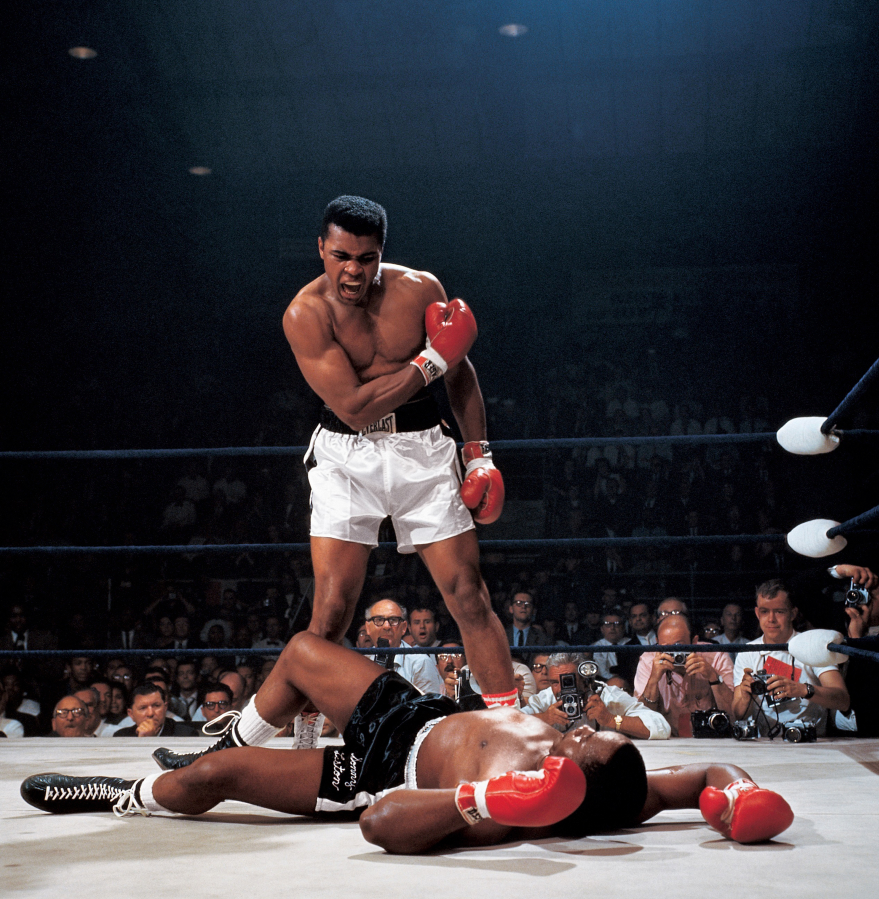
So in this tutorial I will show you how to create a nice pixel art from an existing photo, in my case, the great Mohammed Ali. We will use Illustrator for most of the tutorial and I have to say, the whole process will take quite a few hours so be sure to find your patience.

Step 1

The first step is to find the image that you want to pixelate. I am using one from Neil Leifer of Muhammad Ali, you can find it at http://abduzeedo.com/inspiring-photography-muhammad-ali-neil-leifer
Pixel Art in Illustrator

Step 2

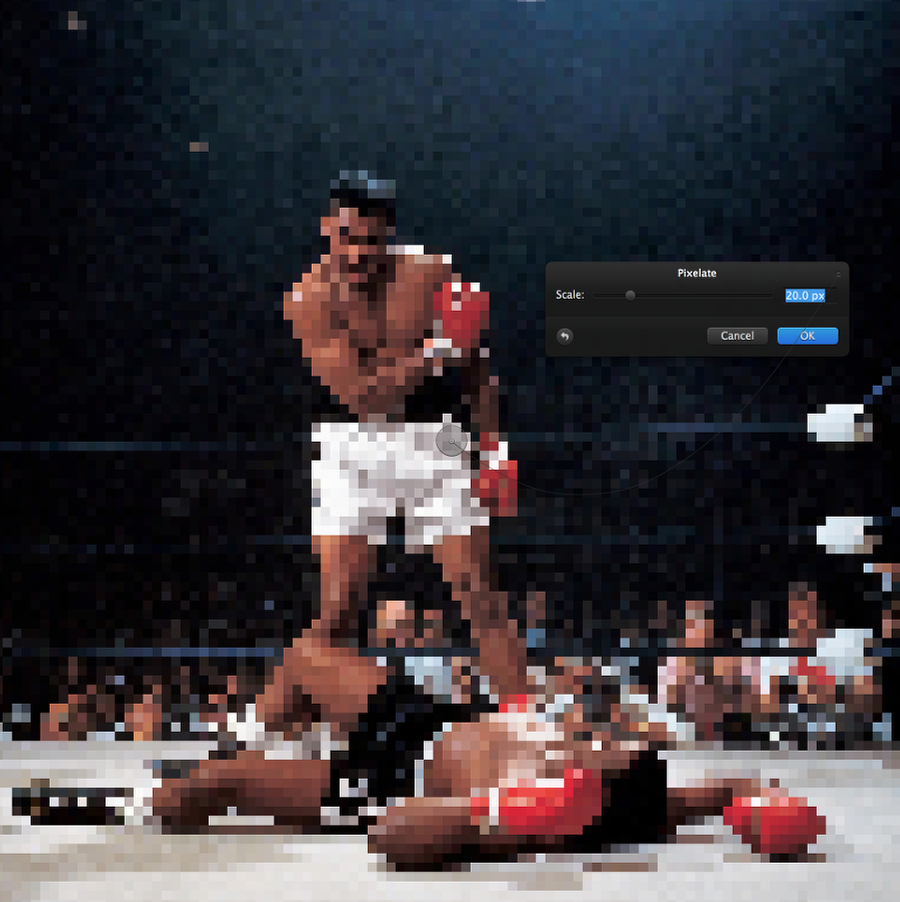
There are lots of ways to pixelate a bitmap. It’s nice but it’s not scaleable as a vector. One of my favorite tools for that is Pixelmator. So I open the image in Pixelmator and then using the Pixelate tool, I used 20px for the scale. That means that each pixel will be 20px;
Pixel Art in Illustrator

Step 3

Open the image in Illustrator and now it’s time to recreate the image in vector. The first thing to do is to create the basic pixel, in my case a 20×20 square. Duplicate the square to create the grid then.

Pixel Art in Illustrator

Step 4

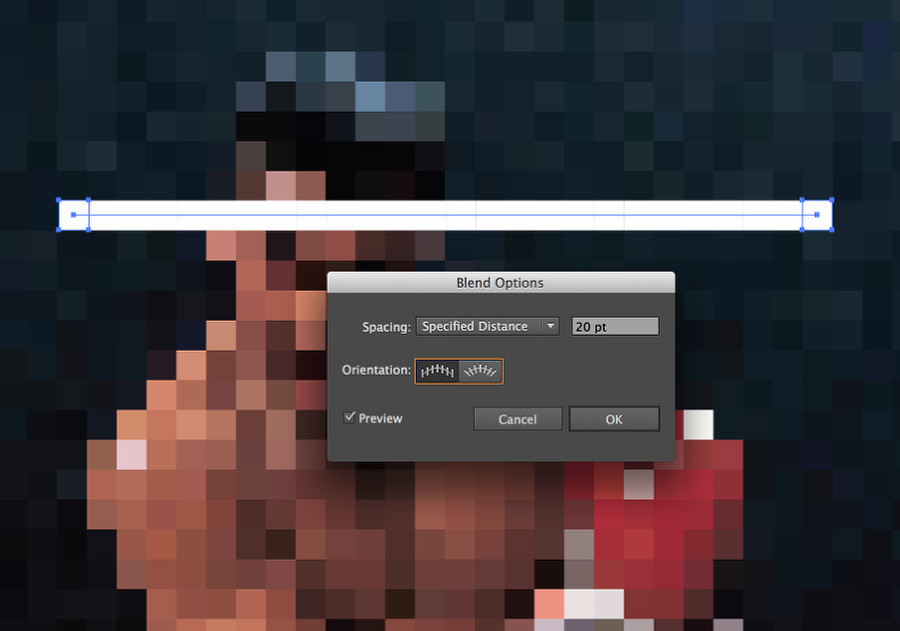
With the Blend Tool, use 20pt for the Specified Distance to start creating the rows.
Pixel Art in Illustrator

Step 5

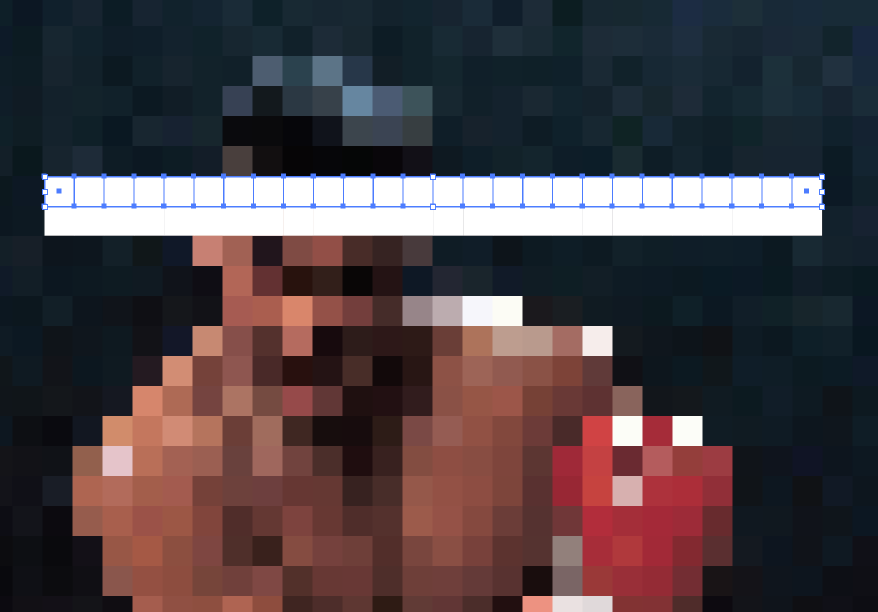
After that start duplicating the rows. Once you have a grid you can then just picl the colors using the Eyedropper Tool (I);
Pixel Art in Illustrator

Step 6

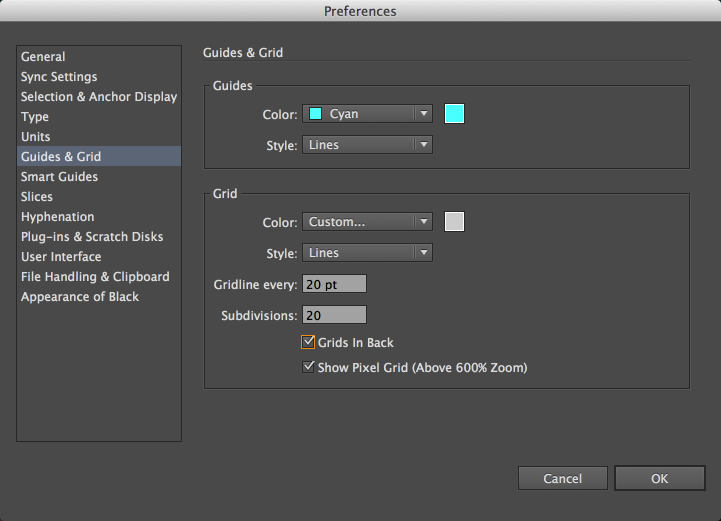
Now go to Illustrator’s preferences and change the Guids&Grid preferences to show a gridline every 20pt, and 1 Subdivision.
Pixel Art in Illustrator

Step 7

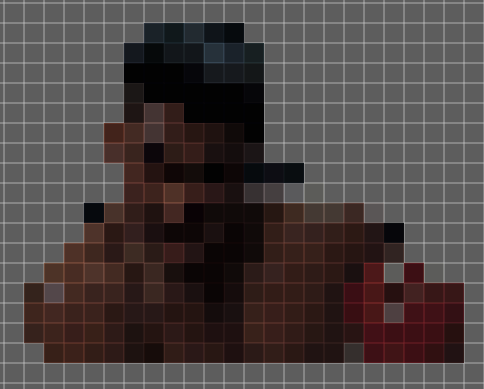
Here’s an example of the beginning of the illustration with the grid visible.
Pixel Art in Illustrator

Step 8

After an arduous and time consuming task, you will have a beautiful vector object, ready to do whatever you want.

Pixel Art in Illustrator

Conclusion

After editing and adjusting you can create your own layout using the pixel art. I am a huge fan of the style and love the work of some people do with it, however I am not that talented and need to use a tool to pixelate for me first. The result is really cool, but the time necessary to achieve it is quite long.

Pixel Art in Illustrator

Posted in Blog | Comments Off on Pixel Art in Illustrator

Daily Inspiration #1535

Daily Inspiration #1535

This post is part of our daily series of posts showing the most inspiring images selected by some of the Abduzeedo’s writers and users. If you want to participate and share your graphic design inspiration, You can submit your images and inspiration to RAWZ via http://raw.abduzeedo.com and don’t forget to send your Abduzeedo username; or via Twitter sending to http://twitter.com/abduzeedo

Do you want to see all images from all Daily Inspirations? Check out http://daily.abduzeedo.com

AoiroStudio

Digital art selected for the Daily Inspiration #1535

Digital art selected for the Daily Inspiration #1535

Digital art selected for the Daily Inspiration #1535

Digital art selected for the Daily Inspiration #1535

DesignYouTrust

Digital art selected for the Daily Inspiration #1535

Digital art selected for the Daily Inspiration #1535

Digital art selected for the Daily Inspiration #1535

Digital art selected for the Daily Inspiration #1535

Fabio

Digital art selected for the Daily Inspiration #1535

Digital art selected for the Daily Inspiration #1535

Digital art selected for the Daily Inspiration #1535

Digital art selected for the Daily Inspiration #1535

Fabiano

Digital art selected for the Daily Inspiration #1535

Digital art selected for the Daily Inspiration #1535

Digital art selected for the Daily Inspiration #1535

Send your suggestions via Twitter to http://twitter.com/abduzeedo using #abdz in the end of the tweet.

@Daniel_Nelson

Digital art selected for the Daily Inspiration #1535

Digital art selected for the Daily Inspiration #1535

Digital art selected for the Daily Inspiration #1535

Digital art selected for the Daily Inspiration #1535

Digital art selected for the Daily Inspiration #1535

Send your RAWZ suggestions via Raw.Abduzeedo.com

Andreea Dima

Digital art selected for the Daily Inspiration #1535

Baptiste Chabot

Digital art selected for the Daily Inspiration #1535

Binho Vidal

Digital art selected for the Daily Inspiration #1535

BRIJITH

Digital art selected for the Daily Inspiration #1535

Carina

Digital art selected for the Daily Inspiration #1535

Claude Durand

Digital art selected for the Daily Inspiration #1535

Digital art selected for the Daily Inspiration #1535

Danny Smith

Digital art selected for the Daily Inspiration #1535

designlenta

Digital art selected for the Daily Inspiration #1535

Digital art selected for the Daily Inspiration #1535

Gabriele Facciotti

Digital art selected for the Daily Inspiration #1535

Kikö

Digital art selected for the Daily Inspiration #1535

logs matthews

Digital art selected for the Daily Inspiration #1535

Digital art selected for the Daily Inspiration #1535

Paweł Skupień

Digital art selected for the Daily Inspiration #1535

rafalrola

Digital art selected for the Daily Inspiration #1535

robertoon87

Digital art selected for the Daily Inspiration #1535

Robson Batista

Digital art selected for the Daily Inspiration #1535

sedkialimam

Digital art selected for the Daily Inspiration #1535

steven

Digital art selected for the Daily Inspiration #1535

Wolski

Digital art selected for the Daily Inspiration #1535

Posted in Blog | Comments Off on Daily Inspiration #1535