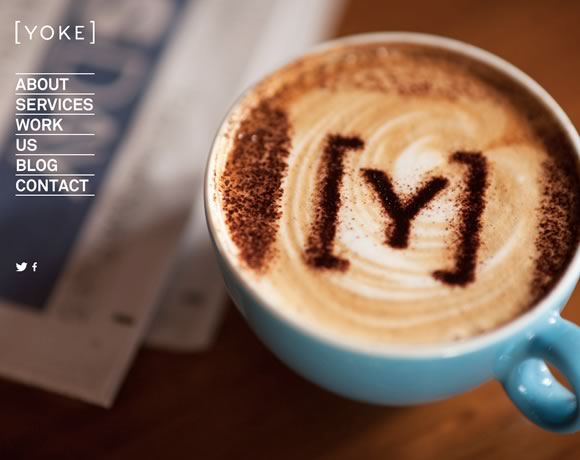
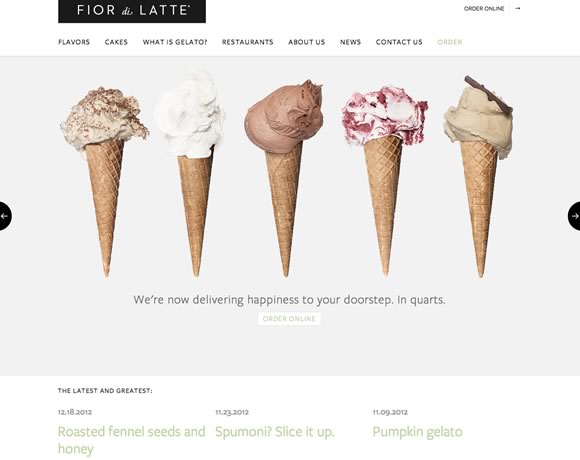
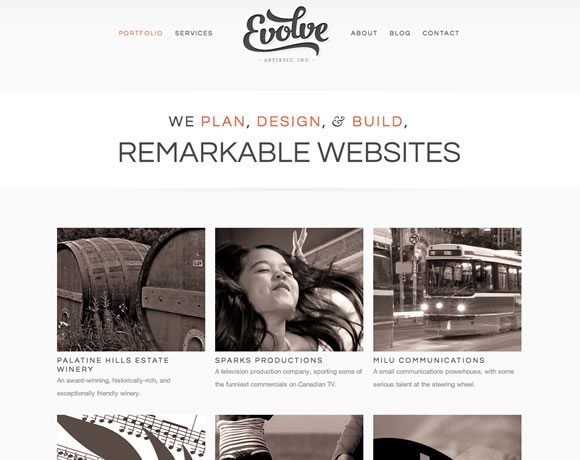
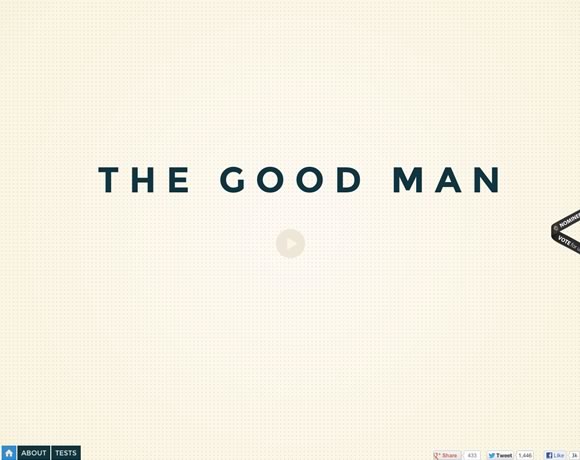
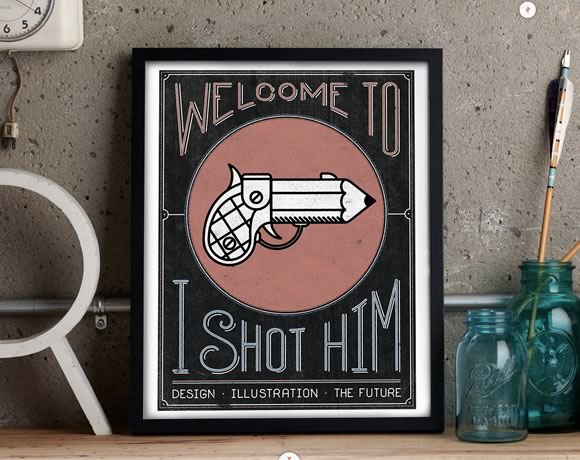
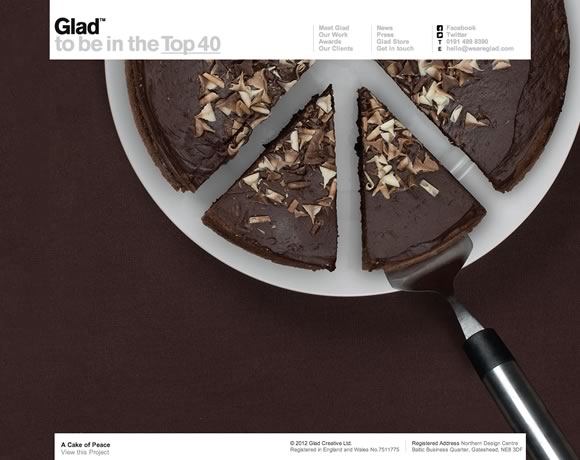
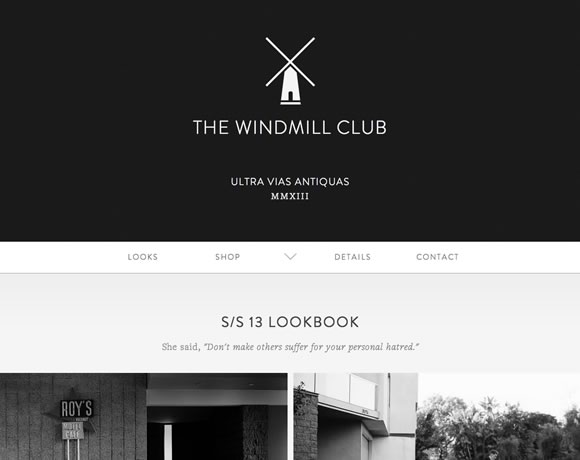
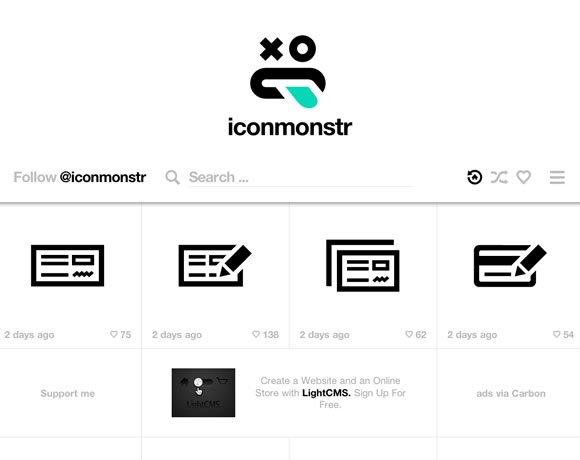
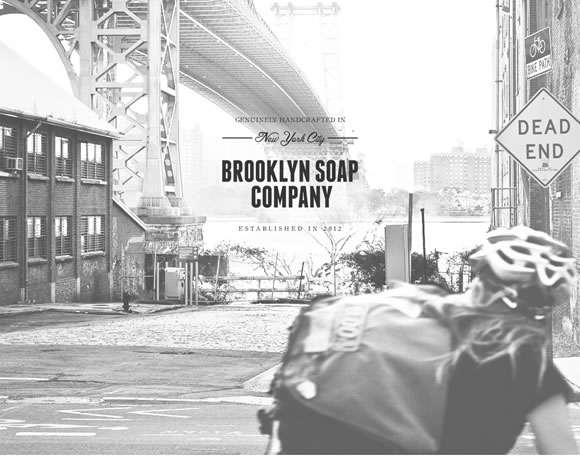
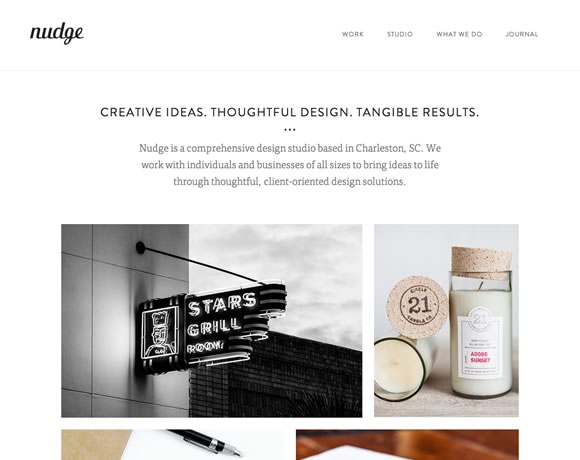
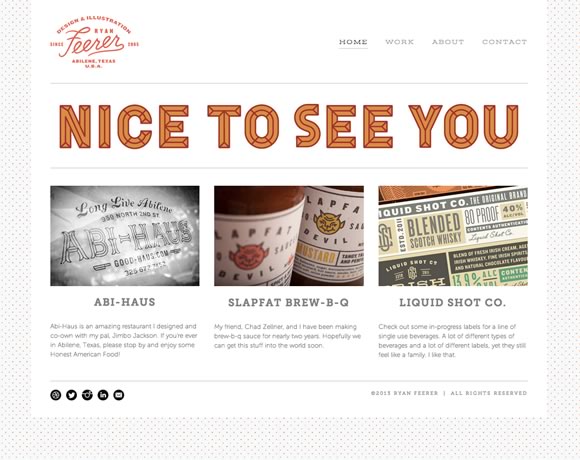
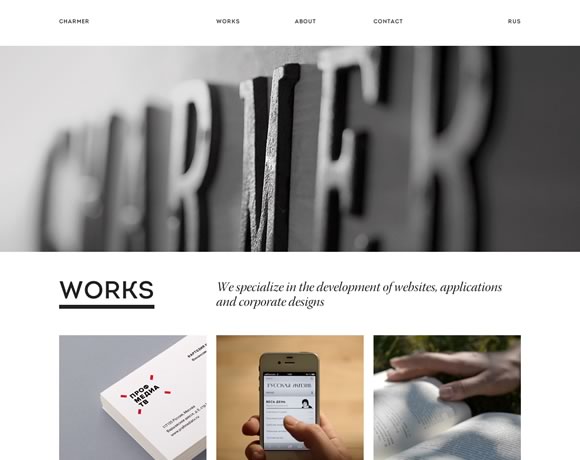
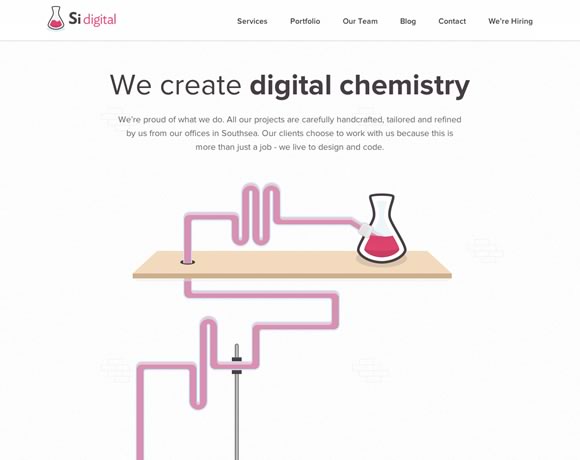
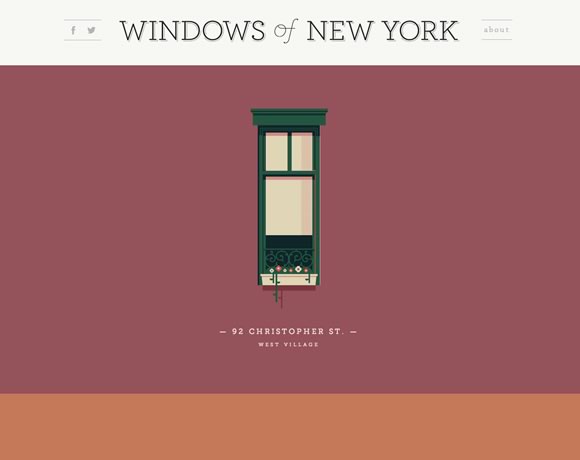
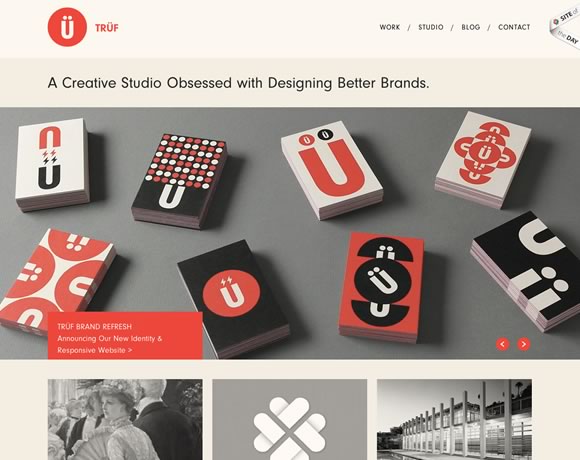
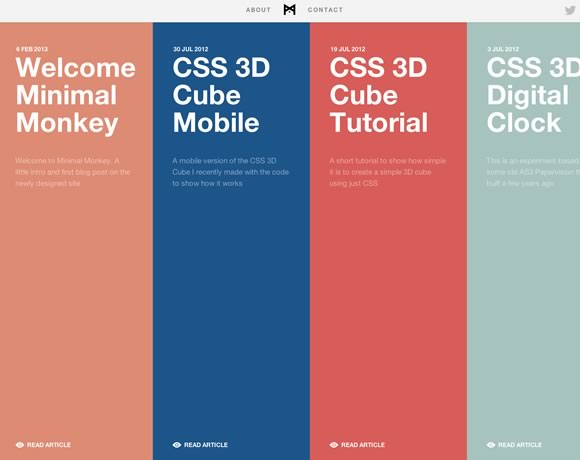
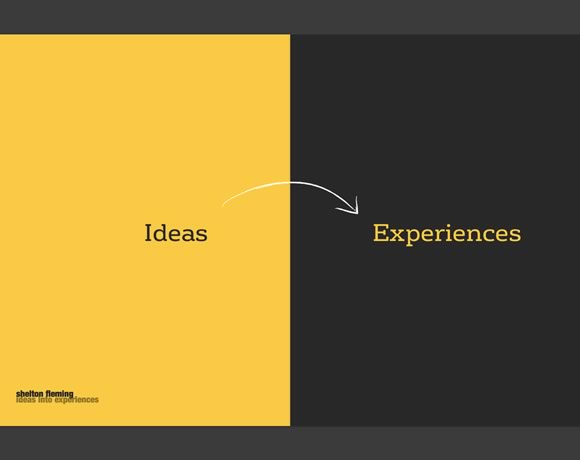
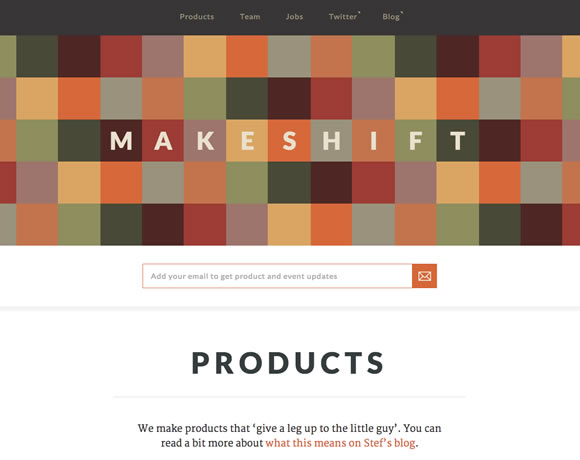
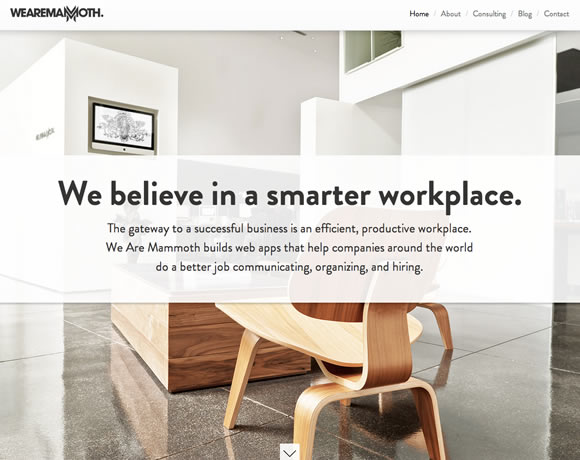
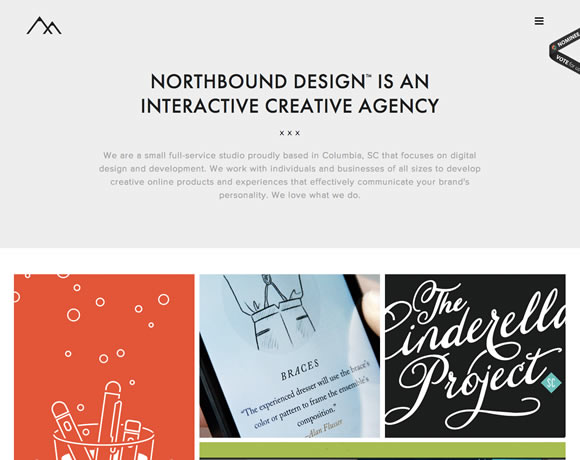
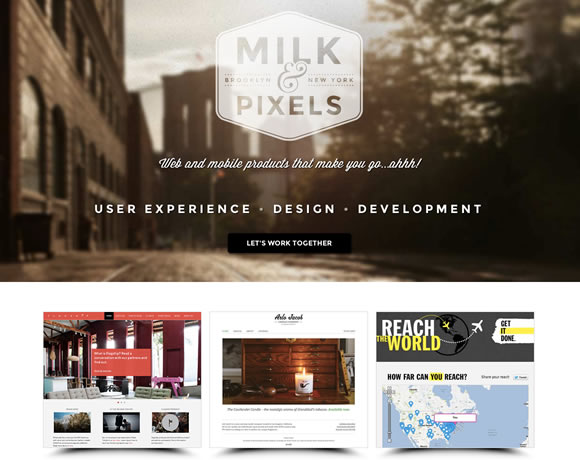
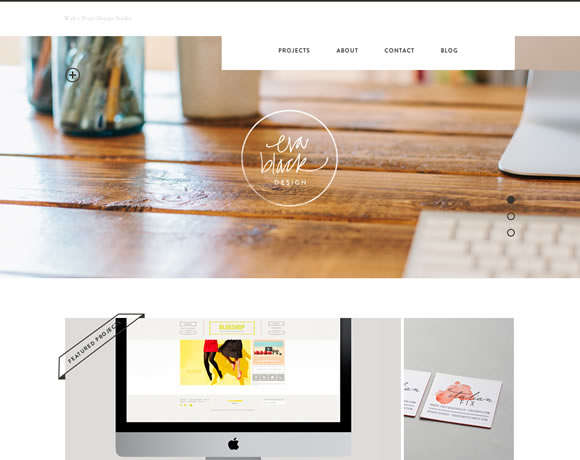
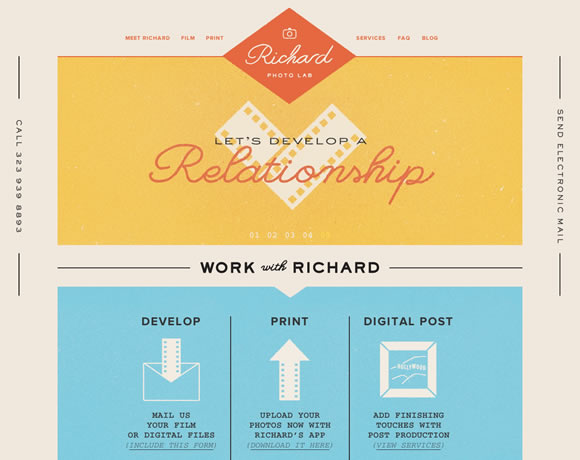
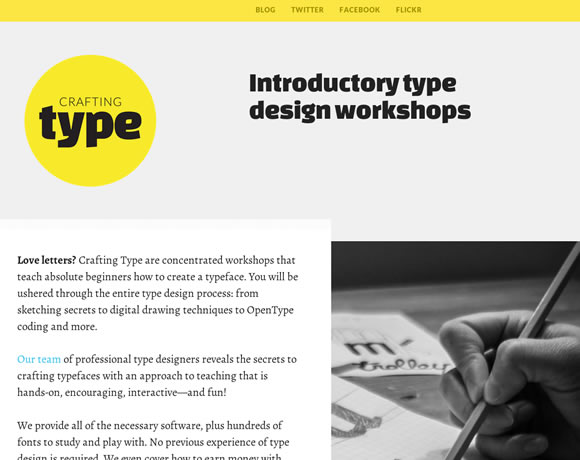
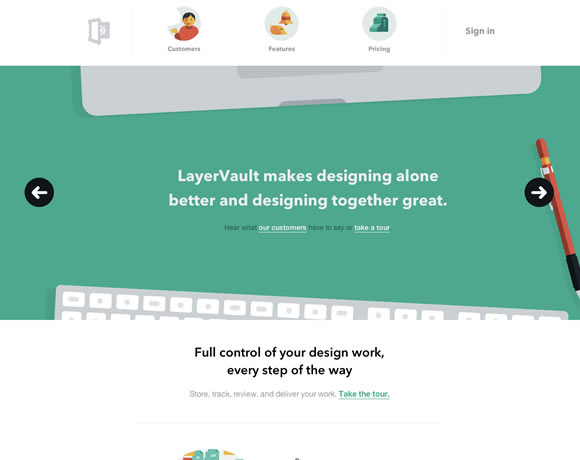
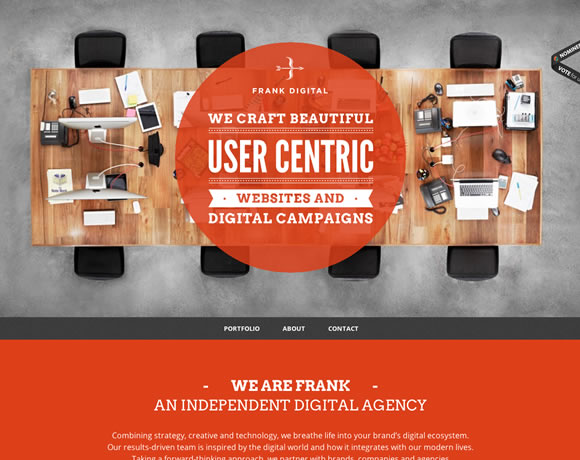
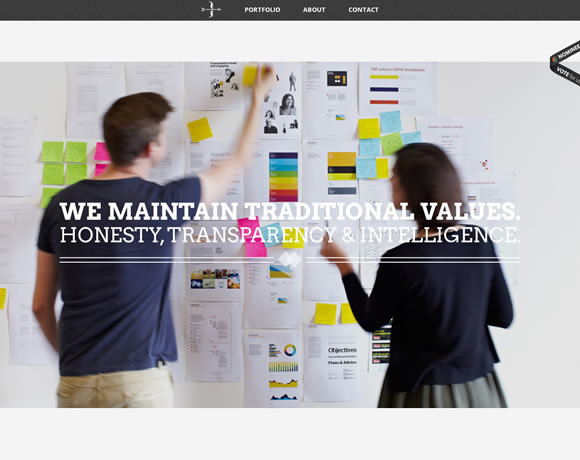
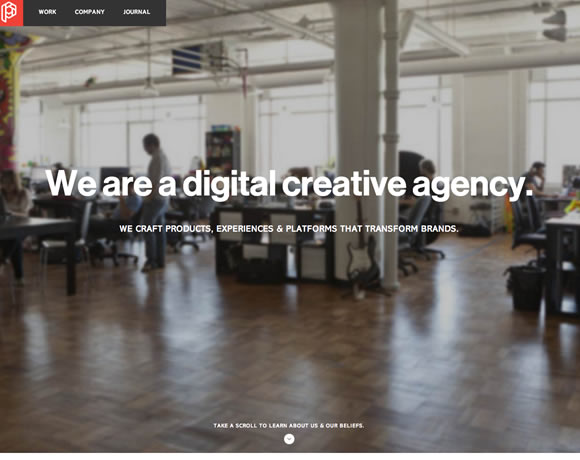
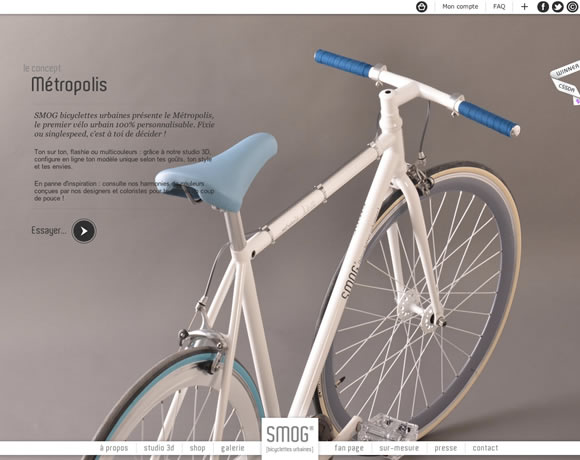
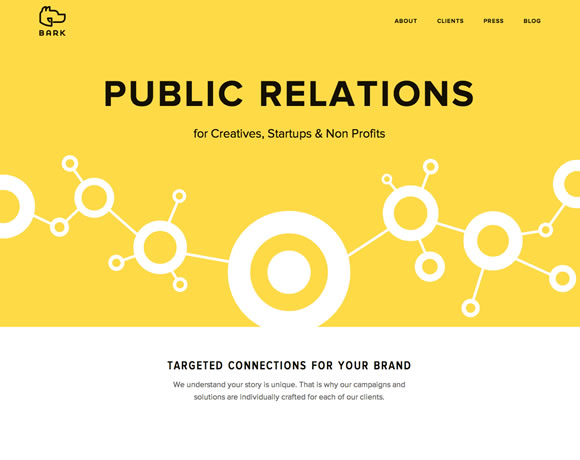
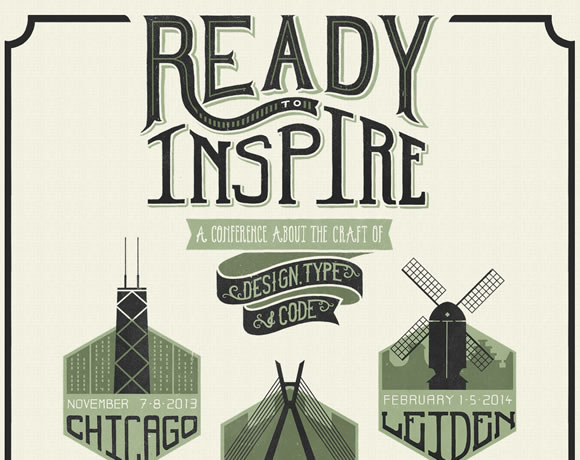
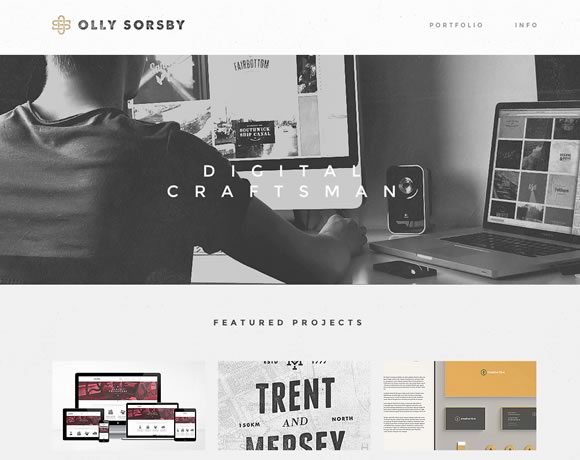
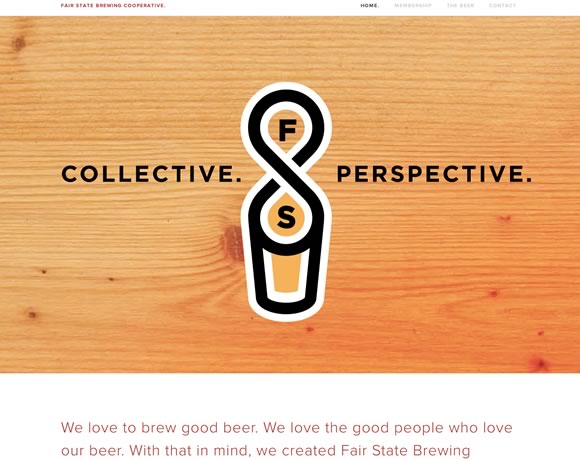
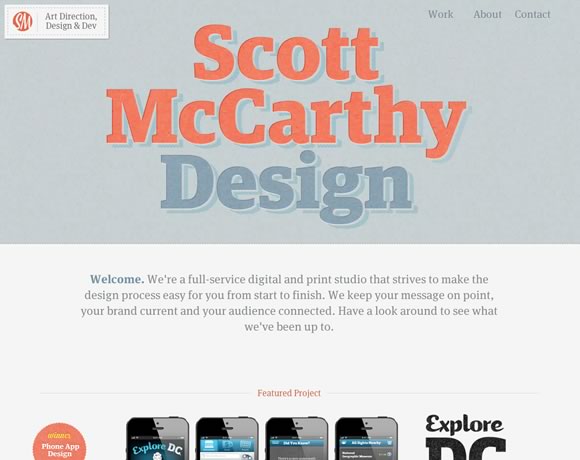
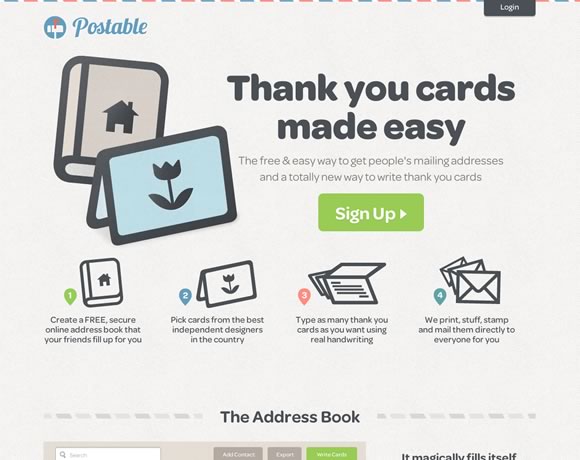
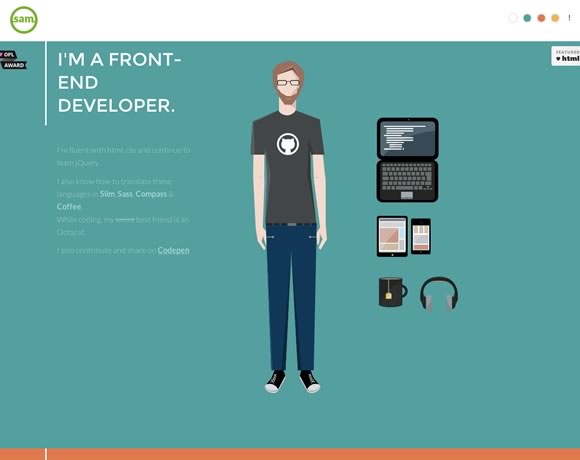
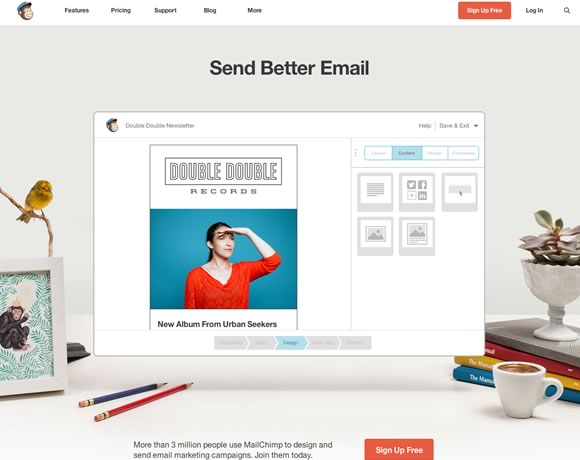
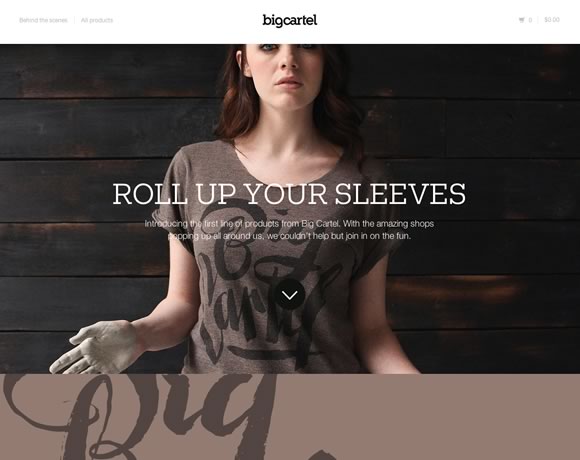
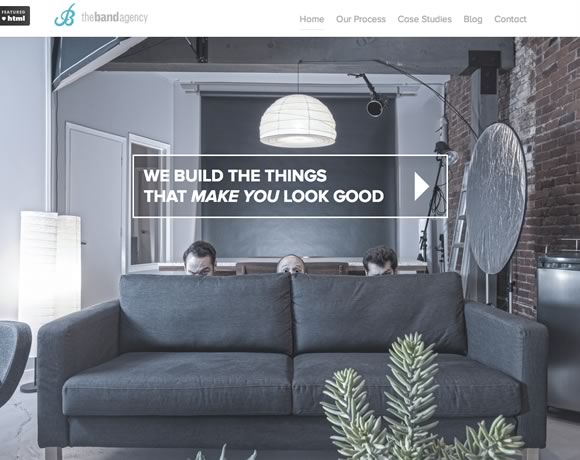
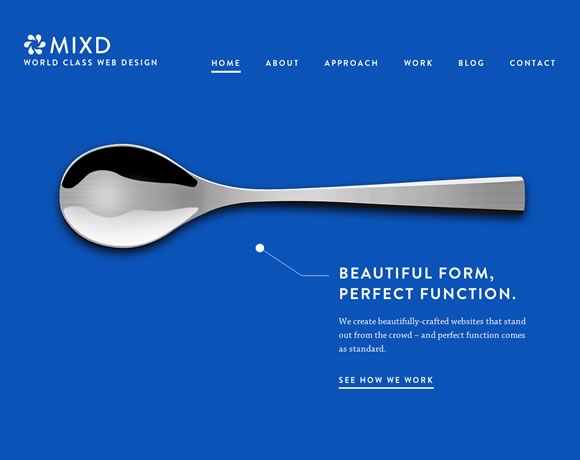
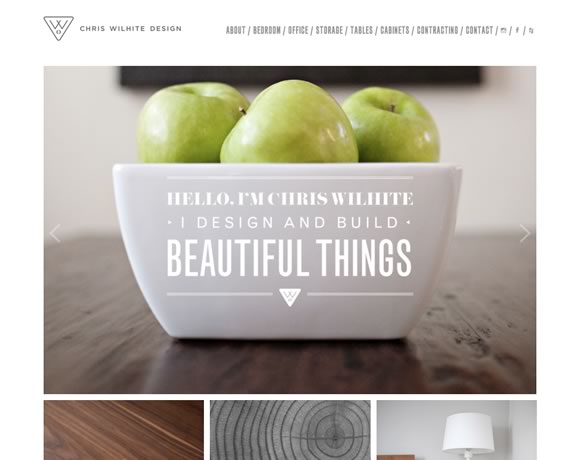
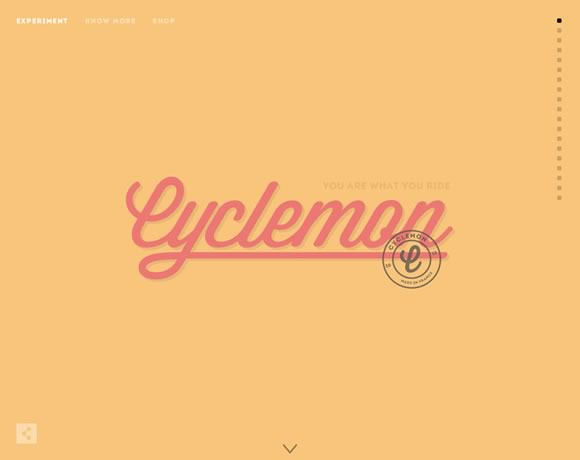
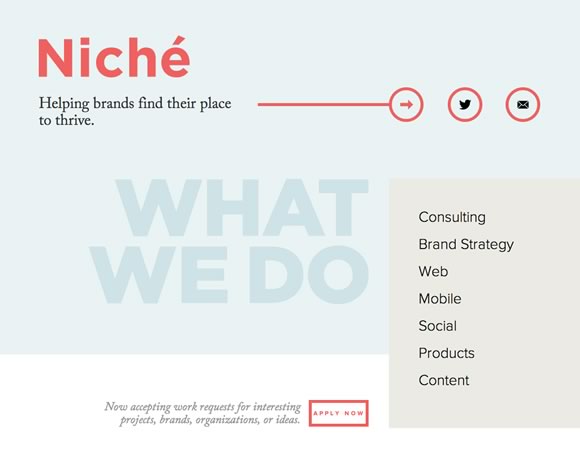
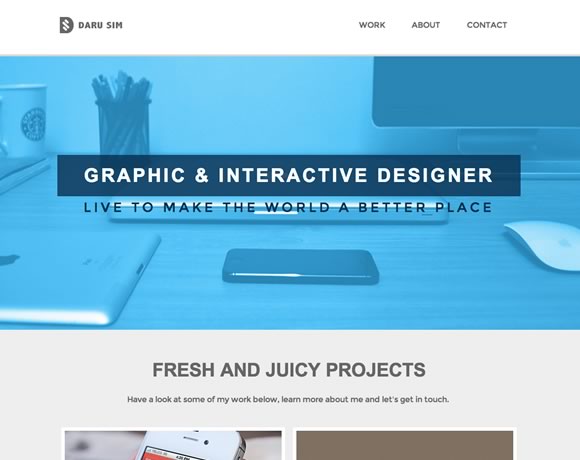
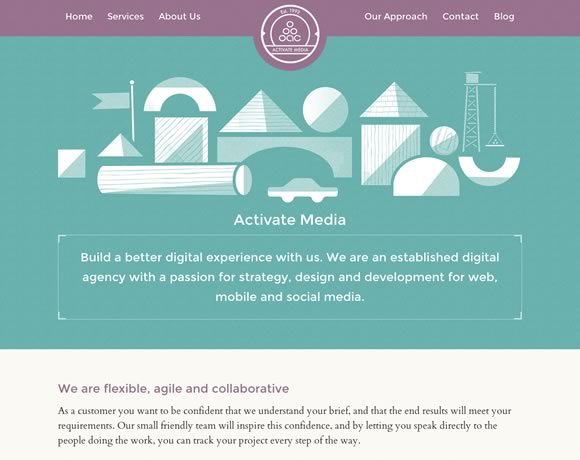
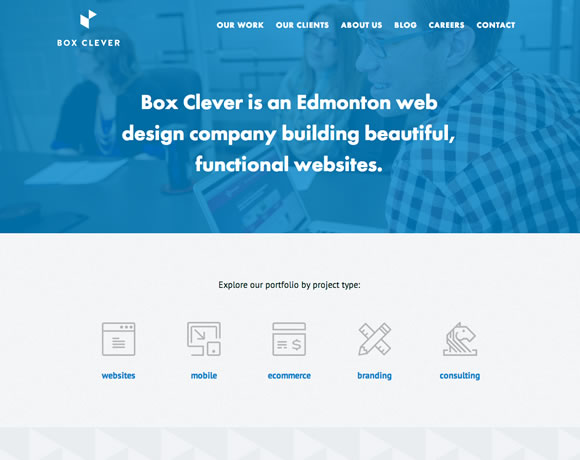
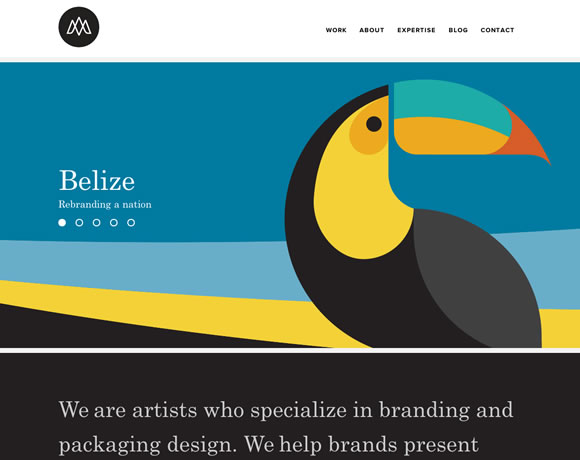
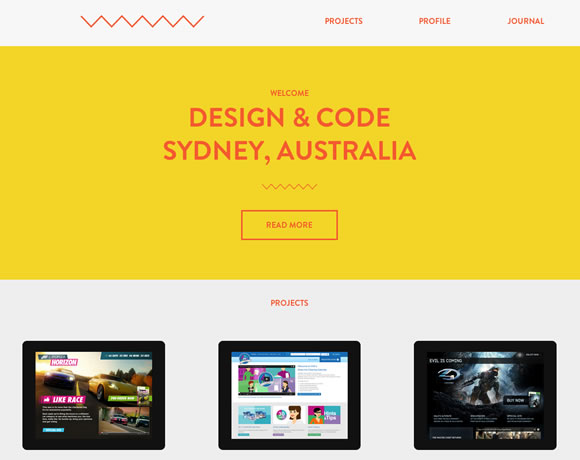
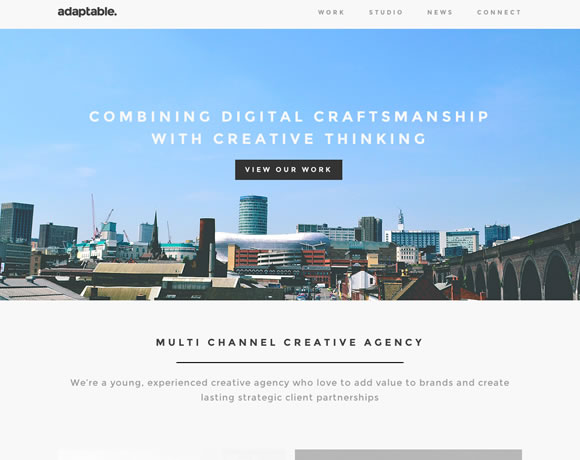
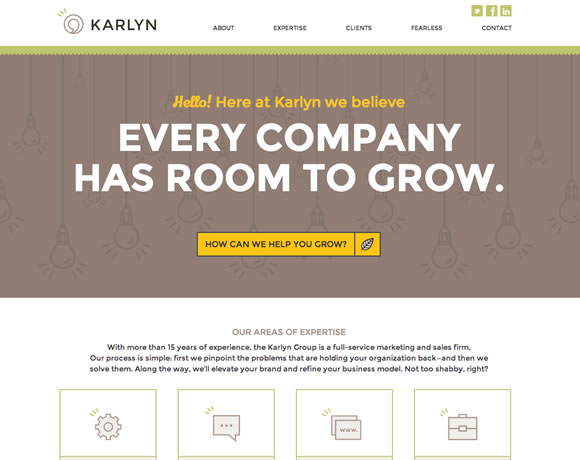
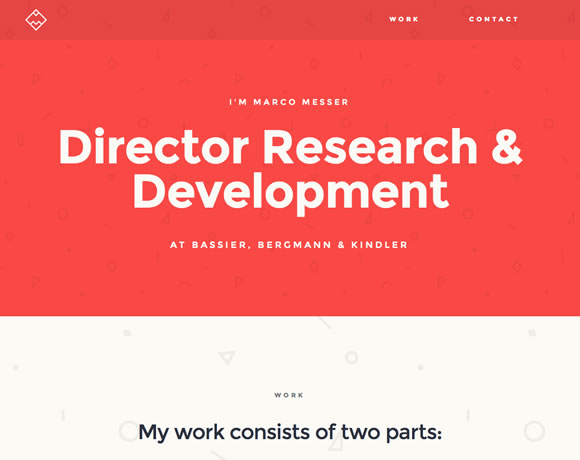
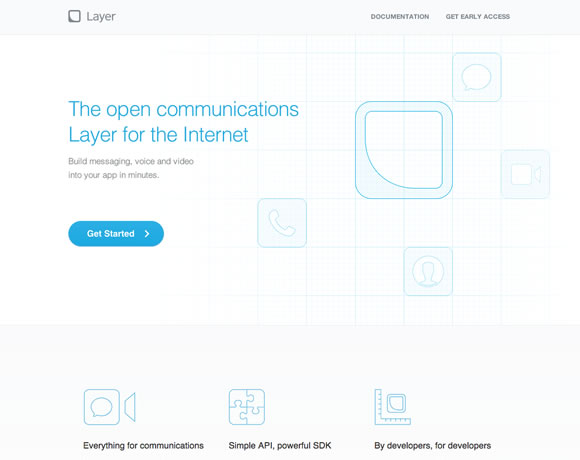
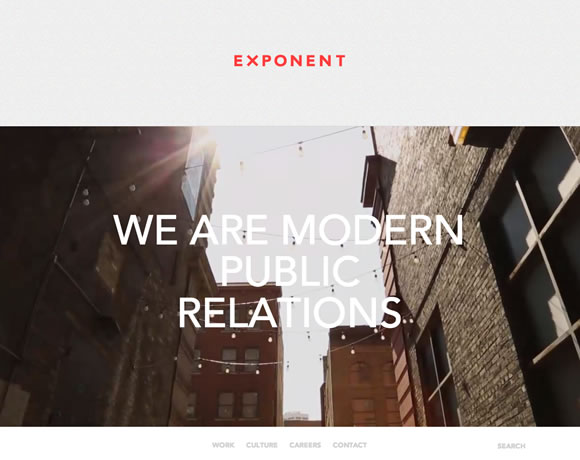
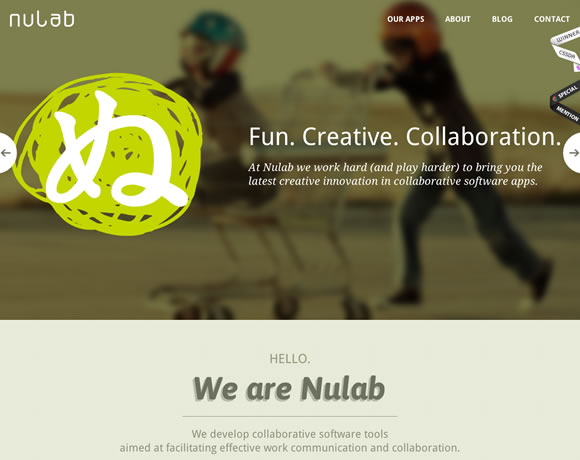
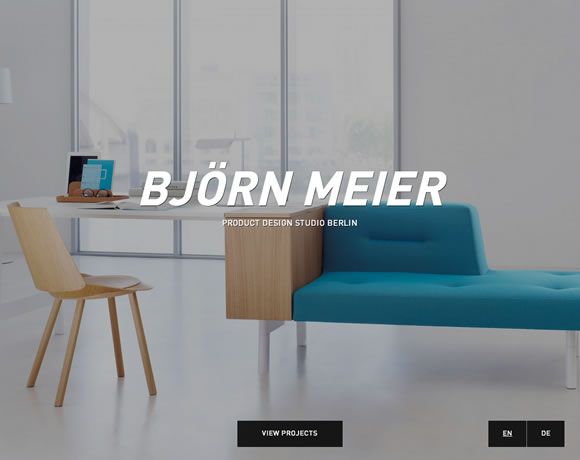
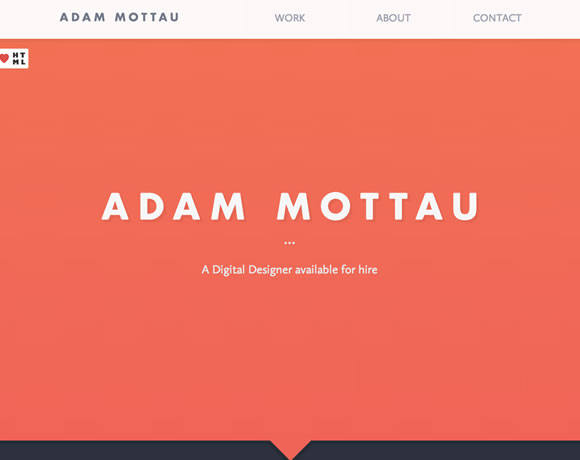
To close our “best of 2013″ series we gathered the web designs our readers most talked about, and we did this huge list to show you what we and our readers considered the best web designs of 2013. These are websites we featured during the year to show you examples of good use of images, type, texture, navigation and much more. Take your time to browse our selection and explore all the websites. Happy 2014!
Vintage Stencil Style in Photoshop

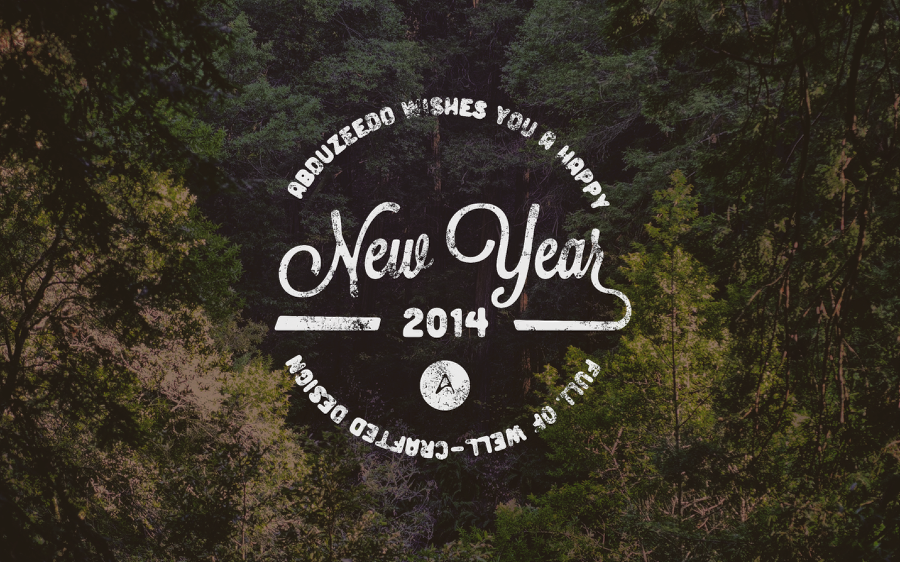
Last week we posted a tutorial showing how to create simple artwork in Illustrator and then in Photoshop we added a few effects to make it look old and with that vintage/hipster feel. Some people asked about some of the steps in Photoshop so I decided to make a simple walkthrough about how to use Photoshop to create this kind of effect. It’s a simple technique but it can be very handy for this kind of artwork.
So in this tutorial I will show you how to create a simple vintage look stencil in Photoshop. The whole process will take around one hour and you won’t need anything special besides time and a few dirty brushes.
Step 1
Create the artwork you want to apply the effect. I used Adobe Illustrator to create this simple stencil.
Step 2
In Photoshop now, place the stencil. Add a new layer and fill it with black, that will be the background. With layer style, apply a white Color Overlay in the stencil.
Step 3
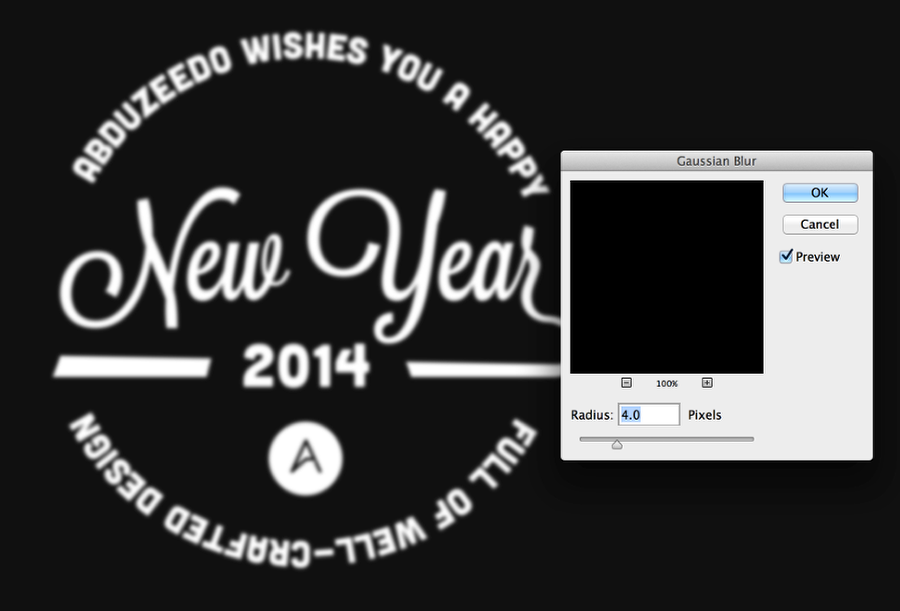
Group the black layer with the white stencil and convert it to a smart object. Filter>Convert to Smart Filters. Apply a Gaussian Blur, go to Filter>Blur>Gaussian Blur. Use 4 pixels for the Radius.
Step 4
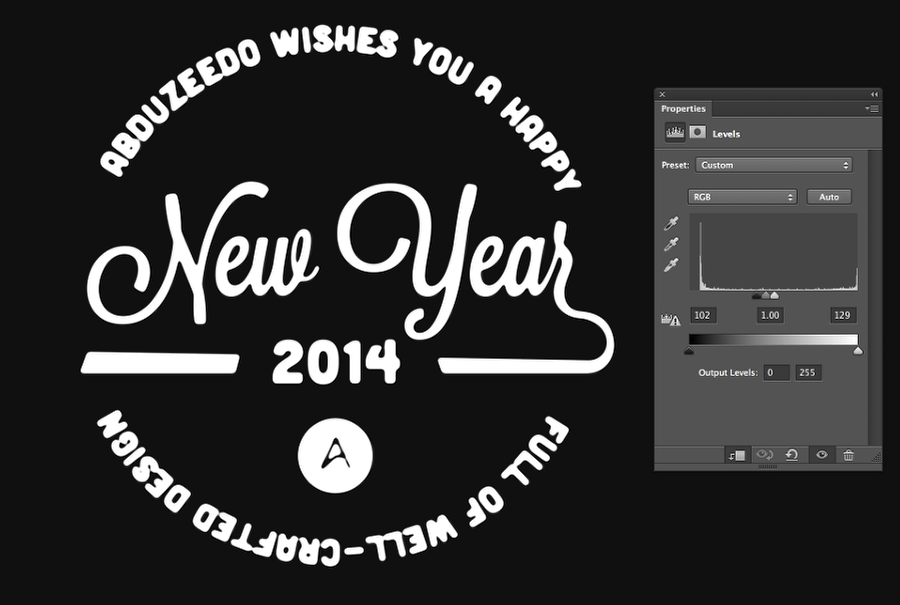
Go to Layer>New Adjustment Layer>Levels. Change the values until you cannot see the blur effect anymore. After that make sure that the Adjustment Layer is clipped to the layer (Layer>Create Clipping Mask).
Step 5
Create a new layer on top of the stencil and then with a regular dirty brush add some of the texture.
Step 6
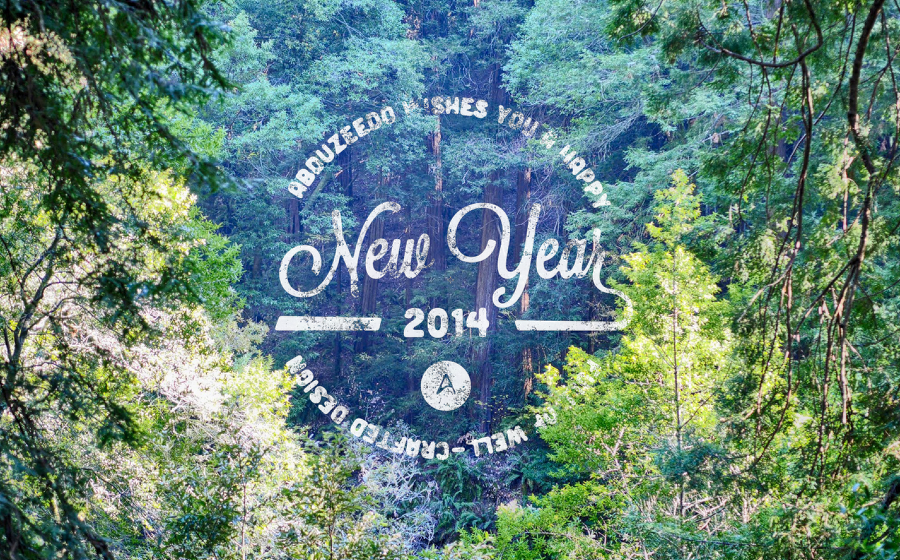
Group the stencil layer with the brush layer and then change the Blend Mode of the folder to Lighter Color. Also add an image for the background.
Step 7
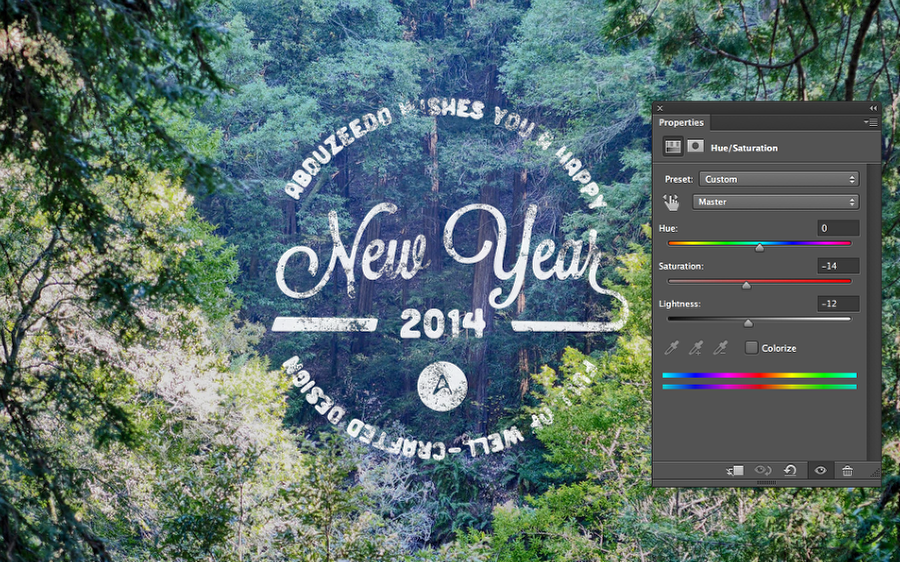
My image looks really bright and doesn’t create enough contrast with the logo. So go to Image>Adustments>Hue and Saturation. Reduce the Saturation a little bit and also the Lightness. The values will depend on the image you will be using.
Step 8
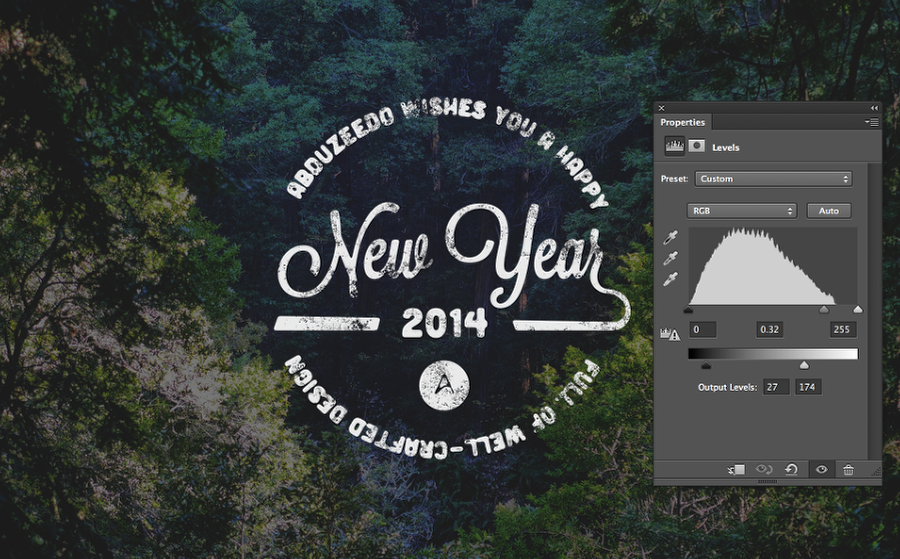
Go to Image>Adjustments>Levels. Change the Output Values and also the grey Input value to make the image much darker.
Step 9
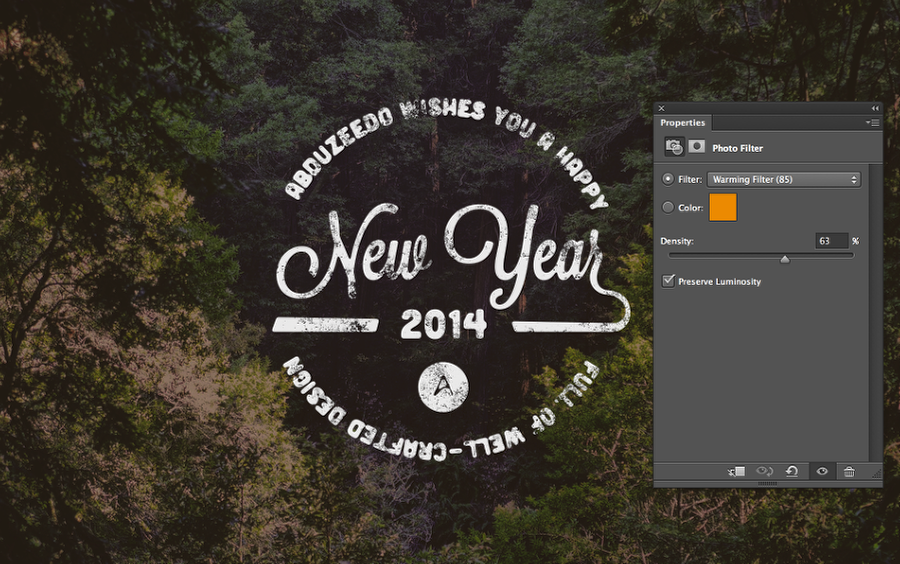
Now go to Layer>New Adjustment Layer>Photo Filter. Use the Warming Filter at 65% Density.
Step 10
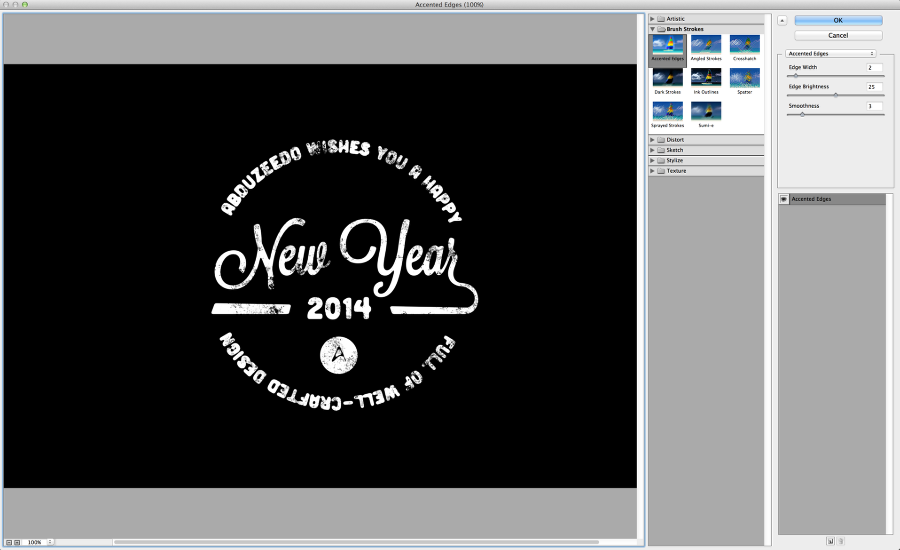
Convert the folder with the stencil and the brush effect to a smart filter. Go to Filter>Filter Gallery>Brush Strokes>Accented Edges. Play with the values until you have an effect that looks natural.
Conclusion
Reduce the opacity of the logo to 95% depending on the background. You can also use levels to make it not so bright besides that, the design is pretty much done. I believe this little step by step might help those that were having some difficults during the last tutorial. Now it’s up to you, have fun and a great 2014 to you all.
Download Photoshop file
Click here to download the Photoshop file used for this tutorial