Realistic Letterpress Effect in Photoshop

For the first tutorial of 2012 we wanted to have a really good one and the most important thing a very easy one because our goal for this new year is to provide good tutorials with simple techniques that achieve great outcomes. In this first case we will explore ways to create letterpress effect using Photoshop only.

So in this tutorial we will show you how to create a super easy and realistic letterpress effect using Layer Styles in Photoshop. The process is super simple and I am sure that you won’t take more than 45 minutes to achieve the same result.

Step 1

Open Photoshop and create a new document. I am using 2560×1600 pixels for my so I can use this design as wallpaper. After that make sure you have a black background.

The secret to create a cool letterpress effect is to use different typefaces, sizes and styles next to one another. As you can see on the image below I started with the number 2012 and then add rectangles underneath each number. Adjust the rectangles depending on the typefaces. Try to make them slightly irregular in terms of alignment.

Realistic Letterpress Effect in Photoshop

Step 2

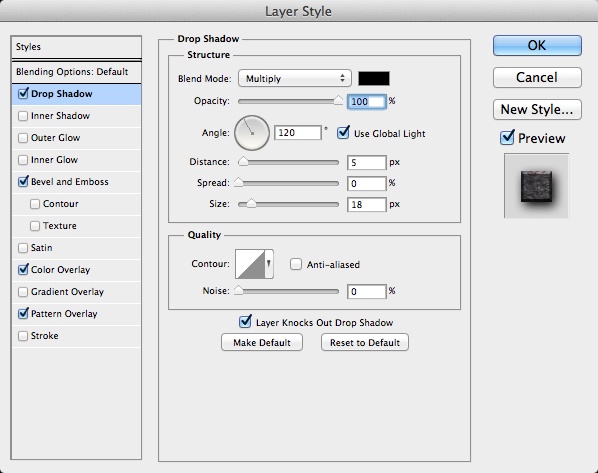
Select one of the rectangles and go to Layer>Layer Style>Drop Shadow. Use black for the color, multiply for the Blend Mode, 120 for the Angle, 5 pixels for the Distance and 18 pixels for the Size.
Realistic Letterpress Effect in Photoshop

Step 3

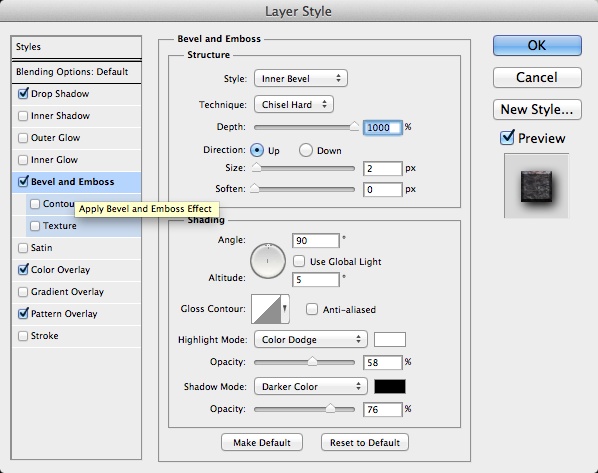
Select Bevel and Emboss now and then use Inner Bevel for the Style. Chisel Hard for the Technique, 1000 for the Depth, 2 for the Size, 90º for the Angle, 5º for the Altitude, White at 58% Opacity for the Highlight Mode with Color Dodge and black at 75% Opacity for the Shadow Mode using Darker Color.
Realistic Letterpress Effect in Photoshop

Step 4

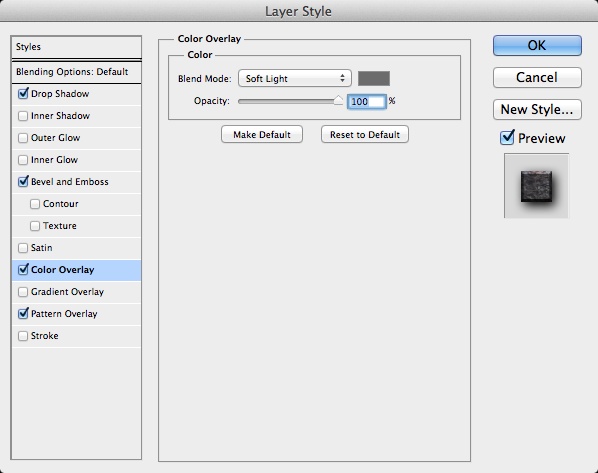
Select Color Overlay and then use Soft Light for the Blend Mode with a dark grey for the color. Here is the trick. For each rectangle use a different shade of grey so they won’t look the same.
Realistic Letterpress Effect in Photoshop

Step 5

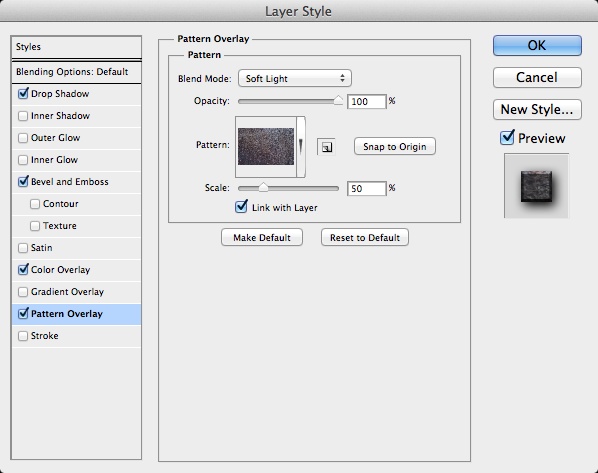
Select Pattern Overlay. Now it’s a very important part. We need to have convincing texture to give a realistic look to our design. The texture I use is by Supertrooper called The surface of the old metal, visible rust. Courtesy of Shutterstock. So open this texture in Photoshop and go to Edit>Define Pattern. Then back to our design work, go back to the Pattern Overlay and click on the Pattern option. Select the one we just created from the photo. Change the Scale to 50%. This value will vary depending on the size of your pattern
Realistic Letterpress Effect in Photoshop

Step 6

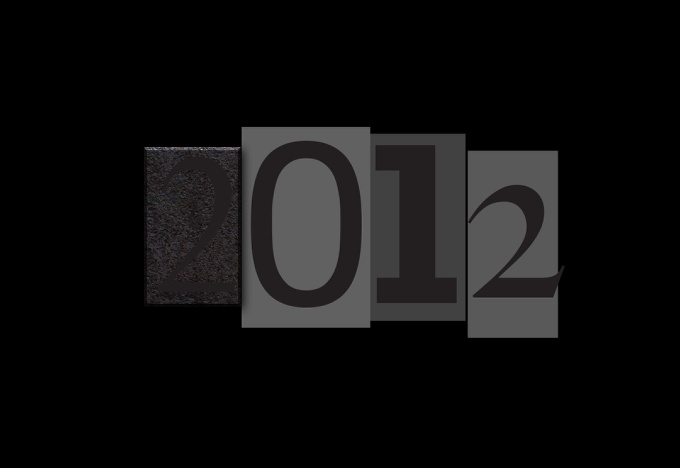
Here is the rectangle effect with the layer styles. Now let’s work on the types.
Realistic Letterpress Effect in Photoshop

Step 7

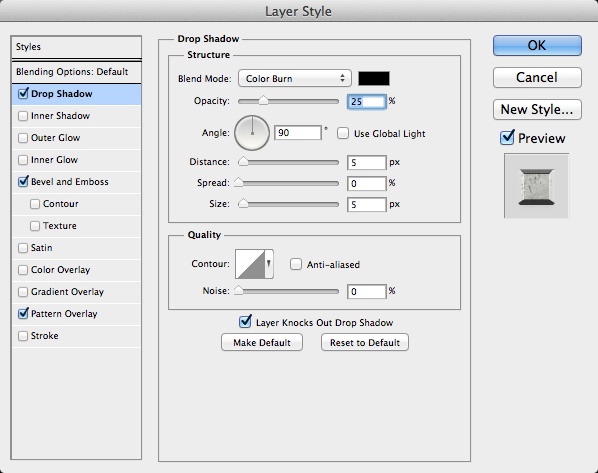
Select the number 2 and go to Layer>Layer Styles>Drop Shadow. Use black for the Color withe Color Burn for the Blend Mode at 25%. For the Angle use 90º with 5 pixes for the Distance, 0 for the Spread and 5 pixels for the Size.
Realistic Letterpress Effect in Photoshop

Step 8

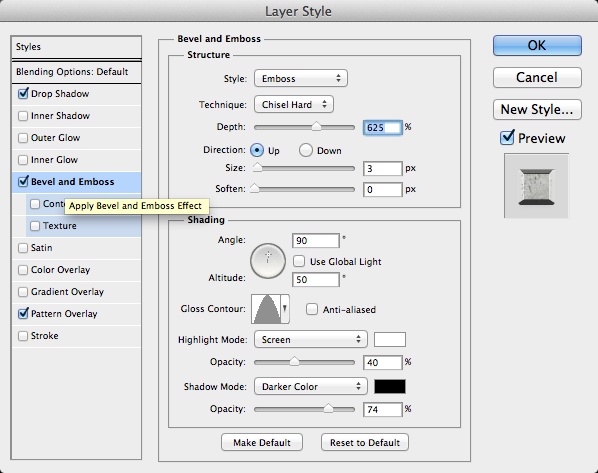
Select Bevel and Emboss. Use Emboss for the Style, Chisel Hard for the Technique, 625% for the Depth, Up for the Direction, 3 pixels for the Size, 0 for the Soften. Also use 90º for the Angle, 50º for Altitude. Then change the Gloss Contour using the one like I am using in the image below. For the Highlight Mode use Screen with white at 40% Opacity. For the Shadow Mode use Darker Color with black at 74% Opacity.
Realistic Letterpress Effect in Photoshop

Step 9

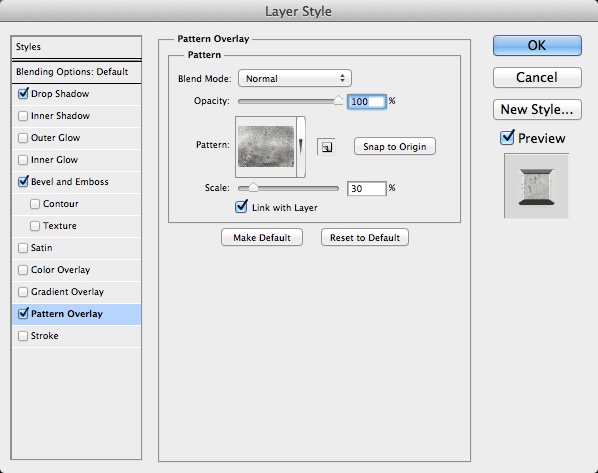
For the pattern here let’s use another texture. This one is by maxstockphoto and it’s called Metal plate background texture. Courtesy by Shutterstock.
Realistic Letterpress Effect in Photoshop

Step 10

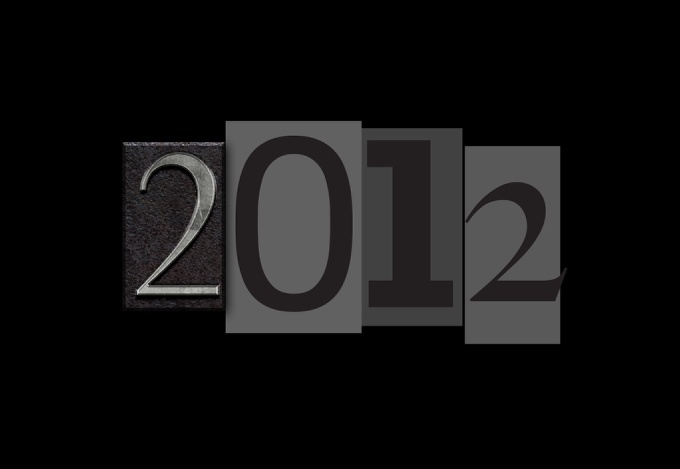
Here is the final result of the text effect with layer styles.
Realistic Letterpress Effect in Photoshop

Step 11

Repeat the same steps for the other numbers.

Realistic Letterpress Effect in Photoshop

Step 12

To make it a bit more realistic and old let’s use some dirty brushes to destroy a bit of the rectangles. Select the rectangle and then go to Layer>Layer Mask>Reveal All. Then with the Brush Tool (B) and a grunge brush start paiting on the edges with black for the color. Use the image below for reference

Realistic Letterpress Effect in Photoshop

Step 13

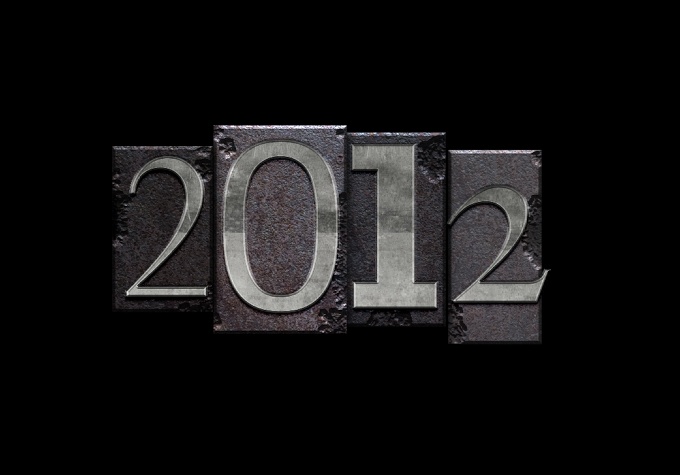
Here is how the effect will look like after apply the mask on the other rectangles.
Realistic Letterpress Effect in Photoshop

Step 14

Repeat the same thing to add more words to your design. In my case I added Happy New Year 2012 and the Abduzeedo Symbol.

Realistic Letterpress Effect in Photoshop

Step 15

Change the background layer to a radial gradient with a dark grey in the center.

Realistic Letterpress Effect in Photoshop

Step 16

Copy the metal texture we used for the text and then paste right on top of the background layer. After that change the Blend Mode of the metal texture to Multiply.

Realistic Letterpress Effect in Photoshop

Conclusion

You can select all layers and then duplicate them. After that merge all the new layers into a new one and apply a Gaussian Blur with 5 pixels for the Radius. Then just change the Blend Mode to Overlay at 70% Opacity. Duplicate the layer and change the Blend Mode to Screen at 40% opacity.

That is it! As I mentioned in the beginning of the tutorial, it’s a very easy and straightforward technique but the result is quite nice. Now it’s up to you to try it with different textures and colors. I would love to see some versions with white background as well.
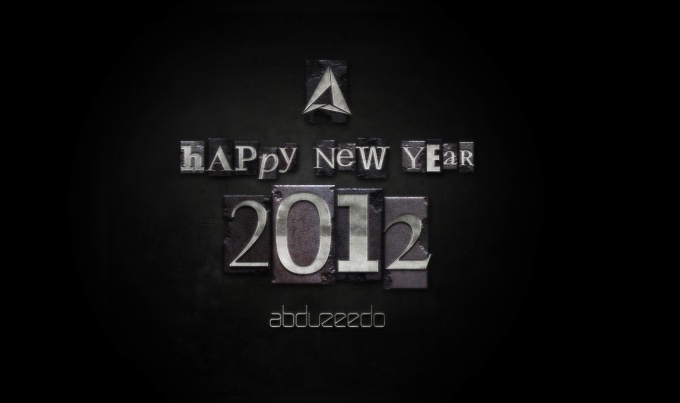
Realistic Letterpress Effect in Photoshop

Download Photoshop File

Click here to Download the Photoshop File used for this tutorial

About the author

Abduzeedo is a blog about design. There are all sorts of articles for those who want to look for inspiration. Also you will find very useful tutorials for the most used applications out there, with a special selection of Photoshop Tutorials and Illustrator Tutorials. You can get in follow us via Twitter at @abduzeedo

Sponsored Links:


Abduzeedo Inspiration Guide for Designers at Amazon

Posted in Blog | Comments Off on Realistic Letterpress Effect in Photoshop

Daily Inspiration #1020

This post is part of our daily series of posts showing the most inspiring images selected by some of the Abduzeedo’s writers and users. If you want to participate and share your graphic design inspiration, just send us, via email, the image with the link from where you found it, also use “Daily Inspiration” in the subject, and don’t forget to send your Abduzeedo username; or via Twitter sending to http://twitter.com/abduzeedo.

If possible use the HTML code: <p class="imgC"><a href="Link to the page you found the image"><img src="Link to the Image" /></a></p>

Do you want to see all images from all Daily Inspirations? Check out http://daily.abduzeedo.com

You can also submit your images and inspiration to RAWZ via http://raw.abduzeedo.com/

Adam

Digital art selected for the Daily Inspiration #1020

Digital art selected for the Daily Inspiration #1020

Digital art selected for the Daily Inspiration #1020

Digital art selected for the Daily Inspiration #1020

anideaeveryday

Digital art selected for the Daily Inspiration #1020

bgzeh

Digital art selected for the Daily Inspiration #1020

brent.pickerd@gmail.com

Digital art selected for the Daily Inspiration #1020

catandbee

Digital art selected for the Daily Inspiration #1020

creativefounds

Digital art selected for the Daily Inspiration #1020

Cristian Valverde

Digital art selected for the Daily Inspiration #1020

Digital art selected for the Daily Inspiration #1020

cuded

Digital art selected for the Daily Inspiration #1020

Digital art selected for the Daily Inspiration #1020

Digital art selected for the Daily Inspiration #1020

Digital art selected for the Daily Inspiration #1020

Daniel Bellido

Digital art selected for the Daily Inspiration #1020

enigmy

Digital art selected for the Daily Inspiration #1020

Eric Corriel

Digital art selected for the Daily Inspiration #1020

ethan

Digital art selected for the Daily Inspiration #1020

Digital art selected for the Daily Inspiration #1020

fairuz

Digital art selected for the Daily Inspiration #1020

fksd

Digital art selected for the Daily Inspiration #1020

hitesh

Digital art selected for the Daily Inspiration #1020

iamnumbere8ght

Digital art selected for the Daily Inspiration #1020

ignasvr

Digital art selected for the Daily Inspiration #1020

Digital art selected for the Daily Inspiration #1020

i-see-you-noticed-me

Digital art selected for the Daily Inspiration #1020

Josh

Digital art selected for the Daily Inspiration #1020

joshwaldroup

Digital art selected for the Daily Inspiration #1020

Let me be inspired

Digital art selected for the Daily Inspiration #1020

Lucas Del Castillo

Digital art selected for the Daily Inspiration #1020

Maickell

Digital art selected for the Daily Inspiration #1020

Matt

Digital art selected for the Daily Inspiration #1020

max

Digital art selected for the Daily Inspiration #1020

MIKE

Digital art selected for the Daily Inspiration #1020

mindlesswander

Digital art selected for the Daily Inspiration #1020

MP

Digital art selected for the Daily Inspiration #1020

Nathaniel

Digital art selected for the Daily Inspiration #1020

nenuno

Digital art selected for the Daily Inspiration #1020

Digital art selected for the Daily Inspiration #1020

Digital art selected for the Daily Inspiration #1020

Digital art selected for the Daily Inspiration #1020

nobigode

Digital art selected for the Daily Inspiration #1020

Oinario

Digital art selected for the Daily Inspiration #1020

Sparknode Media

Digital art selected for the Daily Inspiration #1020

Seng Ung

Digital art selected for the Daily Inspiration #1020

spectralcircle

Digital art selected for the Daily Inspiration #1020

sozedesign

Digital art selected for the Daily Inspiration #1020

Stuart Smith

Digital art selected for the Daily Inspiration #1020

thaeger

Digital art selected for the Daily Inspiration #1020

Digital art selected for the Daily Inspiration #1020

Digital art selected for the Daily Inspiration #1020

Digital art selected for the Daily Inspiration #1020

Digital art selected for the Daily Inspiration #1020

theo

Digital art selected for the Daily Inspiration #1020

Digital art selected for the Daily Inspiration #1020

Tomek Miszkin

Digital art selected for the Daily Inspiration #1020

tomnicklin

Digital art selected for the Daily Inspiration #1020

Viktor Niklasson

Digital art selected for the Daily Inspiration #1020

Digital art selected for the Daily Inspiration #1020

About the author

I’m from Brazil, co-founder of Zee with Fabio. Nowadays I like to play with Fireworks, Photoshop and improve my skills in CSS. If you wanna request some posts, please feel free to contact me or follow on Twitter.

Sponsored Links:


Abduzeedo Inspiration Guide for Designers at Amazon

Posted in Blog | Comments Off on Daily Inspiration #1020