Reader Tutorial: The Voyager Artwork by Moe Pike Soe

Reader Tutorial: The Voyager by Moe Pike Soe

The Voyager artwork was created as a Ten Dollar Fonts showcase for a brilliant font designed by Maarten Van’t Wout. I used Cinema 4D and Photoshop to create the atmospheric photo manipulation. The technique is to use different blend modes and adjustment layers as combo to create dynamic lighting for each elements in the composition.

I will be showing you these simple techniques to create the artwork. The tutorial includes a part of Cinema 4D but I’ve also included the already rendered pictures for people without C4D to follow.

Step 1

We are going to create the 3D text in Cinema 4D first. Create a new motext using the font, type in desired words and change the horizontal spacing to 85 cm with the depth of 35 cm.

The Voyager Artwork by Moe Pike Soe

The Voyager Artwork by Moe Pike Soe

Step 2

There are two lights being given to the type. The first one is directly above the type at 100% intensity and another light is in front of the type with only 50% intensity. Also make sure you change the shadow mode to area as well.

The Voyager Artwork by Moe Pike Soe

The Voyager Artwork by Moe Pike Soe

Step 3

Create a new material and change the color to R: 23 G: 23 B: 23 and assign it to the motext.

The Voyager Artwork by Moe Pike Soe

Step 4

Create a new camera and place it along centre of the type. Change the focal length to 76 mm.

The Voyager Artwork by Moe Pike Soe

Step 5

Open up Render Settings > Output and change the resolution to 4500 pixels wide and 3000 pixels high. Also change the saving format to PNG with straight alpha and separate alpha checked. Last of all, add Global Illumination from Effects menu.

The Voyager Artwork by Moe Pike Soe

The Voyager Artwork by Moe Pike Soe

The Voyager Artwork by Moe Pike Soe

Step 6

We will be exporting two different renders. One is the full 3D render and another is flat type layer. To get the flat render, change the depth of the type to 0 cm and then render it.

The Voyager Artwork by Moe Pike Soe

The Voyager Artwork by Moe Pike Soe

Step 7

Open Photoshop and create a new document with 4500 pixels width and 3000 pixels height then fill the background with black color. Place the stars.jpg and change the opacity to 50%.

The Voyager Artwork by Moe Pike Soe

The Voyager Artwork by Moe Pike Soe

Step 8

Import the two renders and make sure you have the flat type layer on top of the 3D type layer. Also name flat layer Flat and 3D layer 3D.

The Voyager Artwork by Moe Pike Soe

Step 9

As you can see the type is not that popped out enough yet and we need more rim light on the type. To do that, create a new layer above the Flat layer and clip mask it. Then grab a soft brush with white color and paint along the sides of the type.

The Voyager Artwork by Moe Pike Soe

Step 10

Repeat the step 9 again but this time it’s for the 3D layer.

The Voyager Artwork by Moe Pike Soe

Step 11

Group all the type layers and name it Title. Create a level adjustment layer with a clipping mask to the group. Change the values to 0 : 0.83 : 131 . And now we have a pretty dramatic looking type.

The Voyager Artwork by Moe Pike Soe

Step 12

Import the astronaut.jpg and mask out all the white background so that you will be left with the astronaut only. Place the layer below the Title group and move the astronaut so that he looks like he’s hanging on to the ‘A’.

The Voyager Artwork by Moe Pike Soe

Step 13

The astronaut is too bright compared to the type and it needs darker shadows. Create a new Levels adjustment layers and change the value to 63: 0.37 : 225
and clip mask it to the astronaut layer.

The Voyager Artwork by Moe Pike Soe

Step 14

Create a new layer above the astronaut layer and name it Highlight. Make sure to put the highlight layer between astronaut and the adjustment layers. Grab a soft brush with white color and paint into the sides of the astronaut. And change the layer blend mode to Soft Light.

The Voyager Artwork by Moe Pike Soe

Step 15

Create another layer below the highlight area and name it Shadow. Paint inside of the astronaut with a black soft brush with the opacity of 10%.

The Voyager Artwork by Moe Pike Soe

Step 16

Make a group of all the layers except the Title group and name it astronaut. Create a new vibrance adjustment layer. Change the value of vibrance to 100% and the value of saturation to 0%.

The Voyager Artwork by Moe Pike Soe

Step 17

Import earth.png and place the layer above the stars layer. Move the earth to the center aligned with the background.

The Voyager Artwork by Moe Pike Soe

Step 18

Create a new layer and clip mask onto the earth layer. Change the blending mode to Soft Light. And paint in shadows to the bottom part of the earth.

The Voyager Artwork by Moe Pike Soe

Step 19

On the same layer, paint on the top of earth with a white soft brush to lighten up the top half of the earth.

The Voyager Artwork by Moe Pike Soe

Step 20

Create a new layer beneath the Earth layer. Paint along the contour of top half of the earth with a soft white brush. This will create a glow behind the earth.

The Voyager Artwork by Moe Pike Soe

Step 21

Import moon.png. We’re going to repeat Step 18 and 19 to create the similar effect but instead of on top, we’re going to paint it on the left side.

The Voyager Artwork by Moe Pike Soe

Step 22

Group the moon layers and the earth layers. Create a new exposure adjustment layer and a vibrance adjustment layer. Change the value as shown below.

The Voyager Artwork by Moe Pike Soe

The Voyager Artwork by Moe Pike Soe

Step 23

Now we’ve got a pretty cool atmosphere now but the elements are not cohesive yet. Create a new color balance adjustment layer and a vibrance adjustment layer. Change the values as shown below.

The Voyager Artwork by Moe Pike Soe

The Voyager Artwork by Moe Pike Soe

Step 24

Create a new layer and name it Top Light. Select a soft brush with the biggest size and change the color to #6d7595 . Paint it along the top of canvas and change the opacity to 40%

The Voyager Artwork by Moe Pike Soe

Step 25

Import flare.jpg and change the blend mode to Linear Dodge. Adjust the position of the flare to the top and centre of the earth. Create a new levels adjustment layer and change the values as shown.

The Voyager Artwork by Moe Pike Soe

Step 26

Find any unwanted highlights or areas that need more shadows and paint above on it by creating a new layer with soft light blend mode. Create a new layer and press shift+cmd+E (shift+ctrl+E) to merge all layers into one. Choose Filter>Sharpen>Unsharp Mask and change the values as below.

The Voyager Artwork by Moe Pike Soe

Conclusion

The techniques I’ve shown are simple but they do take time to fine tune depending on the source light in anyway artworks. I hope you’ve learned some new techniques from the tutorial.

For more information about me and my work, please visit http://thebeaststudio.com

The Voyager Artwork by Moe Pike Soe

Source Files

Download Source Files

Posted in Blog | Comments Off on Reader Tutorial: The Voyager Artwork by Moe Pike Soe

The Seven Principles of Conversion-Centered Design

Advertise here with BSA

How do people make decisions? The answer to this question requires a great deal of study and may be extremely complex but let’s discuss how they make decisions on the web. Conversion-centered design works hand-in-hand with website copywriting to convert leads to consumers and increase click-through rate. Your goal is to help your customers complete a task and reduce the leaks from your landing page.

1. The Right Choices:

When a user lands on your page, he should have a clear focus of what he should choose next. A conversion-centered design will help him make a decision. Keep the following behaviors in mind when providing choices:

Number of Choices:

A customer will get baffled and may end up not making a decision if you give him too many choices. Sheena Iyengar, a professor of business at Columbia University and the author of “The Art of Choosing”, conducted an experiment called “The Jam Study”. The first group of customers was shown six different jam jars and a second group was given a choice of twenty four. Results showed that the 30% from the first group made a purchase while only 3% of the second bought a jam jar.

Disparity between choices:

The choices you give to the customer landing on your web page should be different enough for the user to quickly decide which one he wants. You can show him a comparison of the choices as DropBox does.

The Seven Principles Of Conversion-Centered Design

Relatable Decisions:

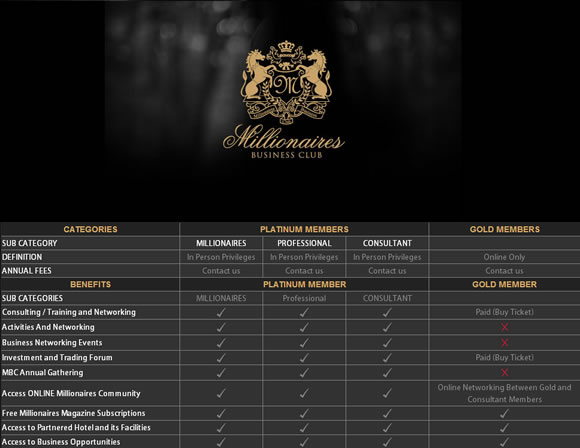
The choices that you present should be related in some way. For example: choice between a free trial and a paid premium package of Asana, choice between online-only membership and physical membership for Millionnaires’ Business Club.

The Seven Principles Of Conversion-Centered Design

2. Custom Landing Pages:

For different leads arriving from different marketing channels, it is best to create segmented landing pages for each. A landing page is also called a splash page, microsite, click page or bounce page. It creates immediacy and helps the consumer relate where he has come from to where he has landed.

For example, one customer sees your ad on Facebook and one sees your ad next to a thread in his Gmail inbox. Both have the same goal but have found you through different channels. If you take them to the same landing page, you may not be able to address them personally – and a personal touch is important to convince your customer to make a purchase.

3. Sequencing the Process:

Your landing page should provide a logical sequence of steps that leads can follow to become a consumer. Create a step-by-step story of why they should subscribe to updates or make a purchase. Then once you’ve convinced them enough, tell me how to sign up. This way, you won’t spring the decision up on unsuspecting users. If you ask them to sign up immediately without details, they’ll either look for benefits themselves cursing you for not being efficient or end up deciding not to go through the process at all. You’ll learn more about this in point five where we discuss the location of your call-to-action.

4. Balancing Logic and Emotions:

When we make decisions, we base our judgments on two things: logic and intuition. To convince a lead to convert, your website’s design must not only be logical but also appeal to the emotions of your customer.

Logically, it should be sequenced and should provide sufficient evidence for judgment. Emotionally, the design language should be according to your target audience’s profile, should reflect your brand’s values, content should evoke an emotional association with the brand, and it should guide the customer’s eye through the process.

The Seven Principles Of Conversion-Centered Design

5. The Fold:

Be careful where you place your call-to-action. If you place it above the fold, it is too soon to ask the user to make a decision. If you place it at the end of the page, it is too late. His interest has fizzled out. Ideally, your call-to-action should be directly on top after the fold. This means that whatever decision you want the user should make should be made immediately after the first scroll.

Above the fold, present your logical and emotional content to convince the user. Your content should follow the four-step process of AIDA – attention, interest and desire finally leading to action (CTA).

6. Focus on Benefits for the User:

Most websites have a form for the users landing on their page. You must provide enough motivation for users to fill out the form. One technique is to have five bullet points telling the user what he will get out of you. Notice that this is different from what we can give you. There is a slight variation in copy. For example:

What we can give you: SEO services.

What you will get: strategy to make your website popular in Google.

Also, your CTA (call-to-action) should describe what the user will get. Instead of having a “Submit” button for a form to get a free white paper, consider writing “Download Whitepaper Now”.

7. The Bandwagon Effect:

An experiment conducted in 1969 that showed that people tend to follow trends and mimic the actions of others around them. A man was told to stand in a busy street in New York looking skyward. Soon afterward, other people noticed him, five of whom started looking skyward themselves curious about what the man was watching. Later, eighteen more people joined the crowd. That is a 400% increase!

When you’re designing a webpage for conversion, use the bandwagon effect to your advantage. Show people who else has signed up/ bought/ subscribed. If you link it to a social network and show them a list of their friends who have opted for the same thing, that’s even better!

Design cues for conversion-centered design:

– Encapsulation (circular shapes like James Bond introductory titles)

The Seven Principles Of Conversion-Centered Design

The Seven Principles Of Conversion-Centered Design

1. Contrast and Colour
2. Directional cues: arrows, pathways, images of babies, lines, eyes
3. White space

– Psychological elements for conversion-centered design:

1. Urgency: Amazon.com offers discounted prices with a time limit. This alerts your frontal cortex of the brain and you recognize the need to make a quick decision.

2. Scarcity: Websites like TicketMaster and Expedia show you that there are a limited number of tickets available. This works the same as urgency.

3. Try before you buy: Giving your users a preview or demo of the product establishes their trust in your transparency and increases their will to buy from you.

What I’ve written in this blog post is from my experience and research. If I’ve missed out something or if you’ve found a technique that works for you, let me know in the comments below. Conversion-centered design can be executed in multiple ways but your goal should be to help the user make a decision. I hope this blog post will help you convince them through the language of design.

Posted in Blog | Comments Off on The Seven Principles of Conversion-Centered Design