The Perfect Office – Tarantino XX, Genius 9010LS mouse and more

We’ve seen some great gadgets and equipment for designers. So many cool stuff, that we could actually assemble infinite perfect office spaces! Every week we’ll assemble a perfect office, and we’d like you to help us. What equipment would the perfect office have?

This week we have a good selection of gadgets, equipments and goodies for your daily life, like the fantastic Tarantino XX, the must-have blu-ray set for fans. There’s also a new cover for a new phone: i-Glow, the glowing case for your iPhone 5. There’s also storage solution and mouse goods! Anyways, check out our selection and don’t forget to drop a comment and give us your suggestions. You may also suggest via twitter: @paulogabriel – I hope you enjoy these! Cheers. 😉

Brought to you by:

Sponsor: 7Gadgets.com

SkullCandy gaming headset


The Perfect Office - Tarantino XX, Genius 9010LS mouse and more

It looks like SkullCandy will be offering a set of different EQ options with all three new headsets too. Then moving on the more expensive models. The PLYR 1 and 2 offer awesome sound, exceptional design and colors, and the same foldable boom-mic. They’ll run you $130, then the more expensive PLYR 2 hits the $180 mark having a $50 premium simply for Dolby Digital headphone surround sound virtualization features. (at Slash Gear)

Tarantino XX


The Perfect Office - Tarantino XX, Genius 9010LS mouse and more

If you have — somehow — managed not to buy any of Quentin Taratino’s films on Blu-ray, someone’s gone and done the hard work for you. Tarantino XX brings together eight of QT’s flicks — Reservoir Dogs, Pulp Fiction, Jackie Brown, Kill Bill (Vols. 1 & 2), Death Proof, Inglourious Basterds, and True Romance — together in one stylish set, along with the requisite bonus material — over five hours of it, in fact, spread across two discs. Enjoy, motherf*ckers. (at Uncrate)

i-Glow iPhone 5 Case


The Perfect Office - Tarantino XX, Genius 9010LS mouse and more

i-Glow iPhone 5 case glows in the dark! (at 7 Gadgets)

Genius Traveler 9010LS Wireless Laser mouse


The Perfect Office - Tarantino XX, Genius 9010LS mouse and more

Genius has pulled the covers off a new 2.4 GHz wireless laser mouse that is aimed at mobile users. The new mouse is called the Traveler 9010LS. One thing about using a mouse when you travel is that often you don’t have a mouse pad available leaving you forced to simply place the mouse on the surface next to your computer.

The mouse ships with a wireless dongle promising a wireless range of up to 10 m from the computer. The mouse has adjustable sensitivity between three settings of 800/1200/1600 dpi. The little USB receiver can be stored inside the mouse for portability and is small enough to be inserted into a computer’s USB port and just left there. (at Slash Gear)

Buffalo DriveStation USB 3.0 4TB HD


The Perfect Office - Tarantino XX, Genius 9010LS mouse and more

Buffalo’s DriveStation Axis USB 3.0 Hard Drive HD-LBU3 is an easy to use solution for the easy addition of external storage to any device using a USB port. It features a sleek, attractive chassis that can be positioned vertically or horizontally, adapting to the location it is used in for efficient use of space. With USB 3.0 support and backward compatibility with USB 2.0, DriveStation Axis USB 3.0 works with almost any PC or Mac computer and provides interface speeds up to 5 Gbps. (at 7 Gadgets)

About the author

Hello, everyone! I’m Paulo Gabriel, designer from Porto Alegre, Brazil, born in 1984. I have worked as a webdesigner since 2006, but websites and blogs have been a hobby for me since 1999. Here in Abduzeedo, I try to bring only the hot stuff for you… and hope that all of you enjoy my posts! For more cool stuff, you may also follow me on Twitter.

Sponsored Links:


Abduzeedo Inspiration Guide for Designers at Amazon

Posted in Blog | Comments Off on The Perfect Office – Tarantino XX, Genius 9010LS mouse and more

Abstract Photo Manipulation in Photoshop CS 6

The new promotional images for Photoshop CS6 are really amazing, they were created by Alberto Seveso, an incredible digital artist from Italy. Seveso has been pushing the limits of creativity and the use of Photoshop for a long time and we are great admirer of his work. Intrigued with artworks we decided to create something inspired by his work.

It’s amazing to see that such amazing images are most of the times done by simple techniques. This tutorial will show you how to achieve similar effect using Photoshop with Masks and Layer Effects. It’s an intermediate tutorial but I am sure you will have so much fun doing as we did.

Step 1

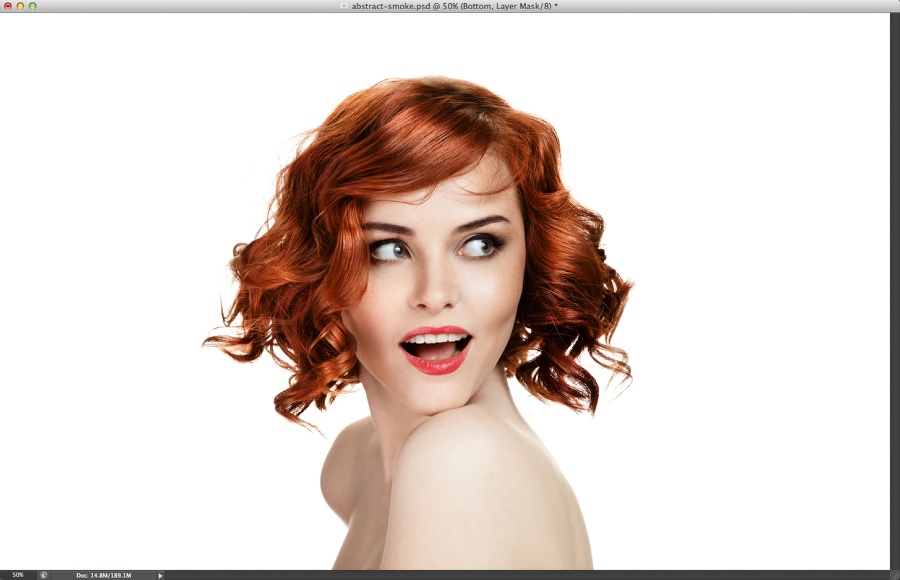
Open Photoshop and create a new document. I am using 2880×1800 pixels for mine After that let’s use a photo of a beautiful girl. The one I am using is from YuriyZhuravov and it’s title Beautiful smiling woman portrait on white background. Courtesy of Shutterstock.

Abstract Photo Manipulation in Photoshop CS 6

Step 2

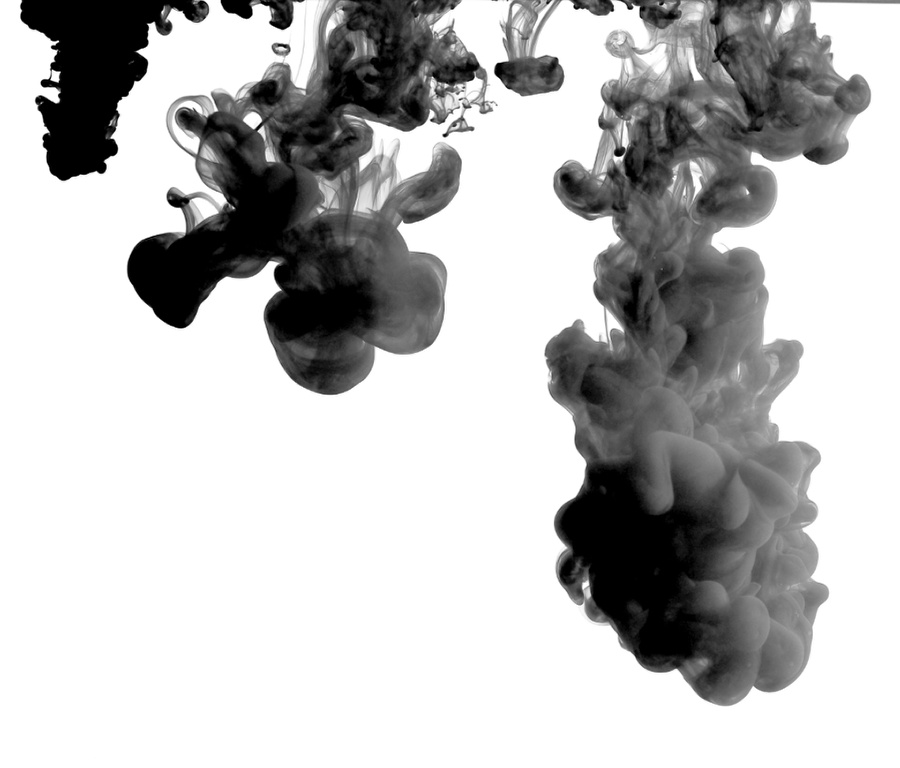
Now let’s create some brushes to use for our masking exercise. The images I am using to create the brushes are also courtesy of Shutterstock and this first one is called "inks in water, colorful abstraction" by ADA_photo.

Abstract Photo Manipulation in Photoshop CS 6

Step 3

Copy some parts of the previous image and paste in a new document. After that go to Edit>Define Brush. Add a name to your new brush and create a few more.

Abstract Photo Manipulation in Photoshop CS 6

Step 4

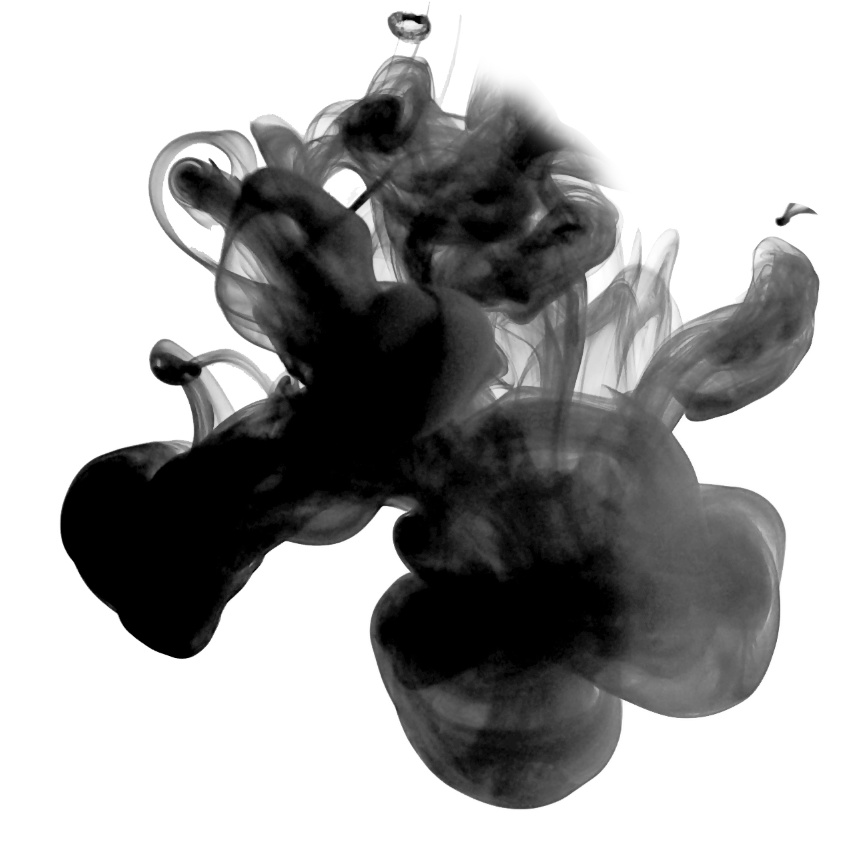
Here’s the second one, simply do the same thing as the previous step.

Abstract Photo Manipulation in Photoshop CS 6

Step 5

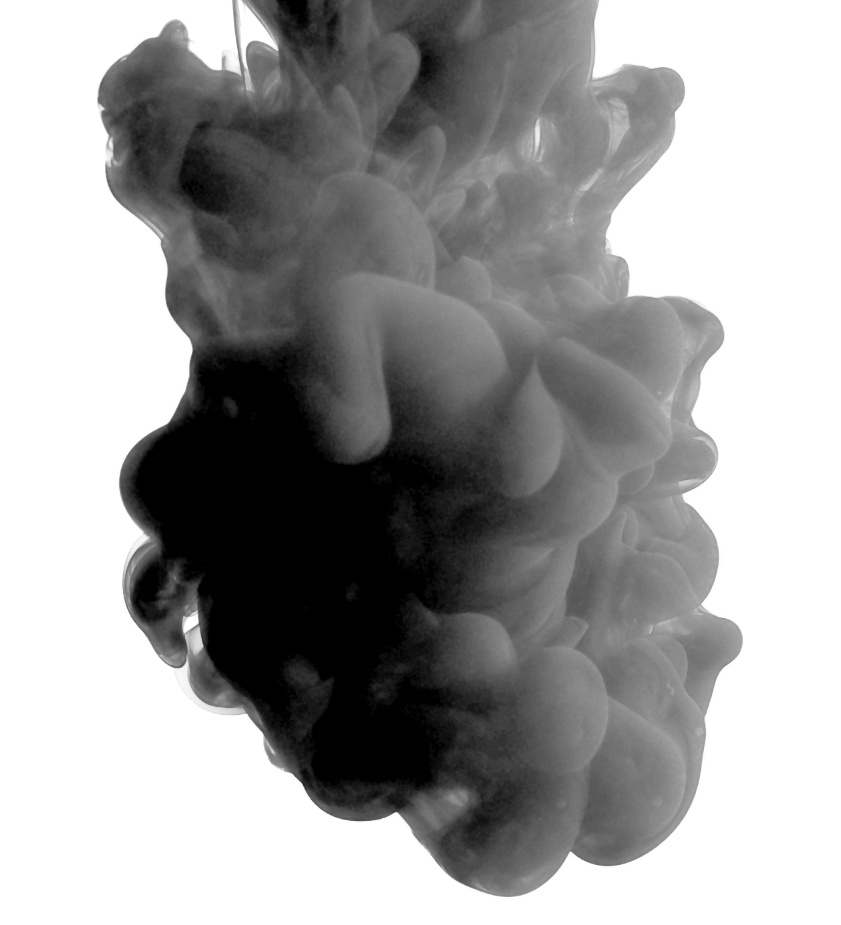
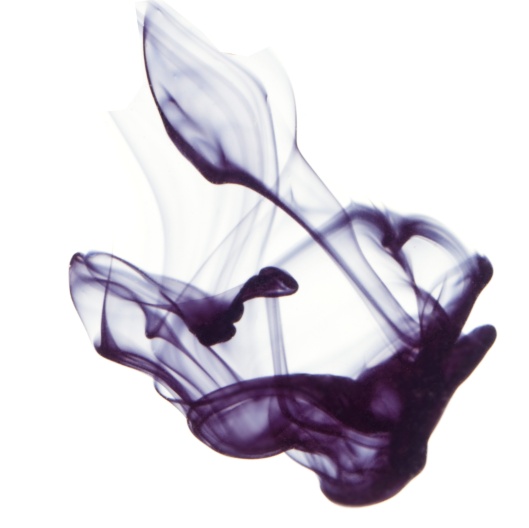
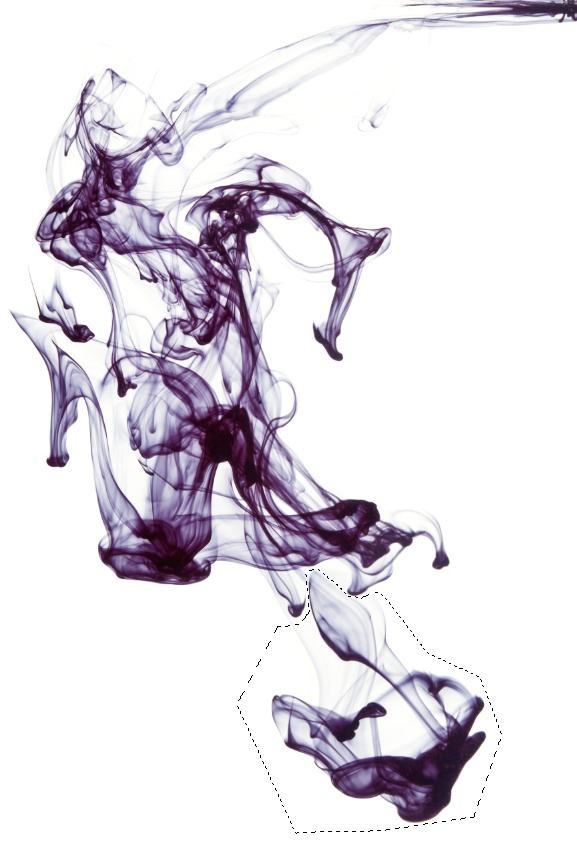
Now using a different image, this one from NatUlrich called Ink in water. Isolated on white background. Again copy a few parts to create different brushes. I created 4 brushes for my image.

Abstract Photo Manipulation in Photoshop CS 6

Abstract Photo Manipulation in Photoshop CS 6

Step 6

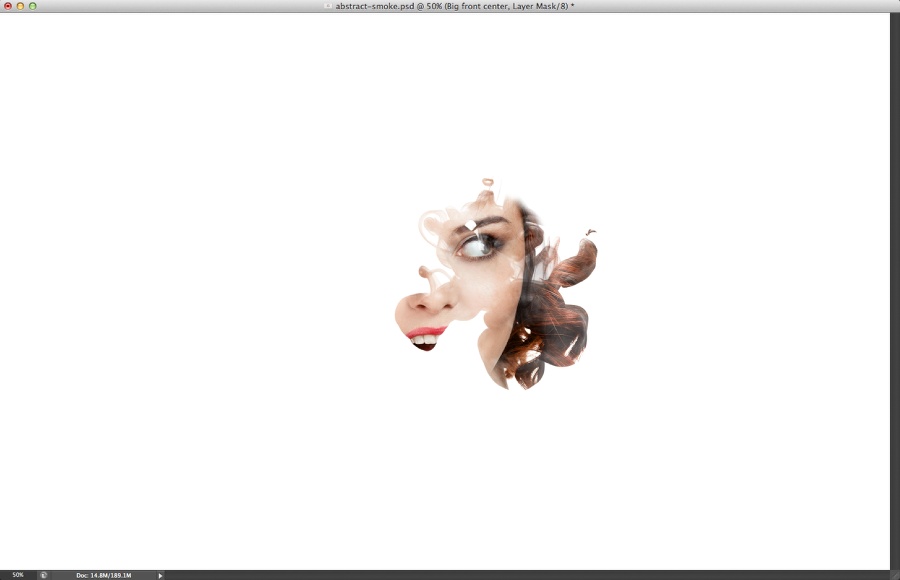
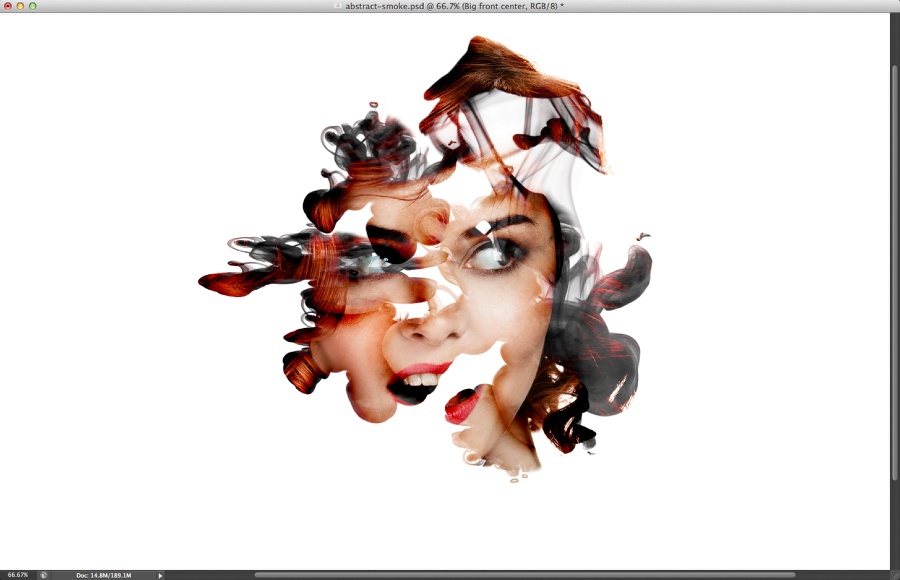
Select the image layer and group it so the image will be in a folder. Duplicate this folder a few times because we will need it as we move forward. Hide all new folders and keep only one visible. Select the visible folder and go to Layer>Layer Mask>Hide All. The image will be completely hidden. After that select the Brush Tool (B) and one of the brushes you created from the stock photos. Using white for the color, paint on top of the layer mask to make part of the girl visible.

Abstract Photo Manipulation in Photoshop CS 6

Step 7

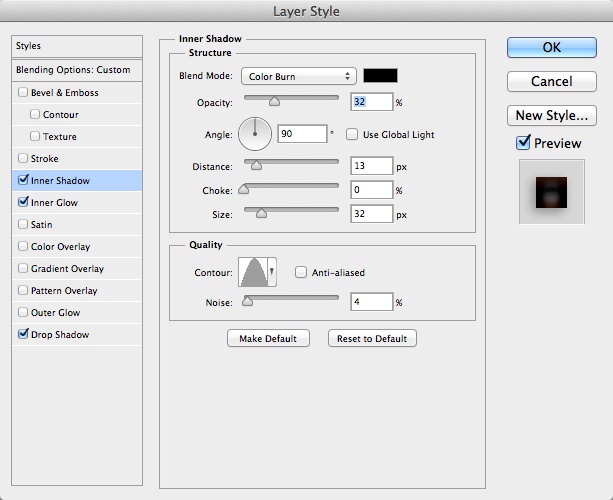
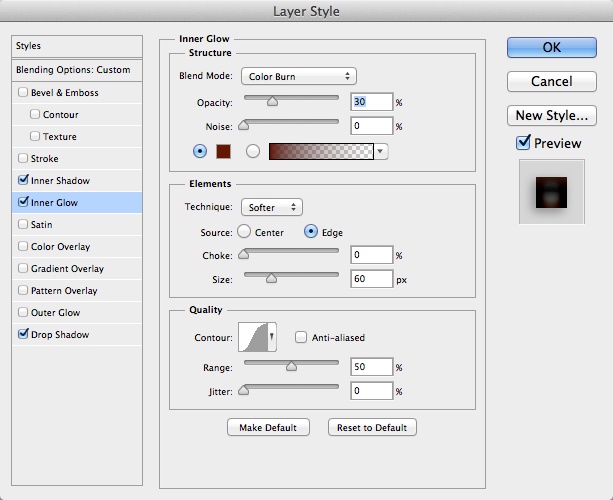
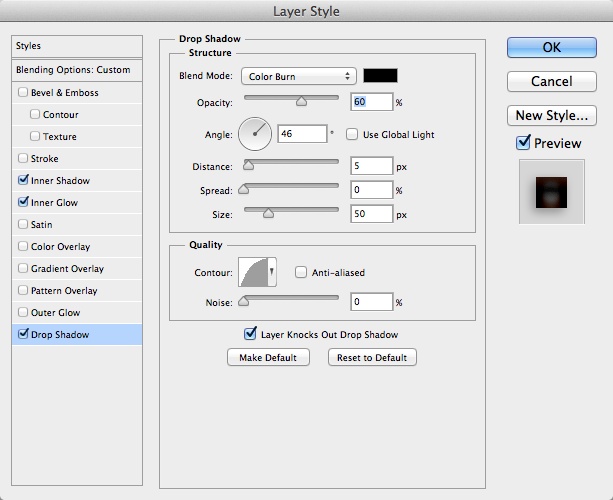
Let’s add some layer styles. I am using Inner Shadow, Inner Glow and Drop Shadow to create some depth for the different layers. You can see the values below.

Abstract Photo Manipulation in Photoshop CS 6

Abstract Photo Manipulation in Photoshop CS 6

Abstract Photo Manipulation in Photoshop CS 6

Step 8

Select one of the hidden folders and make it visible. Apply the same process as we did in the previous steps to add another layer of our abstract collage.

Abstract Photo Manipulation in Photoshop CS 6

Step 9

Add a new layer inside the folder and group this new layer as well. Change the Blend Mode to Color Burn. Select the layer again and change the opacity to 30%. Using the Brush Tool (B) with black for the color and a very soft brush, start painting a sort of shadow on the overlaping areas. The idea here is to add more depth and separate the parts a little bit more.

Abstract Photo Manipulation in Photoshop CS 6

Step 10

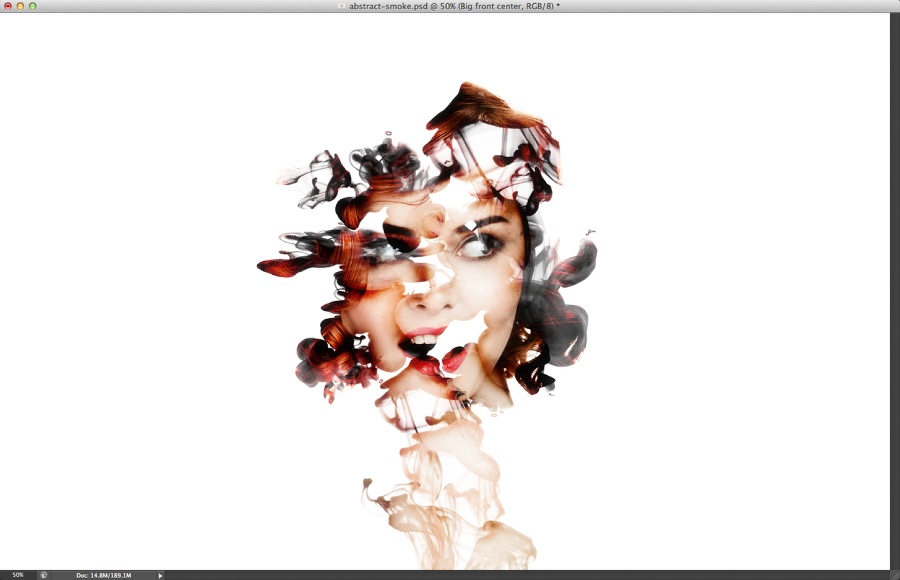
Add more parts by repeating the same process. Every new part you should use a new folder with the image and the color burn folder.

Abstract Photo Manipulation in Photoshop CS 6

Step 11

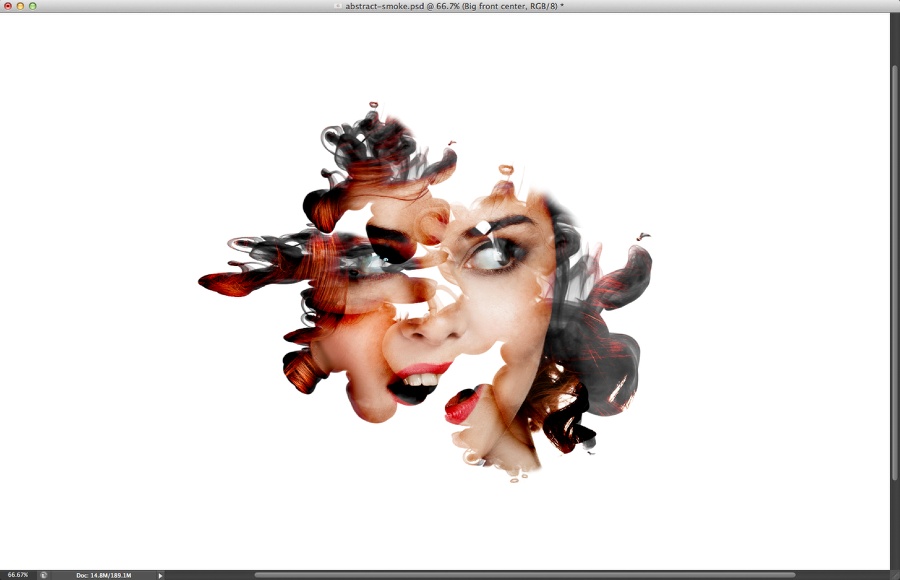
Use different brushes and different sizes to make the image more dynamic.

Abstract Photo Manipulation in Photoshop CS 6

Step 12

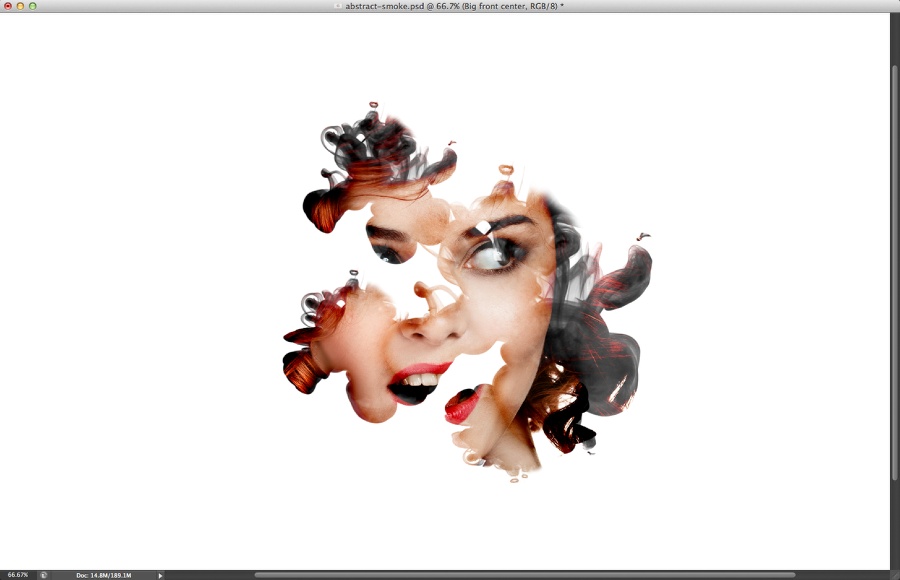
Here is the final version of my layers. Notice that there’s always a shadow between layers and the bottom one is different than the others. Try to vary as much as you can to make the effect more real.

Abstract Photo Manipulation in Photoshop CS 6

Step 13

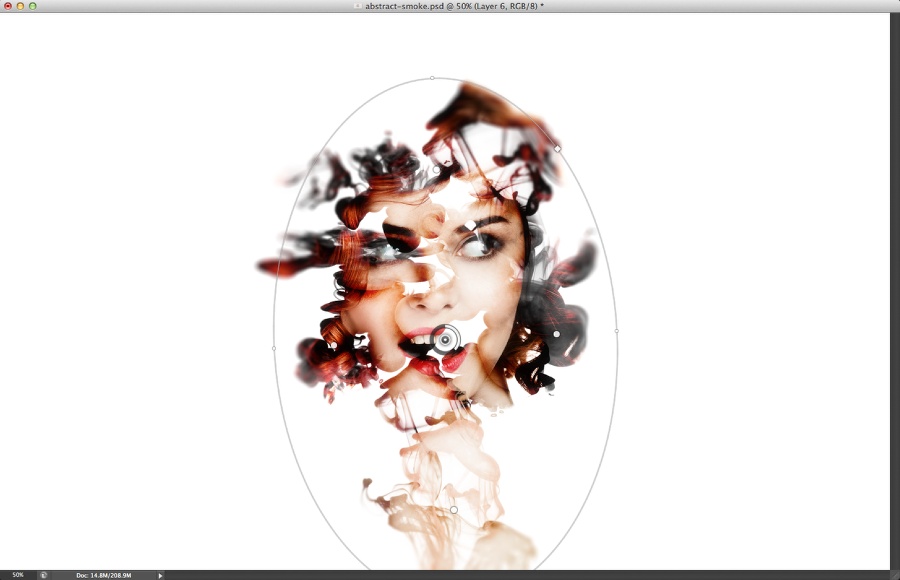
Select all layers and duplicate them. After that merge all new layers into one. Go to Filter>Blur>Iris Blur. The Iris Blur is pretty cool because we have a real time preview. So move the blur around until you get something like the image below. The goal is to blur the edges a little bit.

Abstract Photo Manipulation in Photoshop CS 6

Conclusion

Duplicate the layer and apply change the Blend Mode to Soft Light at 70% Opacity. Also duplicate it again and apply a Gaussian Blur with 10 pixels Radius. Change the Blend Mode to Screen at 40% Opacity. In the end you can apply a Photo Filter as well to make the colors match a little bit more.

Now you can try with different images, brushes and colors. Remember, the tutorials are more to illustrate the process, try to come up with your own images.

Abstract Photo Manipulation in Photoshop CS 6

Download Photoshop File

Click here to download the Photoshop file used for this tutorial

About the author

Abduzeedo is a blog about design. There are all sorts of articles for those who want to look for inspiration. Also you will find very useful tutorials for the most used applications out there, with a special selection of Photoshop Tutorials and Illustrator Tutorials. You can get in follow us via Twitter at @abduzeedo

Sponsored Links:


Abduzeedo Inspiration Guide for Designers at Amazon

Posted in Blog | Comments Off on Abstract Photo Manipulation in Photoshop CS 6