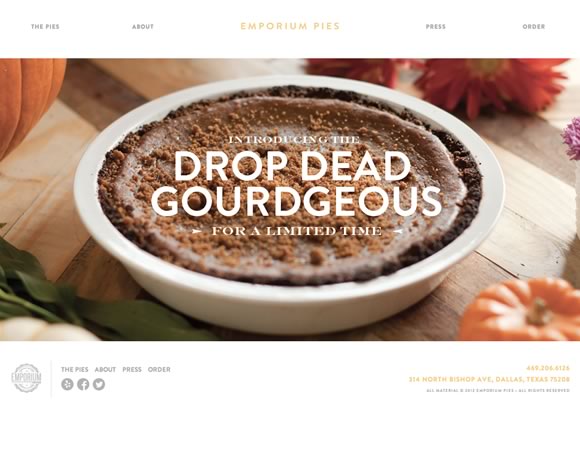
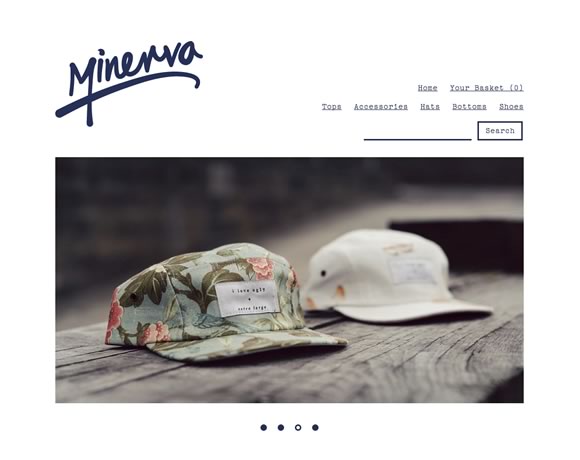
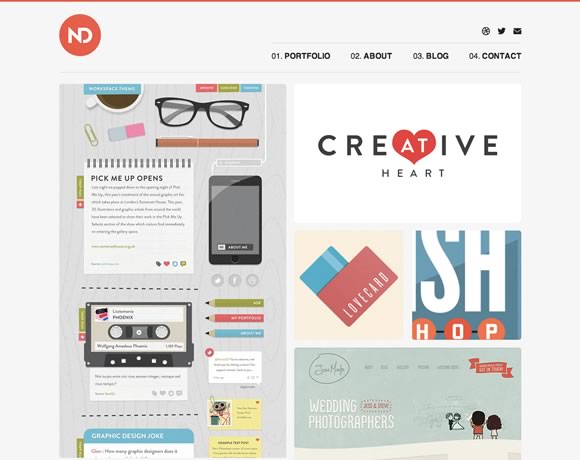
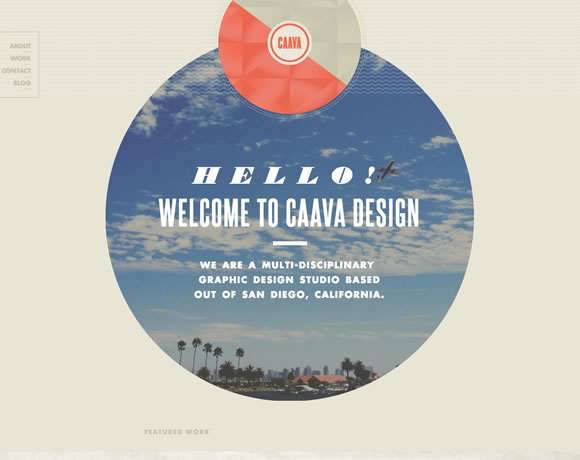
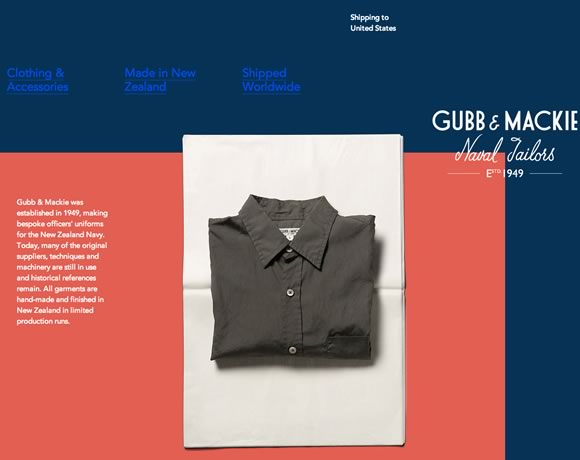
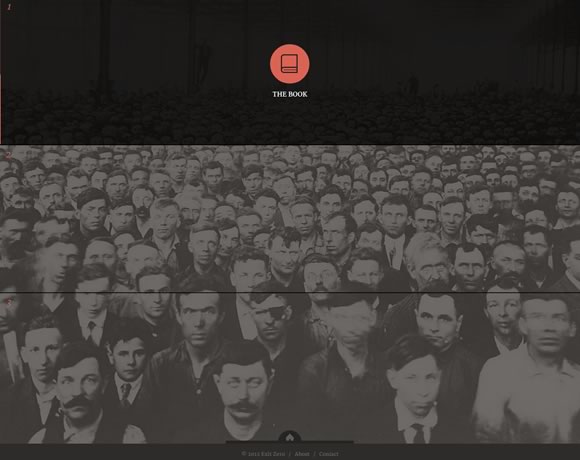
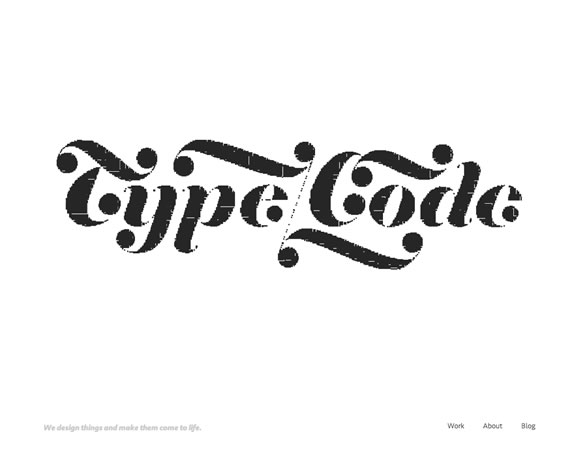
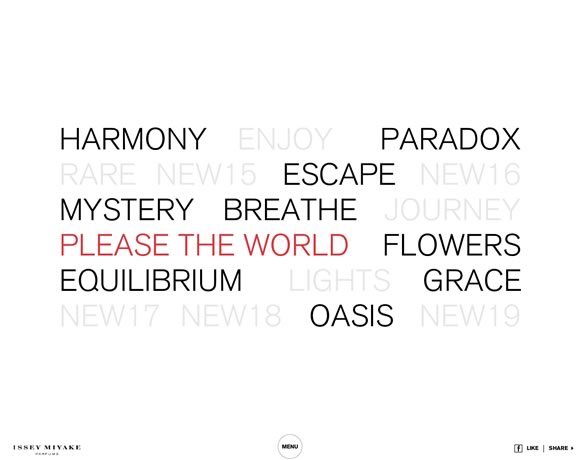
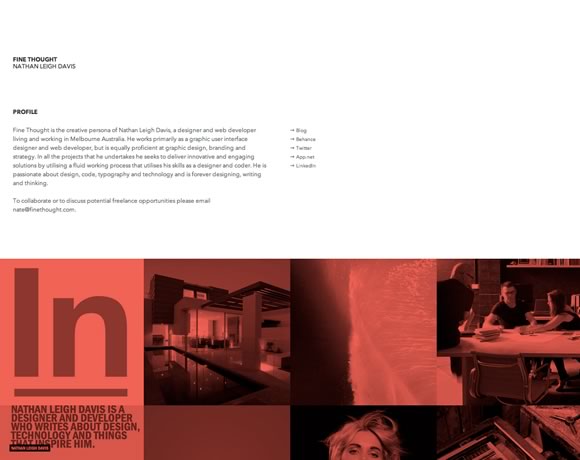
Last week we launched the new version of Abduzeedo. It’s our 8th design in the past 6 years, that means we change our design more than once every year. That’s our goal as the blog is not only to share inspiration but to experiment with new styles and technologies. For this new design our goal was to simplify and make the design minimal and simple.
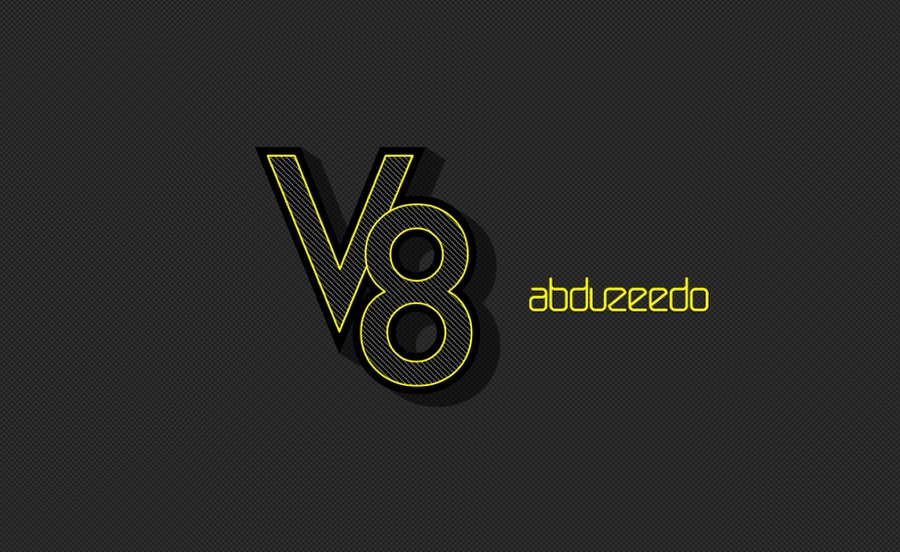
To celebrate that we decided to create a little vector wallpaper for our V8. The illustration uses only vectors, no textures, and simple set of vector effects using the blog colors. Besides that, as you probably know, we always create tutorials for our artworks. So this tutorial will show you how we created the Abduzeedo V8 wallpaper using Illustrator CS6.
Step 1
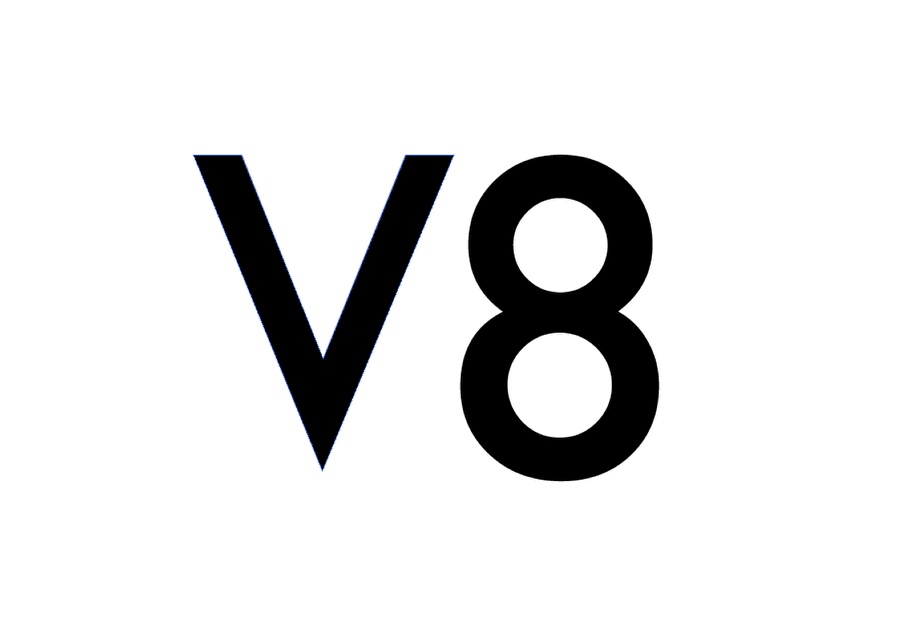
Open Illustrator and start a new document. The size used is 2880×1800 pixels. After that add the text V8 or any text you want. We used Futura Medium for the font.
Step 2
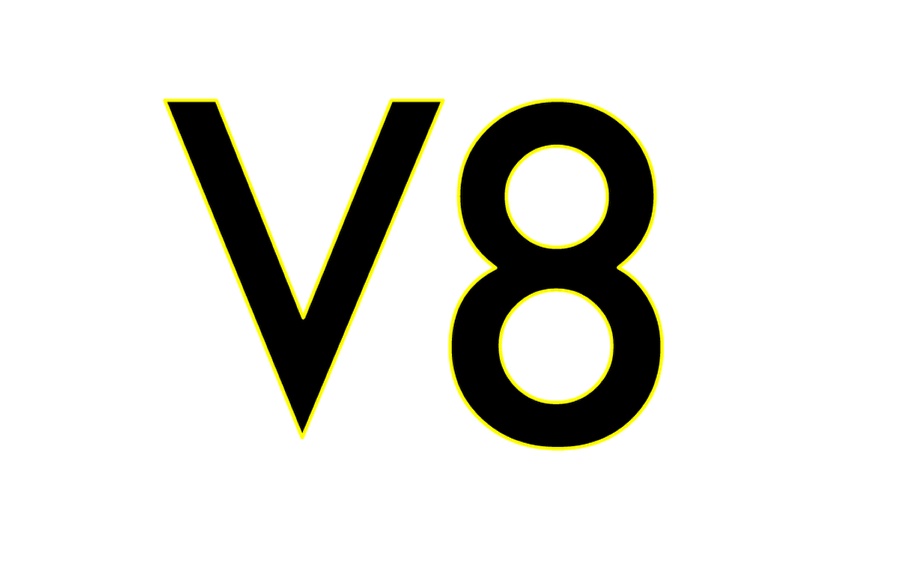
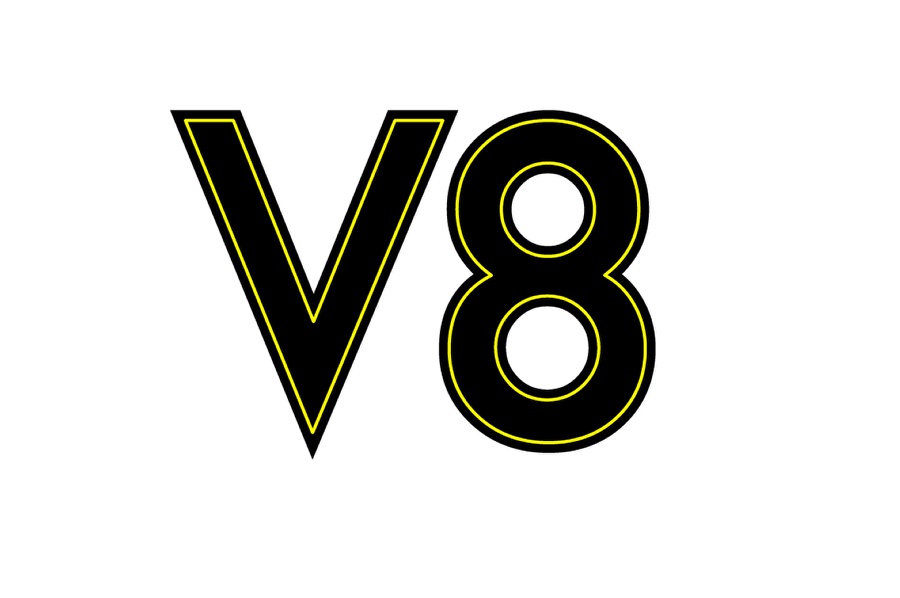
Add a stroke. The colors we are using is black for the fill and yellow for the first stroke. The yellow stroke is 4pt.
Step 3
Add another stroke, use 26pt for the weight and black for the color. Then on the Appearance panel, move this stroke so it’s below the yellow one. The result you will have is something like the image below.
Step 4
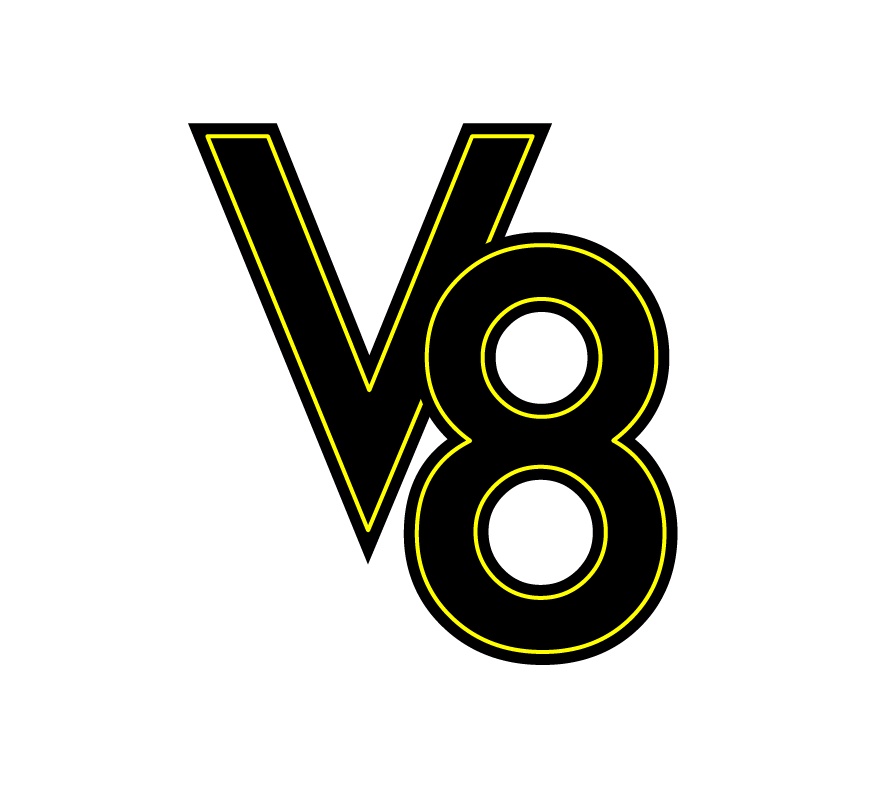
Move the 8 so it looks like the image below.
Step 5
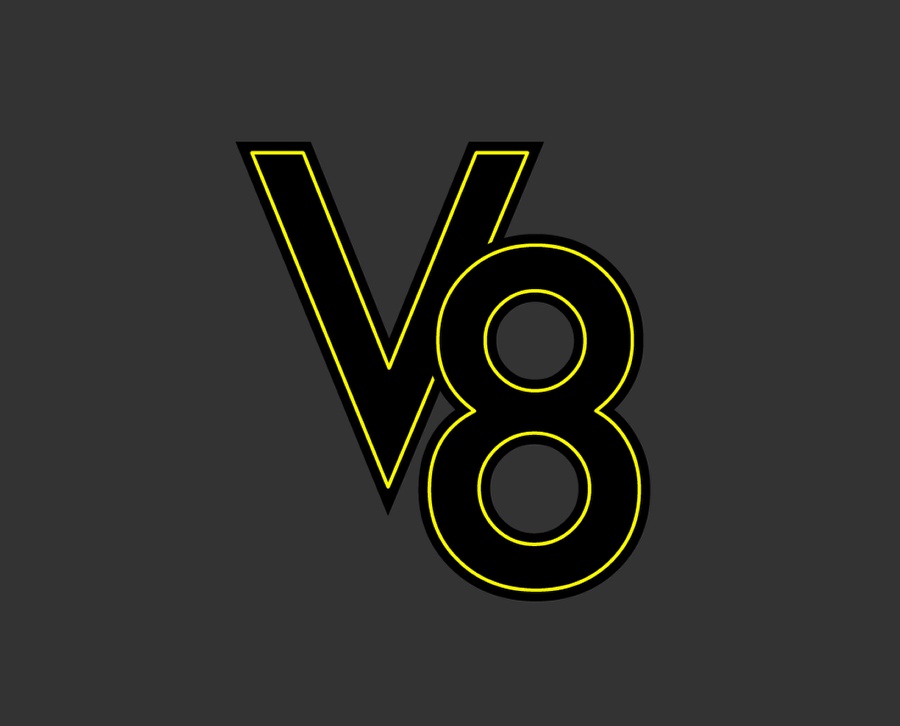
Add a rectangle with a dark grey with the color for the background.
Step 6
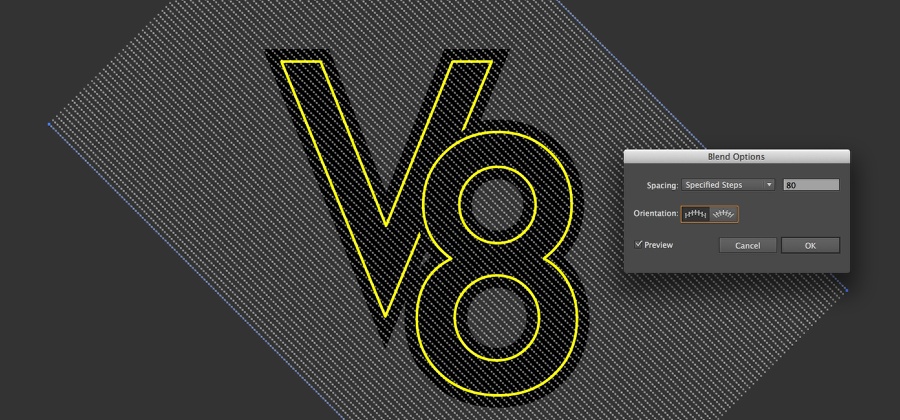
Create a 45º line with 3pt of weight, rounded cap and select the gap option. Use 1pt for dash and 4pt for gap. After that duplicate the line and move all the way to the top, so the first will be on one side and the last on the other. After that select the Blend Tool (W) and click on the two lines to create a blend effect. Double click on the Blend Tool icon to open the properties, change the steps to 80.
Step 7
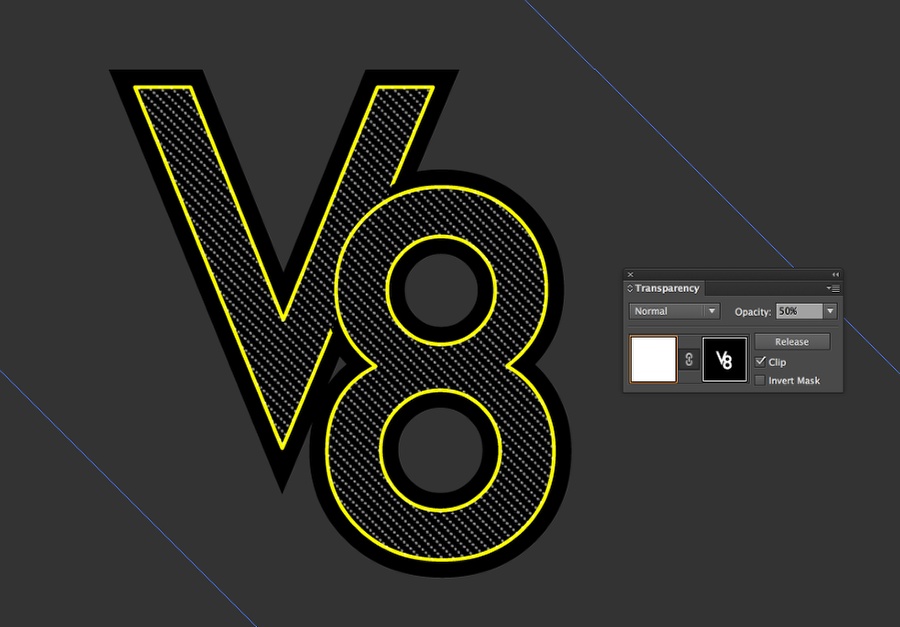
Select the V8 text and duplicate it. Remove both strokes and change the fill color to white. After that cut the white V8 objects. Select the blend object (the lines from the previous step) and go to the Transparency panel. Double click on the mask thumb, then paste the white V8 object in place (Command + F). That will make the lines visible only in the inner part of the V8.
Step 8
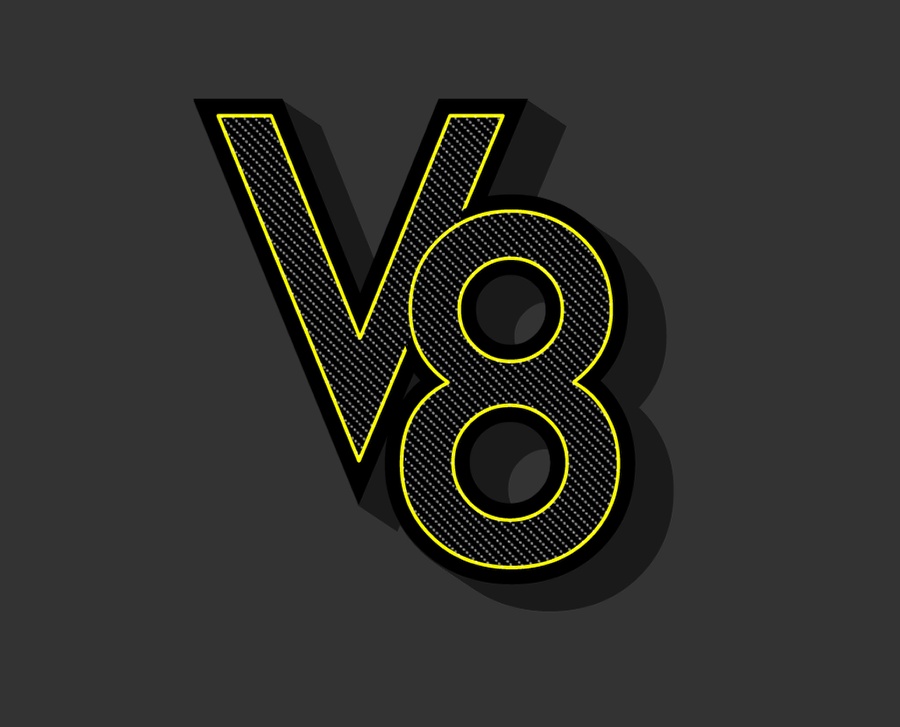
Select the V8 with both strokes and duplicate them. After that go to Object>Expand. The idea is to create an object with all strokes together. Go to the Pathfinder panel and select Unite. Repeat the Blend process used before on the step 7 to create a 3D effect. Use grey with Multiply for the transparency.
Step 9
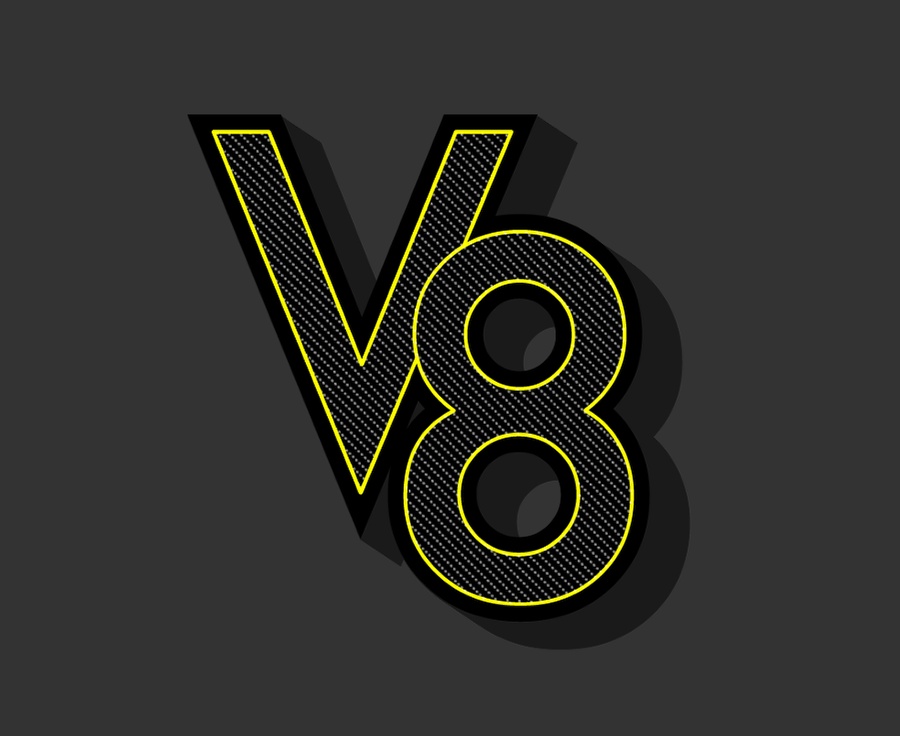
Fix some small details like the yellow stroke.
Step 10
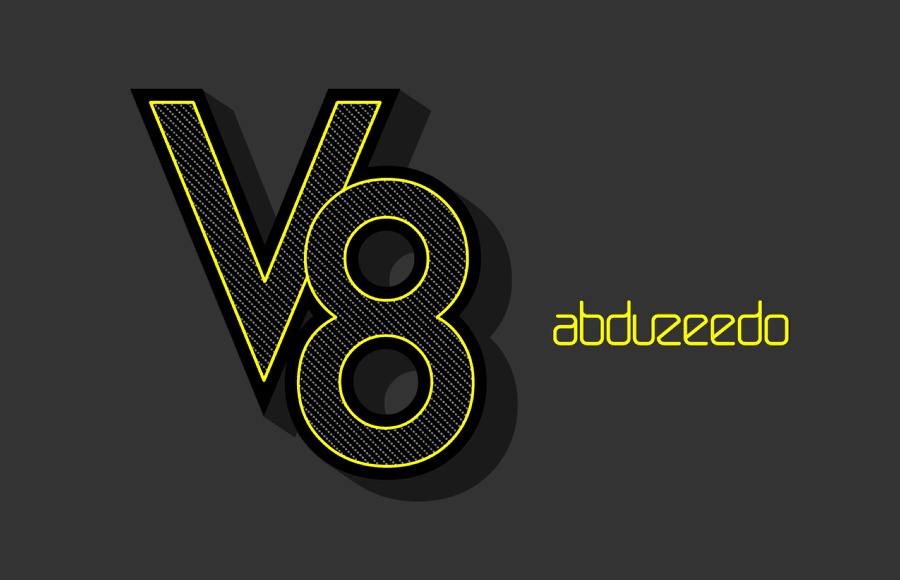
Add your logo next to the symbol and we are almost done.
Conclusion
Play with some patterns to add some depth. I used a basic checker pattern. The 3D effect using multiply will make the texture visible and that will create a stylish visual effect. You can also try different color palettes to make it look different and you can add some textures as well, but as I said in the beginning, the idea was to create a simple and clean vector effect.
Download Files
Click here to download the Illustrator file used for this tutorial