Super Useful Photoshop Tips: Feather Shape Layers, Keyboard shortcuts and more…

Super Useful Photoshop Tips: Feather Shape Layers, Keyboard shortcuts and more...

For the next few weeks we’ll be posting some of the best Photoshop tips from Photoshop Secrets. Some of these tips can greatly optimize your workflow helping you work faster and more precisely.

Make sure to check out http://photoshopsecrets.tumblr.com and follow @phtshp on twitter.

Feather Shape layers Vector Shape layers can be feathered (blurred) without rasterization.
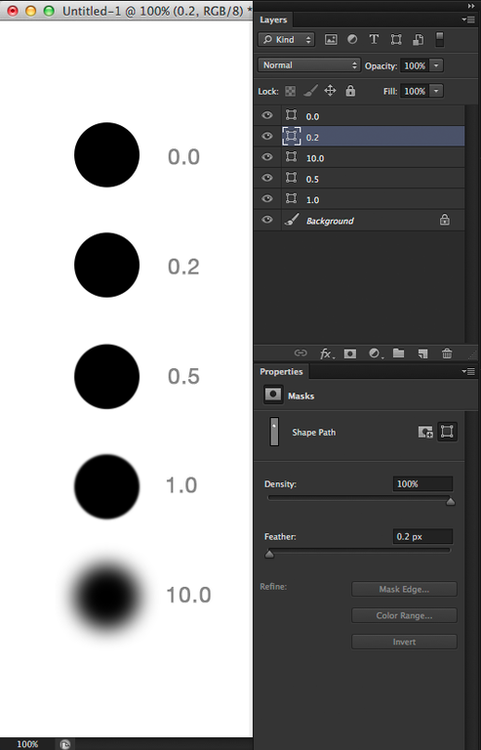
Open the Property Panel by clicking Window > Properties, then select a vector shape and adjust the feathering number.

This is great for creating more editable drop shadows that you can bend and change without problems.

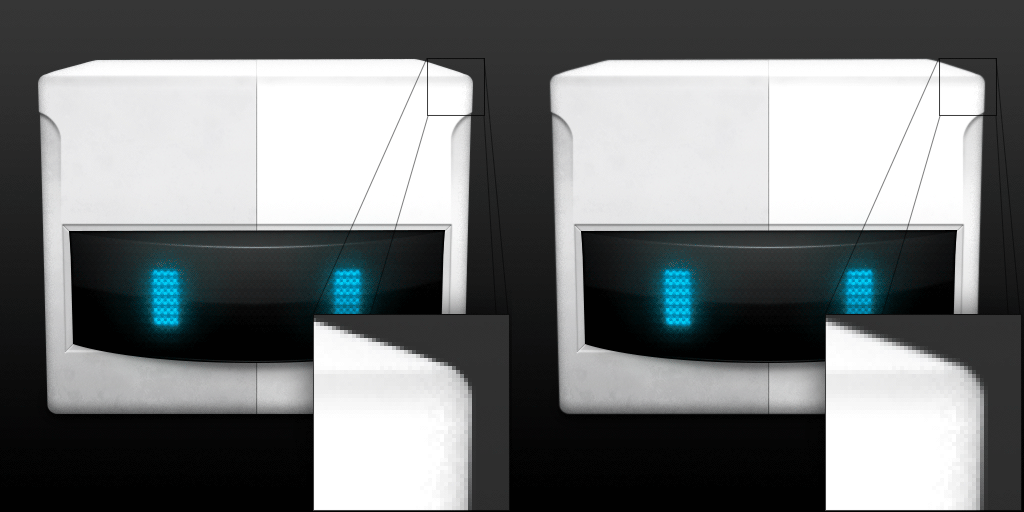
As of CS6 you can do decimal increments too, this is particularly useful for smoothing out shapes if you’re trying to make a smooth life-like illustrations or icons. I tend to use .1, .2 or .3 on my shapes when designing icons.
User Keyboard Maestro to copy/paste shape colors and styles

I often need to copy/paste colors for shape layers but unfortunately Photoshop gives me no easy way to do that.

As of CS6 right clicking a shape layer gives you an option called “Copy Shape Attributes” which would be great if there was a way to set a keyboard shortcut to it, but there isn’t, making it kind of useless.

To circumvent this problem I use Keyboard Maestro.

I created 4 macros

  • Copy Color
  • Copy Color + Style
  • Paste Color
  • Paste Color + Style

You can download them here: https://www.dropbox.com/sh/803h5plrgt2spzm/IPYPGBBAeN

Just double click the file after installing Keyboard Maestro and it’ll be added to your library of shortcuts. You can then change it to whatever shortcut you prefer as the ones I set might conflict with a shortcut you already use.

But what if you want to Copy/Paste just the Styles? For that Photoshop lets you do it already by either right clicking on the Style and choosing Copy/Paste Layer Style. You can also set a shortcut via Edit > Keyboard Shortcuts / Layer >Copy, Paste and Clear Layer Style.

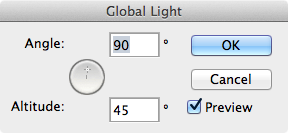
Set default Global Light to 90º

To set Global Light to every new document you create, open Photoshop and make sure you have NO documents open. Then click on Layer > Layer Styles > Global Light…
For many more awesome tips visit http://photoshopsecrets.tumblr.com and follow @phtshp on twitter.

Posted in Blog | Comments Off on Super Useful Photoshop Tips: Feather Shape Layers, Keyboard shortcuts and more…

Daily Inspiration #1301

Daily Inspiration #1301

This post is part of our daily series of posts showing the most inspiring images selected by some of the Abduzeedo’s writers and users. If you want to participate and share your graphic design inspiration, You can submit your images and inspiration to RAWZ via http://raw.abduzeedo.com and don’t forget to send your Abduzeedo username; or via Twitter sending to http://twitter.com/abduzeedo.

Do you want to see all images from all Daily Inspirations? Check out http://daily.abduzeedo.com

aariff

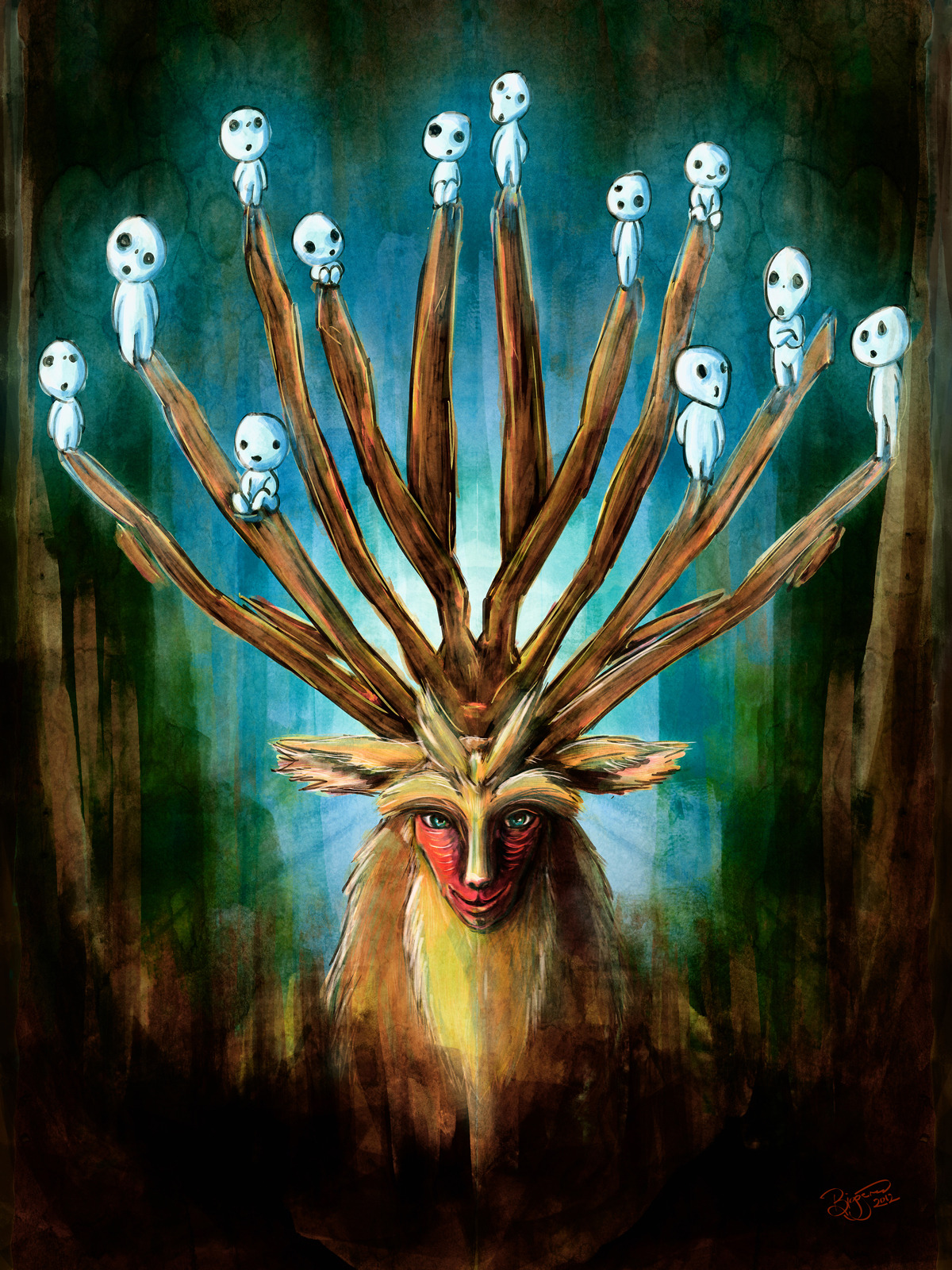
Digital art selected for the Daily Inspiration #1301

al b sure

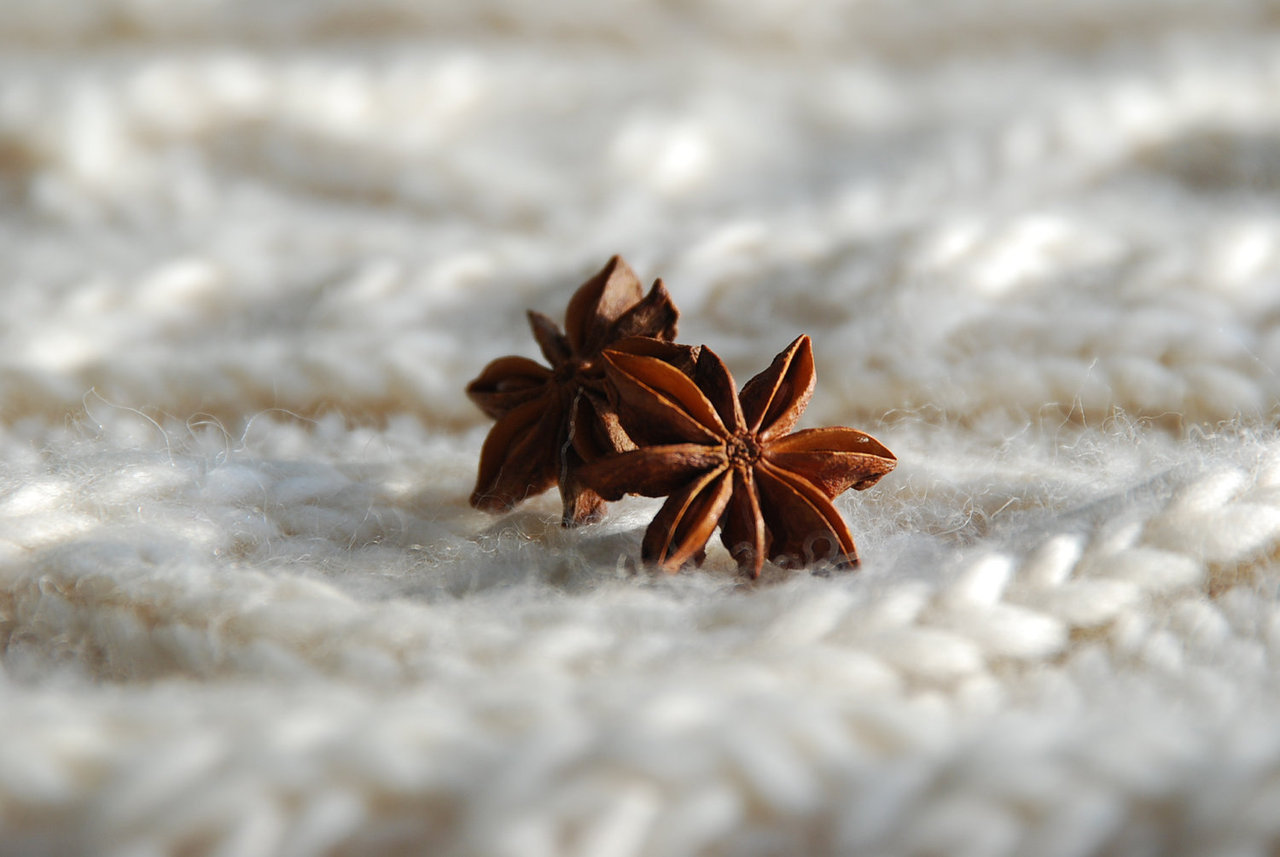
Digital art selected for the Daily Inspiration #1301

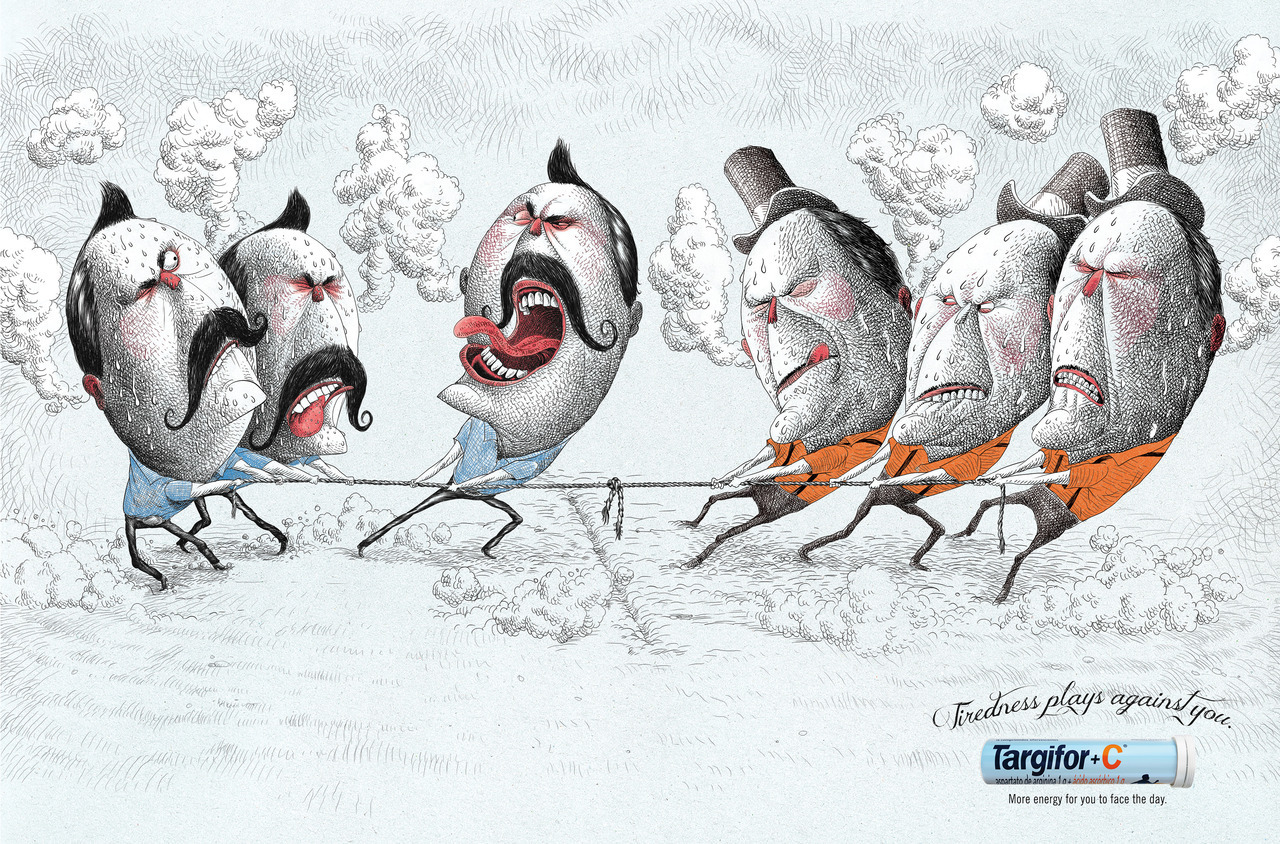
Digital art selected for the Daily Inspiration #1301

Digital art selected for the Daily Inspiration #1301

barrettbiggers

Digital art selected for the Daily Inspiration #1301

Digital art selected for the Daily Inspiration #1301

Bilal Malik

Digital art selected for the Daily Inspiration #1301

Digital art selected for the Daily Inspiration #1301

cloudienetwork

Digital art selected for the Daily Inspiration #1301

Digital art selected for the Daily Inspiration #1301

Digital art selected for the Daily Inspiration #1301

cruzine

Digital art selected for the Daily Inspiration #1301

Digital art selected for the Daily Inspiration #1301

Digital art selected for the Daily Inspiration #1301

cuded

Digital art selected for the Daily Inspiration #1301

Damir

Digital art selected for the Daily Inspiration #1301

Digital art selected for the Daily Inspiration #1301

gabriel-gom

Digital art selected for the Daily Inspiration #1301

Digital art selected for the Daily Inspiration #1301

giu-lia

Digital art selected for the Daily Inspiration #1301

Digital art selected for the Daily Inspiration #1301

Digital art selected for the Daily Inspiration #1301

graphisteph

Digital art selected for the Daily Inspiration #1301

Digital art selected for the Daily Inspiration #1301

Digital art selected for the Daily Inspiration #1301

hattostore

Digital art selected for the Daily Inspiration #1301

ivkiona

Digital art selected for the Daily Inspiration #1301

Digital art selected for the Daily Inspiration #1301

Digital art selected for the Daily Inspiration #1301

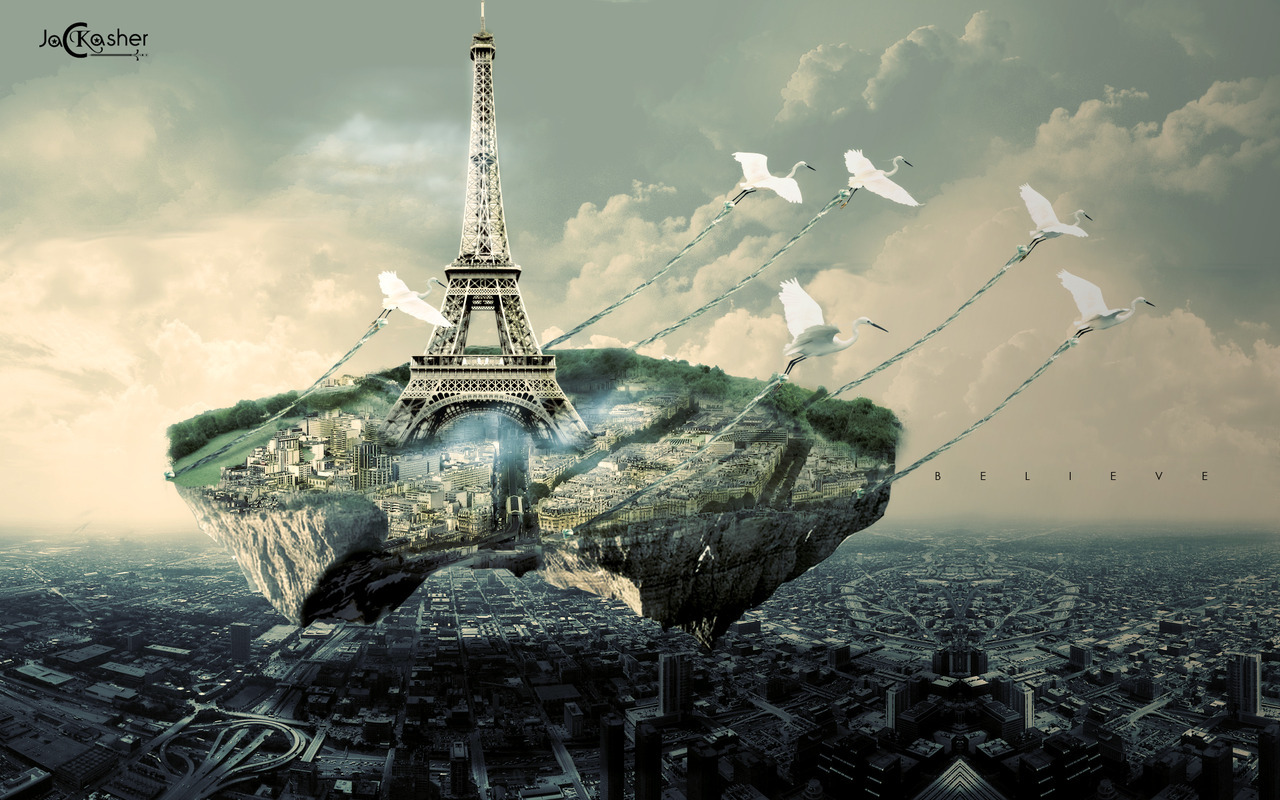
Jac Kasher

Digital art selected for the Daily Inspiration #1301

japinc

Digital art selected for the Daily Inspiration #1301

Digital art selected for the Daily Inspiration #1301

Jeferson Bonatto

Digital art selected for the Daily Inspiration #1301

Jon Nyquist

Digital art selected for the Daily Inspiration #1301

Jonas Schenk

Digital art selected for the Daily Inspiration #1301

Kartik Shrivastava

Digital art selected for the Daily Inspiration #1301

Digital art selected for the Daily Inspiration #1301

Kimochi Neina

Digital art selected for the Daily Inspiration #1301

koningstuff

Digital art selected for the Daily Inspiration #1301

Digital art selected for the Daily Inspiration #1301

kreshnikilazi

Digital art selected for the Daily Inspiration #1301

lait-noir

Digital art selected for the Daily Inspiration #1301

Digital art selected for the Daily Inspiration #1301

lpgatti

Digital art selected for the Daily Inspiration #1301

Digital art selected for the Daily Inspiration #1301

lubosvolkov

Digital art selected for the Daily Inspiration #1301

maheshartist

Digital art selected for the Daily Inspiration #1301

maodg84

Digital art selected for the Daily Inspiration #1301

Digital art selected for the Daily Inspiration #1301

Martin Quiroz

Digital art selected for the Daily Inspiration #1301

maxim-borisenkov

Digital art selected for the Daily Inspiration #1301

Musketon

Digital art selected for the Daily Inspiration #1301

negrisimo

Digital art selected for the Daily Inspiration #1301

patricklanda

Digital art selected for the Daily Inspiration #1301

pechurk1ca

Digital art selected for the Daily Inspiration #1301

powerchimp

Digital art selected for the Daily Inspiration #1301

Richard Burditt

Digital art selected for the Daily Inspiration #1301

Sébastien Morin

Digital art selected for the Daily Inspiration #1301

soplar

Digital art selected for the Daily Inspiration #1301

Stefan Berhardt

Digital art selected for the Daily Inspiration #1301

taraskrav

Digital art selected for the Daily Inspiration #1301

Tays VIllaca

Digital art selected for the Daily Inspiration #1301

thaeger

Digital art selected for the Daily Inspiration #1301

Digital art selected for the Daily Inspiration #1301

Digital art selected for the Daily Inspiration #1301

thomasmburu

Digital art selected for the Daily Inspiration #1301

Thomas Dotinga

Digital art selected for the Daily Inspiration #1301

Thomas Olofsson

Digital art selected for the Daily Inspiration #1301

WhatAnART

Digital art selected for the Daily Inspiration #1301

Digital art selected for the Daily Inspiration #1301

zug-alpha

Digital art selected for the Daily Inspiration #1301

Digital art selected for the Daily Inspiration #1301

Posted in Blog | Comments Off on Daily Inspiration #1301