Classic Light Effect in Photoshop

Classic Light Effect in Photoshop

Light effects are my favorite type of effect, I don’t know why but I always liked to play around in Photoshop trying to recreate them. Then once I discovered the power of the Blend Modes, especially the Color Dodge, creating this effects became much easier.

So in this tutorial I will show you how to create a super cool text light effect mixing some photos to give more realism. The cool thing about this effect is that the whole process is very simple and quite easy.

Step 1

Open Photoshop and create a new document, after that make sure that the background is in black.
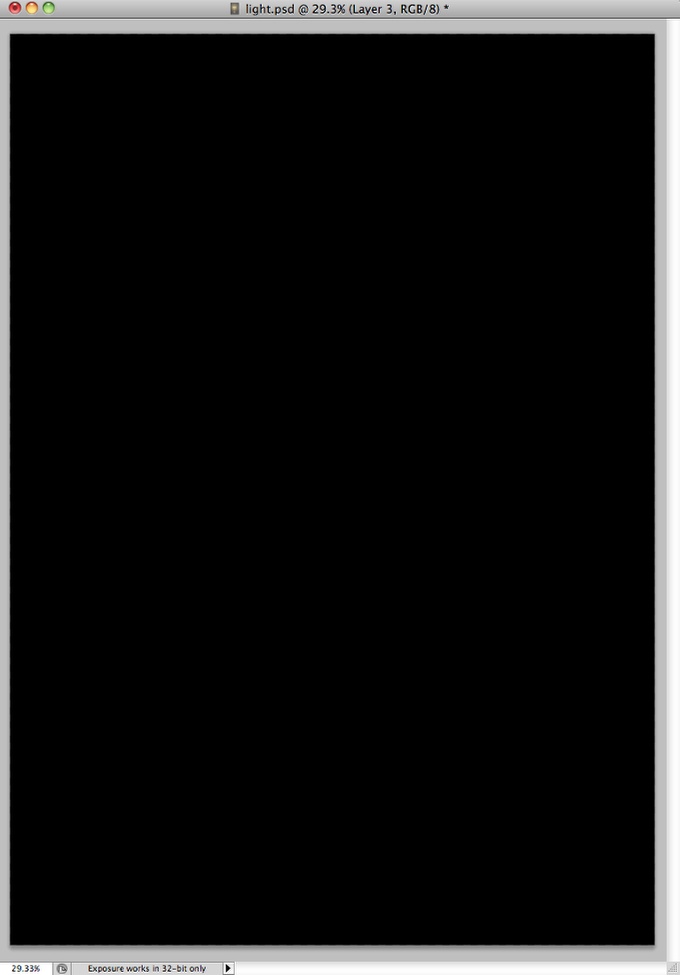
Classic Light Effect in Photoshop

Step 2

To make the effect more realistic let’s use a stock photo, the one I am using is courtesy from Shutterstock and you can find it at http://www.shutterstock.com/pic-24939406/stock-photo-glowing-lamp-on-bla…. Place the image in the center of the document but make sure that the filament area is big engouh.
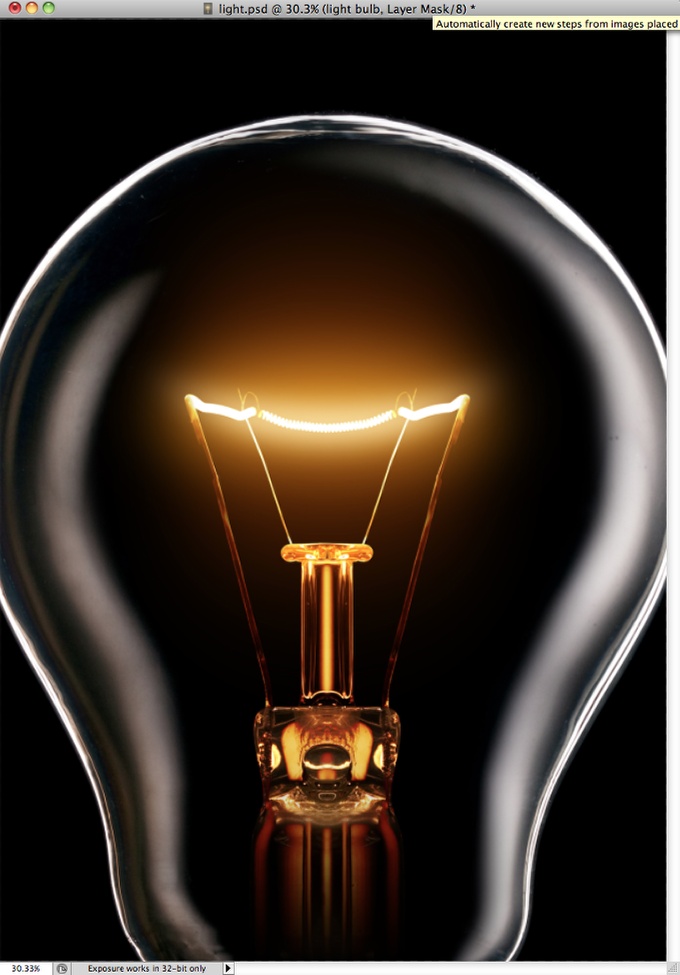
Classic Light Effect in Photoshop

Step 3

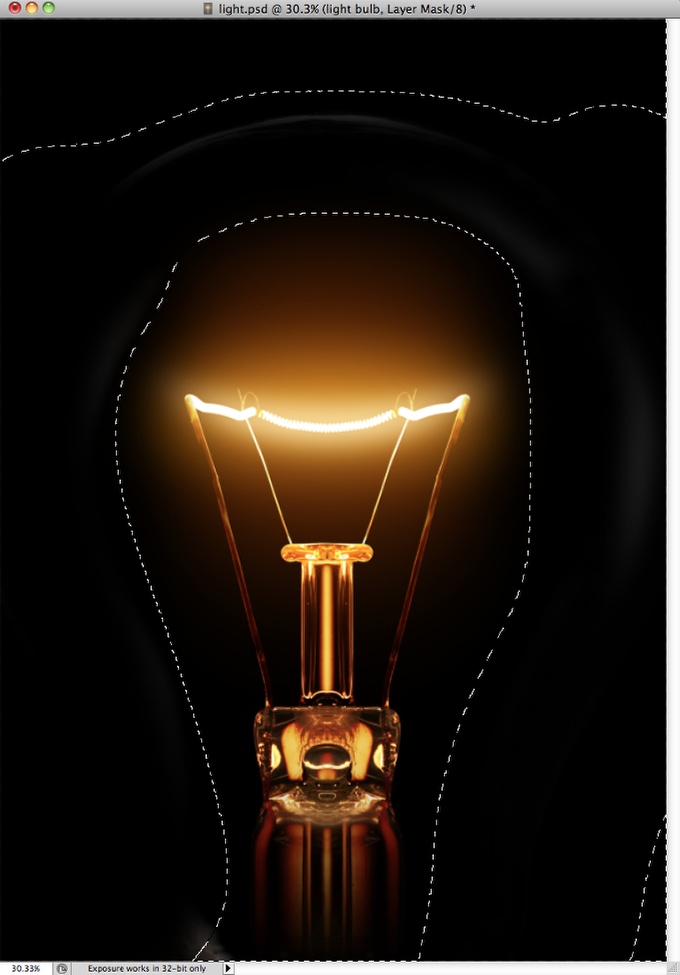
Go to Layer>Layer Mask>Reveal All. Then with the Brush Tool (B) select a very soft brush (0% hardness0 and black for the color. Start paiting the areas of the light you want to hide. Use the image below for reference.
Classic Light Effect in Photoshop

Step 4

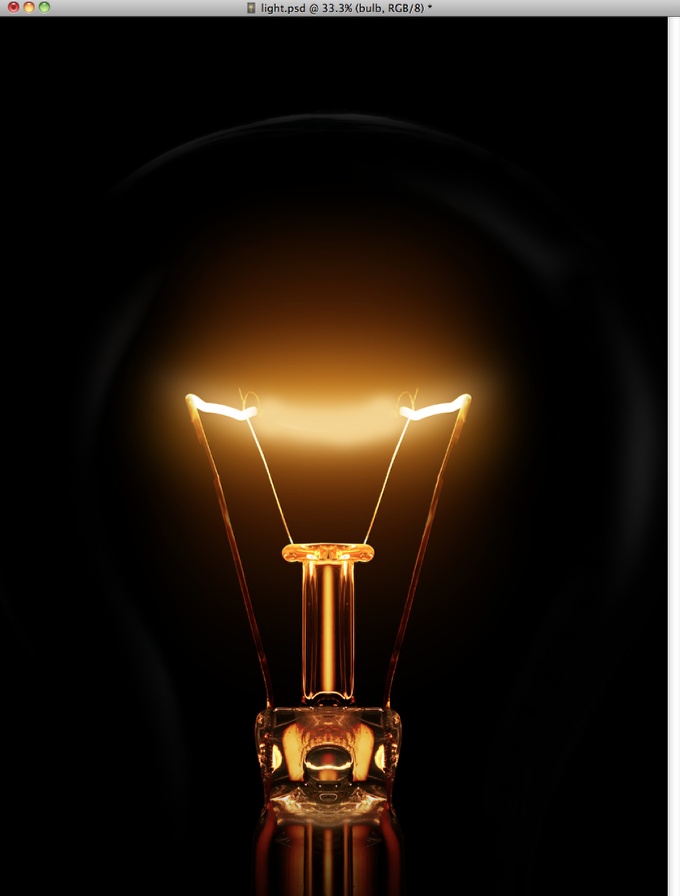
Now let’s delete the filament area where we will add the text with the light effect later on. To do that is pretty easy, with the Eyedropper Tool (I) select the color of the area you will paint, the with the Brush Tool (B) and a very soft brush, start paiting over the filament. Note: I added a new layer instead of painting over. Another tip is if you are using the Brush Tool (B) you can just press Alt to use the Eyedropper Tool.
Classic Light Effect in Photoshop

Step 5

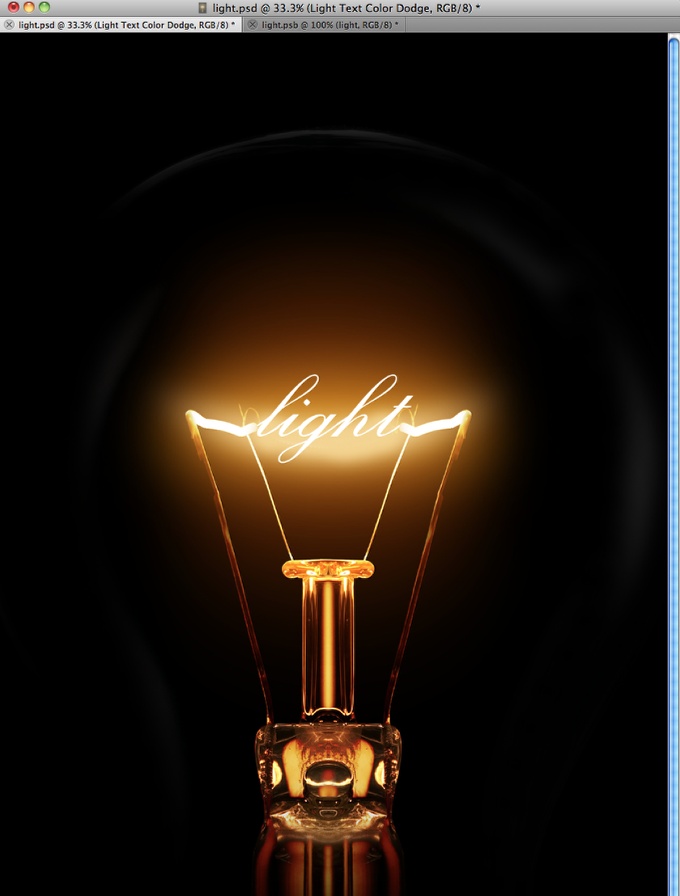
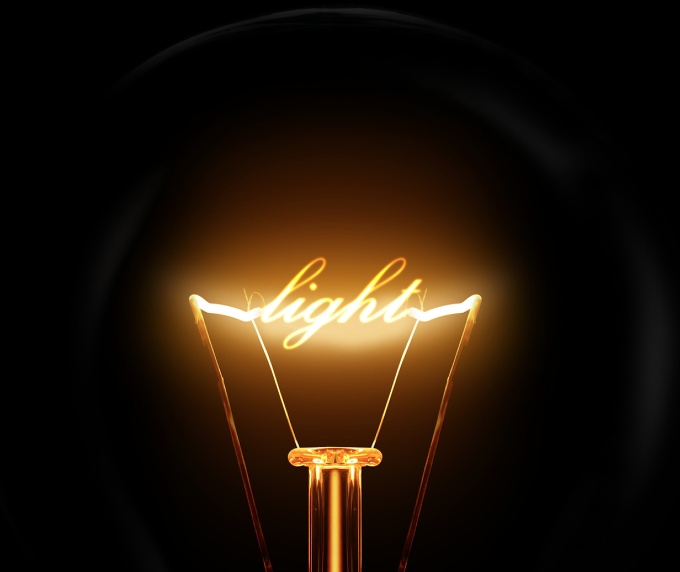
With the Horizontal Type Tool (T) add the word light in white. I am using Exmouth for the font, you can download it here http://www.dafont.com/exmouth.font. For the size I am using 82 pixels but the size will depend on your document size. After that add a new folder in the Layers Palette and change the Blend Mode of this folder to Color Dodge. Move the light text into the folder you have just created.
Classic Light Effect in Photoshop

Step 6

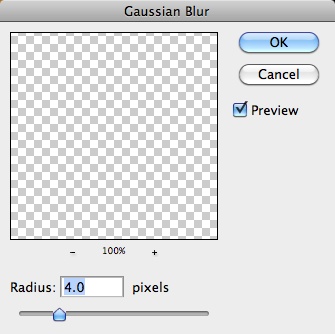
With the text selected go to Filter>Blur>Gaussian Blur. Use 4 pixels for the Radius.
Classic Light Effect in Photoshop

Step 7

Because the white text is inside the folder with the Color Dodge, the effect will be the same as if the text layer had a black background. You can see that the edges get sort of blended with the background creating a perfect light effect.
Classic Light Effect in Photoshop

Step 8

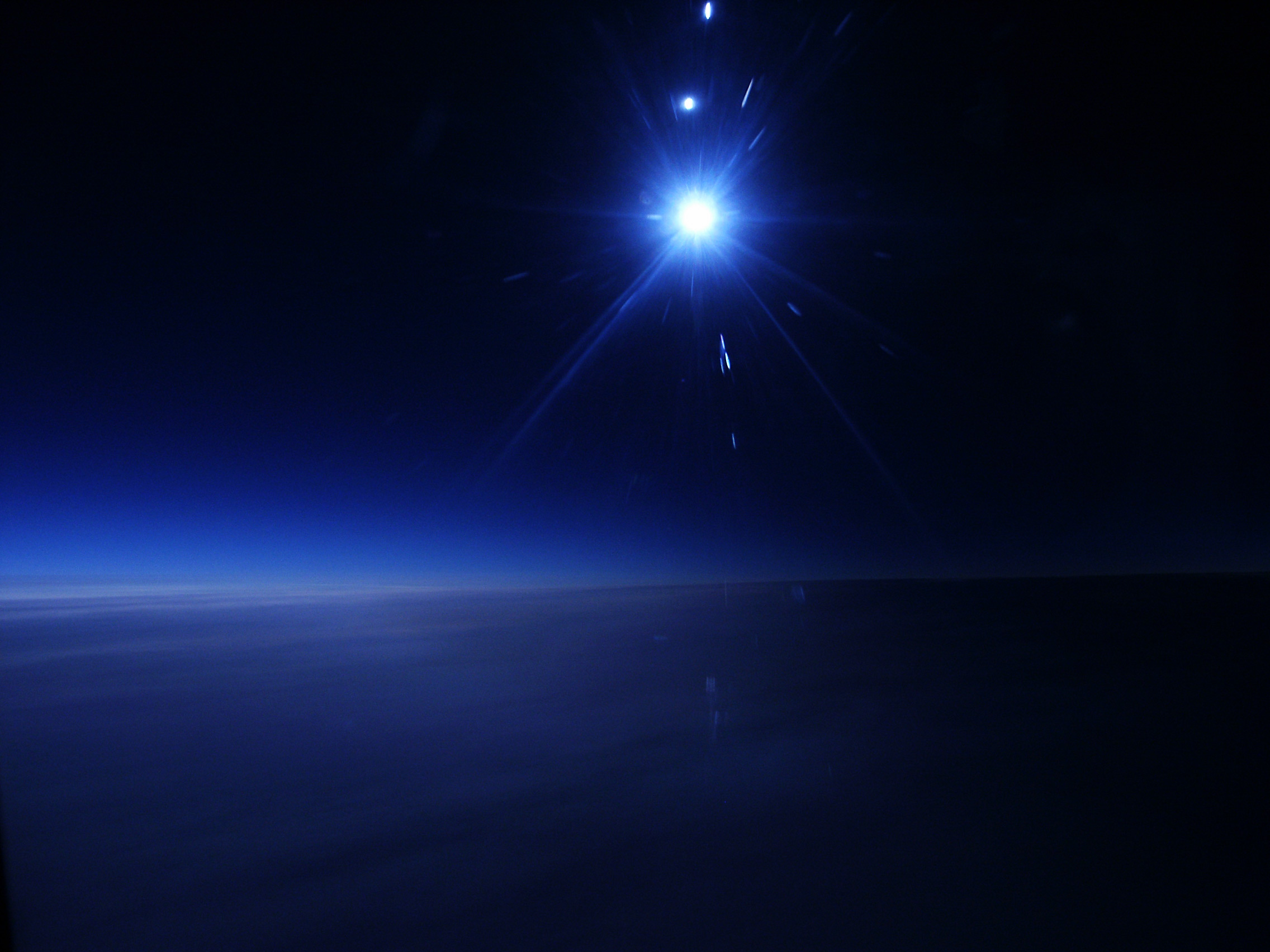
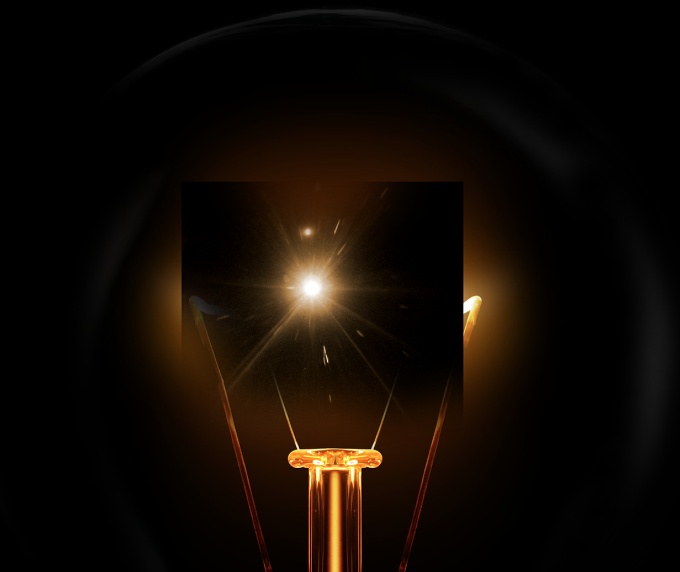
Again to add more realism, instead of creating a lens flare in Photoshop we will use a real photo. The one I am using I found in Google Images and you can find it here http://web.williams.edu/astronomy/IAU_eclipses/jmp_eclipse03_04.jpg.

Once you imported the photo the first thing to do is delete the areas that you won’t be necessary and keep just the flare. After that go to Image>Adjustments>Desaturate.
Classic Light Effect in Photoshop

Step 9

With the flare layer already desaturated, just change its Blend Mode to Screen. Screen is a very useful Blend Mode because it turns what is black into full trasparency the grey scale becomes a transparency level, so it’s perfect to create light effects.

Classic Light Effect in Photoshop

Step 10

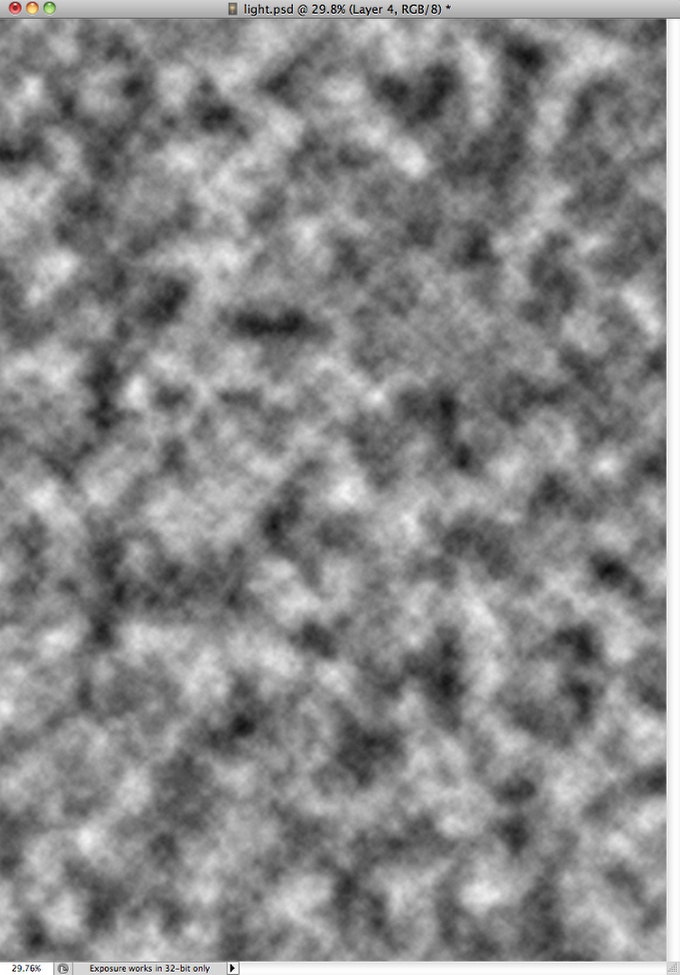
Add a new layer and go to Filter>Render>Clouds. Make sure you had black and white for the background and foreground colors. This layer also will be on top of the others.
Classic Light Effect in Photoshop

Step 11

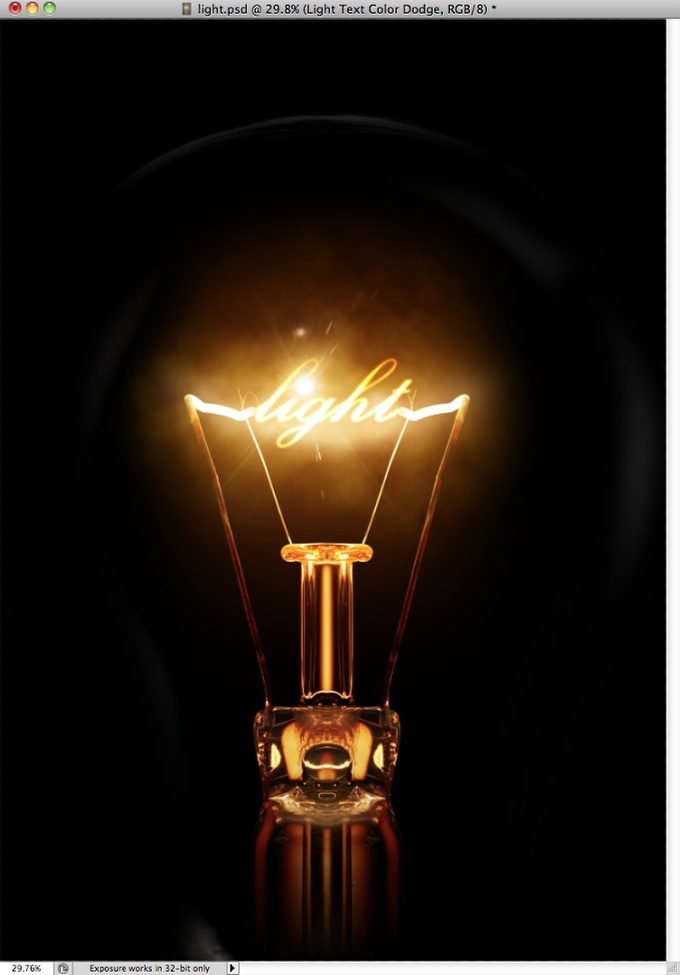
Change the clouds’ layer Blend Mode to Color Dodge. After that add a new folder in the Layers Panel and move the clouds layer into it. After that change this folder’s Blend Mode to Overlay.
Classic Light Effect in Photoshop

Step 12

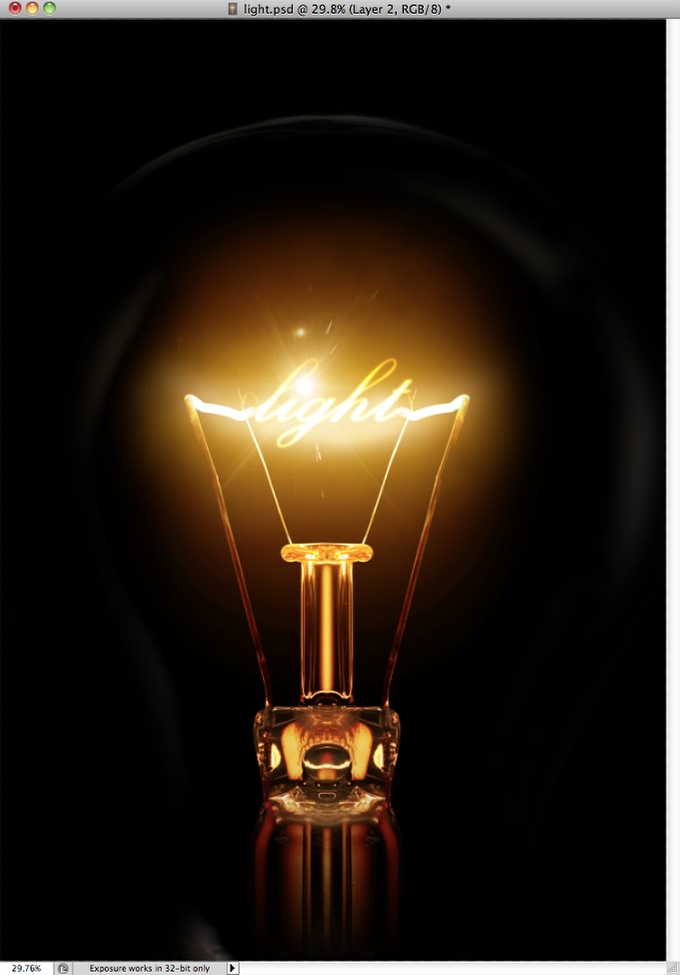
Add a new layer inside the folder in which you moved the clouds’ layer. Make sure that the new layer is beneath the clouds’ layer. After that with the Brush Tool (B) and a very soft brush with #f5d38b paint a round spot in the center of the light effect. Change this layer’s Blend Mode to Overlay too.
Classic Light Effect in Photoshop

Step 13

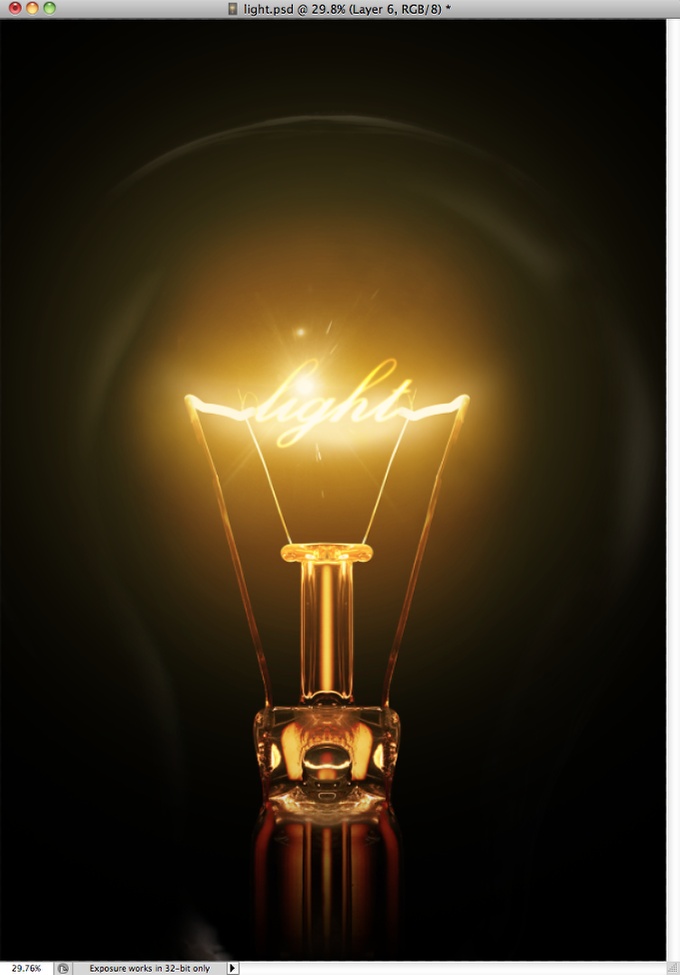
Now add another layer on top of all the others and then with the Brush Tool (B) and a big and very soft brush using white for the color, paint another big spot in the center of the light effect. After that go to Layer>Layers Styles>Color Overlay. Use #ffd648 and Linear Burn. The idea is to make the light a bit stronger.

After this we are done and as you could see, most of the light effects are all about blending colors with photos. The Blend Modes in Photoshop are very powerful for this type of effect and I would recommend you to study more about them, especially the Color Dodge one.
Classic Light Effect in Photoshop

Posted in Blog | Comments Off on Classic Light Effect in Photoshop

Daily Inspiration #1374

Daily Inspiration #1374

This post is part of our daily series of posts showing the most inspiring images selected by some of the Abduzeedo’s writers and users. If you want to participate and share your graphic design inspiration, You can submit your images and inspiration to RAWZ via http://raw.abduzeedo.com and don’t forget to send your Abduzeedo username; or via Twitter sending to http://twitter.com/abduzeedo.

Do you want to see all images from all Daily Inspirations? Check out http://daily.abduzeedo.com

1tutorialstorage

Digital art selected for the Daily Inspiration #1374

Digital art selected for the Daily Inspiration #1374

Digital art selected for the Daily Inspiration #1374

Digital art selected for the Daily Inspiration #1374

Digital art selected for the Daily Inspiration #1374

Digital art selected for the Daily Inspiration #1374

abbasdezine

Digital art selected for the Daily Inspiration #1374

Digital art selected for the Daily Inspiration #1374

Digital art selected for the Daily Inspiration #1374

Adrian

Digital art selected for the Daily Inspiration #1374

aemebe

Digital art selected for the Daily Inspiration #1374

Alex Costin

Digital art selected for the Daily Inspiration #1374

alimnatasha

Digital art selected for the Daily Inspiration #1374

Digital art selected for the Daily Inspiration #1374

andreasjd

Digital art selected for the Daily Inspiration #1374

angelalejandro

Digital art selected for the Daily Inspiration #1374

burnyeahthecolor

Digital art selected for the Daily Inspiration #1374

Corbin Nash

Digital art selected for the Daily Inspiration #1374

Digital art selected for the Daily Inspiration #1374

cuded

Digital art selected for the Daily Inspiration #1374

Digital art selected for the Daily Inspiration #1374

Digital art selected for the Daily Inspiration #1374

Digital art selected for the Daily Inspiration #1374

Dalai Karma

Digital art selected for the Daily Inspiration #1374

Digital art selected for the Daily Inspiration #1374

Daniara

Digital art selected for the Daily Inspiration #1374

David Atlee

Digital art selected for the Daily Inspiration #1374

Digital art selected for the Daily Inspiration #1374

Digital art selected for the Daily Inspiration #1374

David Byerleee

Digital art selected for the Daily Inspiration #1374

designiscool

Digital art selected for the Daily Inspiration #1374

Dolphin7

Digital art selected for the Daily Inspiration #1374

Etienne Ripzaad

Digital art selected for the Daily Inspiration #1374

Digital art selected for the Daily Inspiration #1374

feppa

Digital art selected for the Daily Inspiration #1374

fontsofchaos

Digital art selected for the Daily Inspiration #1374

francotroxlerart

Digital art selected for the Daily Inspiration #1374

gencept

Digital art selected for the Daily Inspiration #1374

Digital art selected for the Daily Inspiration #1374

Digital art selected for the Daily Inspiration #1374

Digital art selected for the Daily Inspiration #1374

Digital art selected for the Daily Inspiration #1374

giu-lia

Digital art selected for the Daily Inspiration #1374

hecrazy

Digital art selected for the Daily Inspiration #1374

Ian Armstrong

Digital art selected for the Daily Inspiration #1374

inflaamess

Digital art selected for the Daily Inspiration #1374

jankloke

Digital art selected for the Daily Inspiration #1374

Jururekamphoto

Digital art selected for the Daily Inspiration #1374

Digital art selected for the Daily Inspiration #1374

Karthik M

Digital art selected for the Daily Inspiration #1374

Digital art selected for the Daily Inspiration #1374

Marcin Rupiewicz 7grafik

Digital art selected for the Daily Inspiration #1374

Mark Oliver Idio

Digital art selected for the Daily Inspiration #1374

Mat Rossetter

Digital art selected for the Daily Inspiration #1374

Nahum Yamin

Digital art selected for the Daily Inspiration #1374

NEVER-HATE

Digital art selected for the Daily Inspiration #1374

Digital art selected for the Daily Inspiration #1374

nicolas delille

Digital art selected for the Daily Inspiration #1374

Octopus Apparel

Digital art selected for the Daily Inspiration #1374

Orlando Arocena

Digital art selected for the Daily Inspiration #1374

Pablo Evaristo

Digital art selected for the Daily Inspiration #1374

Roman Davydyuk

Digital art selected for the Daily Inspiration #1374

senka

Digital art selected for the Daily Inspiration #1374

Digital art selected for the Daily Inspiration #1374

simontil95

Digital art selected for the Daily Inspiration #1374

Digital art selected for the Daily Inspiration #1374

slant6ix

Digital art selected for the Daily Inspiration #1374

sssz-photo

Digital art selected for the Daily Inspiration #1374

steeve

Digital art selected for the Daily Inspiration #1374

thaeger

Digital art selected for the Daily Inspiration #1374

Digital art selected for the Daily Inspiration #1374

Digital art selected for the Daily Inspiration #1374

thepbotographer

Digital art selected for the Daily Inspiration #1374

tribhuvansuthar

Digital art selected for the Daily Inspiration #1374

Ümit Kara

Digital art selected for the Daily Inspiration #1374

Posted in Blog | Comments Off on Daily Inspiration #1374