How to use HTML5 audio (part 2)

This is part two of the HTML5 audio introduction video; if you haven’t watched it already, I recommend checking out part one to get up to speed!

Today, we’ll be working on our HTML5 audio player and adding some exciting functionality to really bring our HTML5 player to life. We’ll be using a method involving data attributes, which allow for easy access to custom values for each audio element, and that’s where our titles, artists and album art come in.

By the end of this tutorial, you’ll understand the following: “Tagging” your audio elements with custom data attributes; such as track title, artist and even album art; using jQuery to manipulate this information and display it on the page, with the flexibility to style it around your own designs.

I’ll also be demonstrating my player example, and talking through how to accomplish certain effects with your data; including displaying the album art as a glossy backdrop to your player.


Have you featured HTML5 audio in a project? How does HTML5 audio compare with older options? Let us know your thoughts in the comments.

Featured image/thumbnail, sound image via Shutterstock.

SpyBar: Reverse Engineer Any Website – only $7!

Source

Posted in Blog | Comments Off on How to use HTML5 audio (part 2)

Double Exposure Style in Photoshop

Double Exposure Style in Photoshop

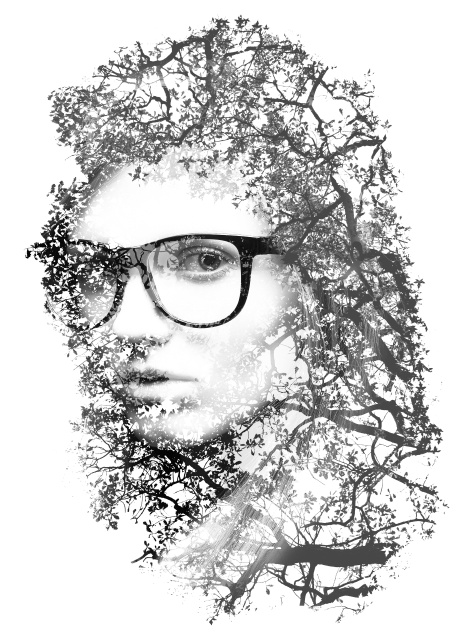
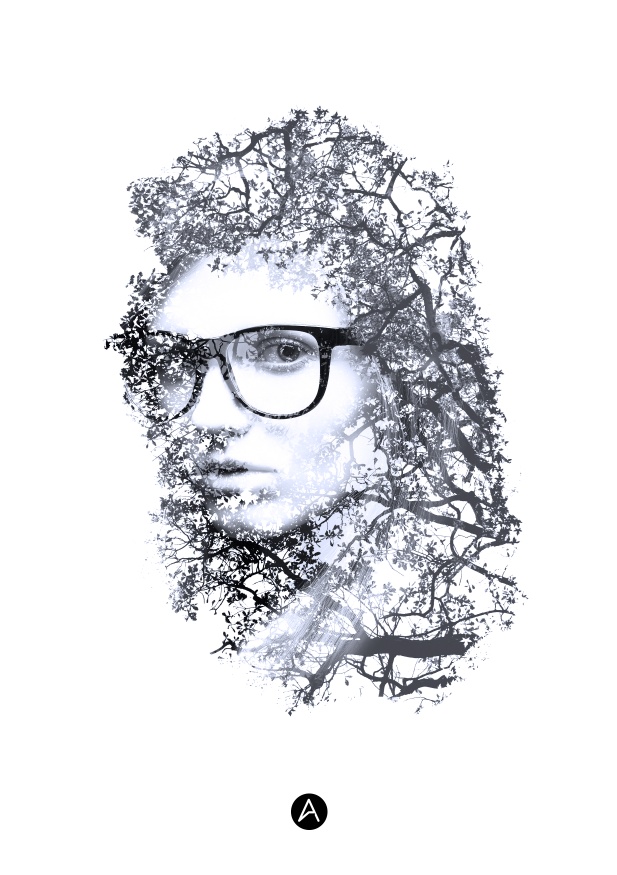
We’ve featured quite a few posts and images with the effect most call double exposure. This technique consists of 2 images superimposed. There are some really nice examples with very intricate overlaying, usually with faces of people mixed with photos of nature. I’ve been thinking about giving it a whirl in Photoshop for a long time and I’ve finally gotten around to it.

So in this tutorial/case study I will show you how to create this double exposure effect using Photoshop and some stock photos. The process is simple however it does take time to adjust the details.

Step 1

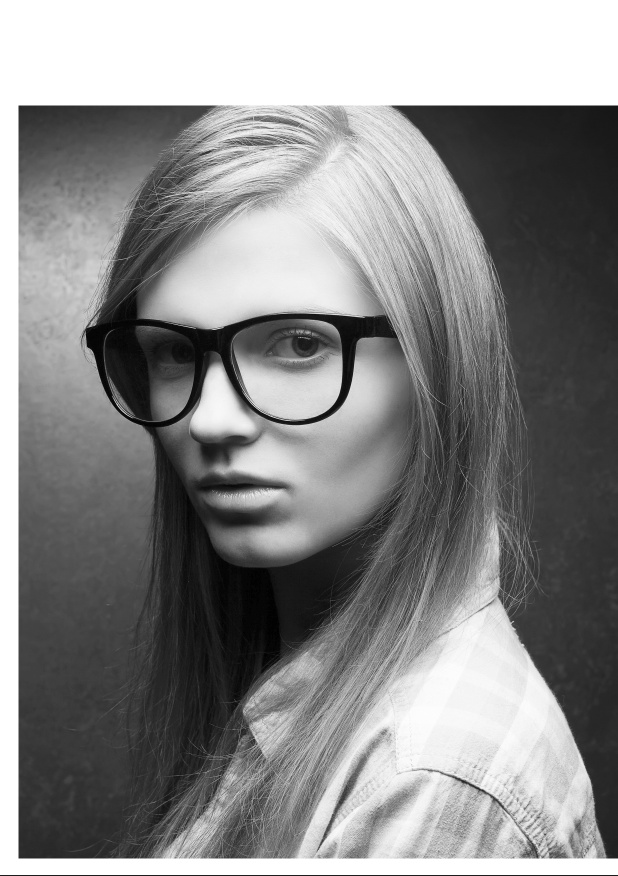
Open Photoshop and start a new document. I am using A4 for the format. After that get a photo of a person you want to use for your composition. The image I am using is courtesy of Shutterstock. It’s titled Portrait of a young beautiful blonde model wearing trendy glasses and casual shirt and posing over metal background. Hipster style by Augustino

Double Exposure Style in Photoshop

Step 2

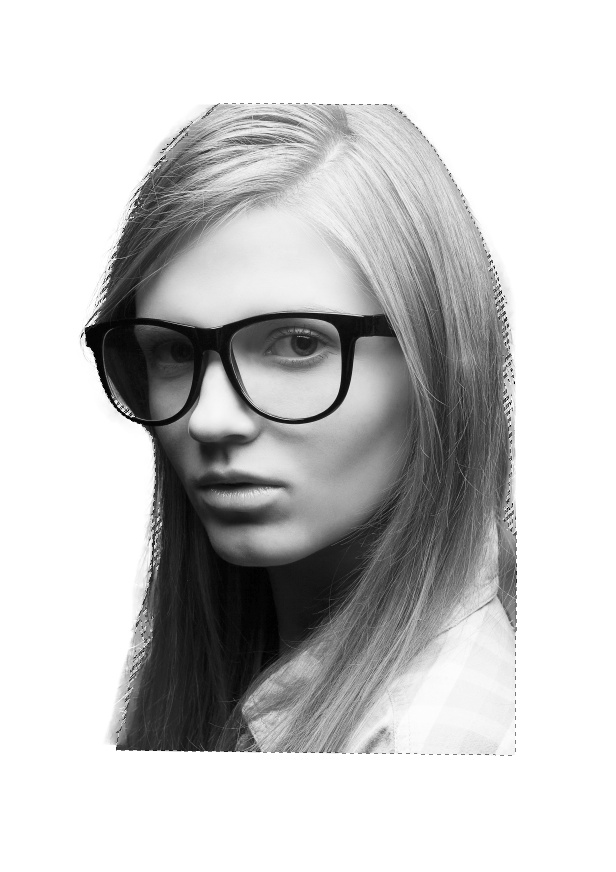
Isolate the girl from the background using the select tool. Use the Refine Edges option to help with the hair.

Double Exposure Style in Photoshop

Step 3

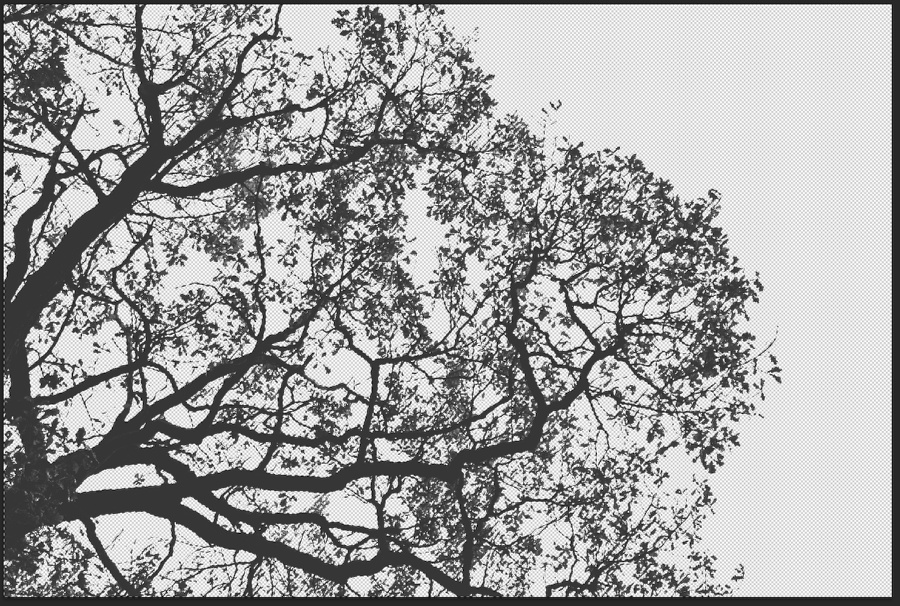
Now let’s add the second image for the double exposure experiment. The image is titled Silhouette of tree. Black and white by Namsilat. Again isolate the background, we will just use the branches.

Double Exposure Style in Photoshop

Step 4

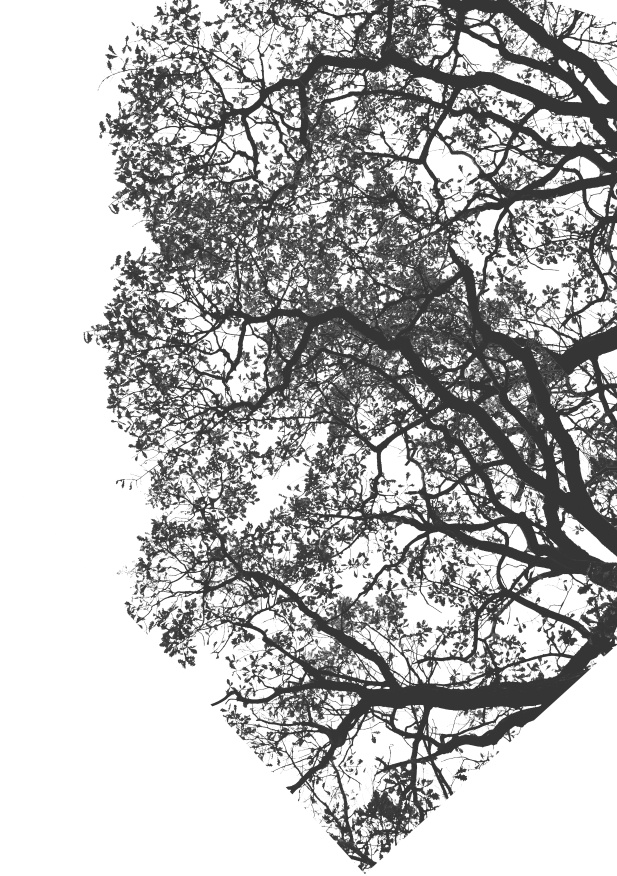
Duplicate the photo of the branches to make them mor compact.

Double Exposure Style in Photoshop

Step 5

Now put both images together. Create a marquee selection of the branches by clicking on the thumbnail of the layer holding Command (MAC) or Control (P).

Double Exposure Style in Photoshop

Step 6

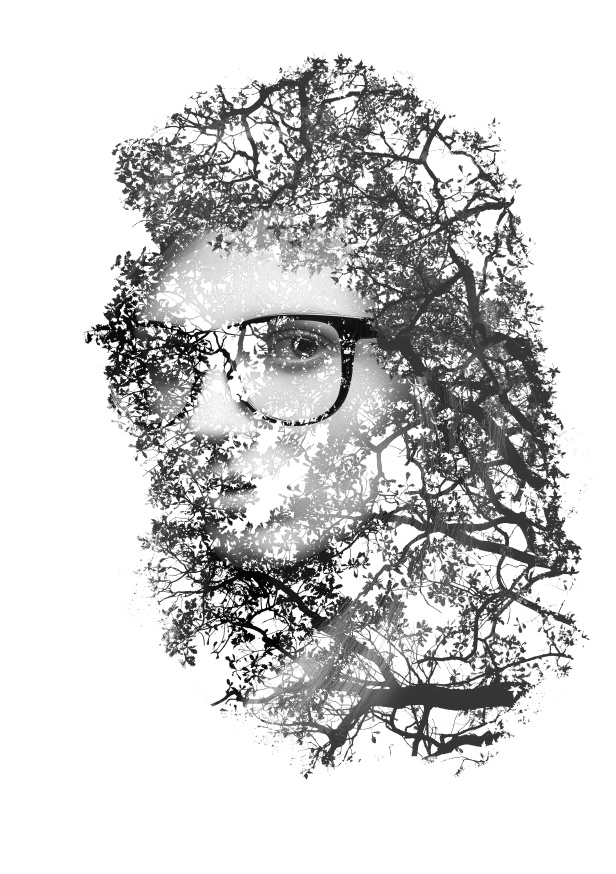
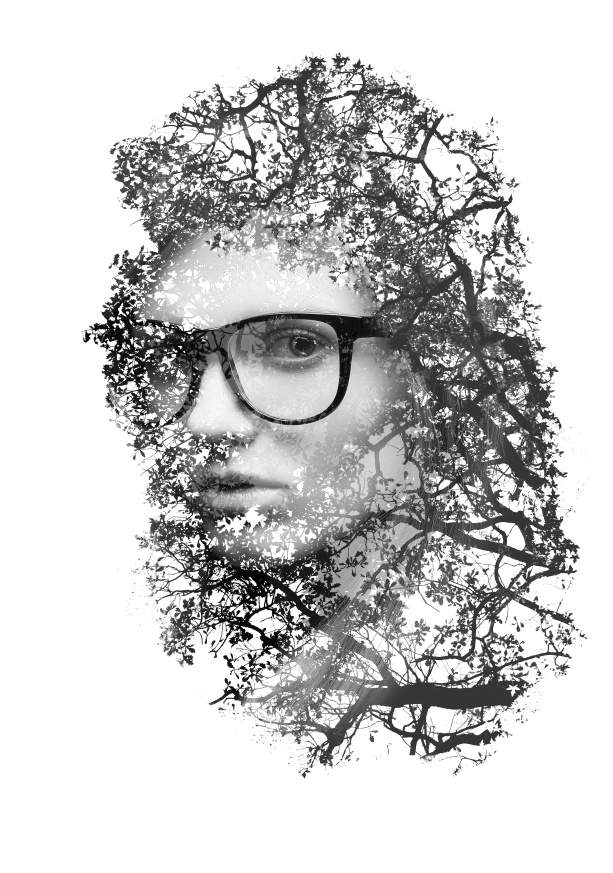
Mask the photo of the girl with the branches selection.

Double Exposure Style in Photoshop

Step 7

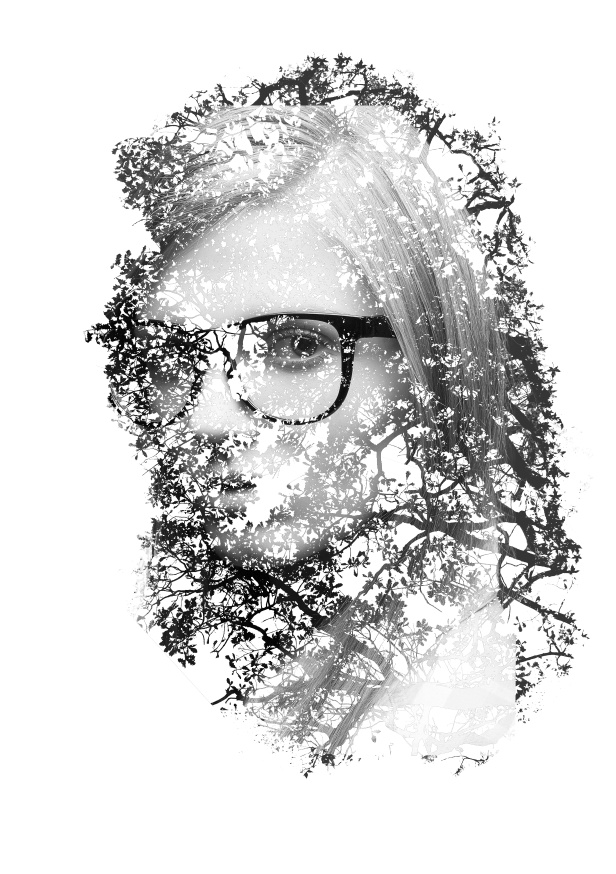
Time for some refinements, especially on the edges and to make them look random and not so uniform. Also duplicate the girl’s layer and move it on top of the other layers. Reduce the oapcity to 70%.

Double Exposure Style in Photoshop

Double Exposure Style in Photoshop

Step 8

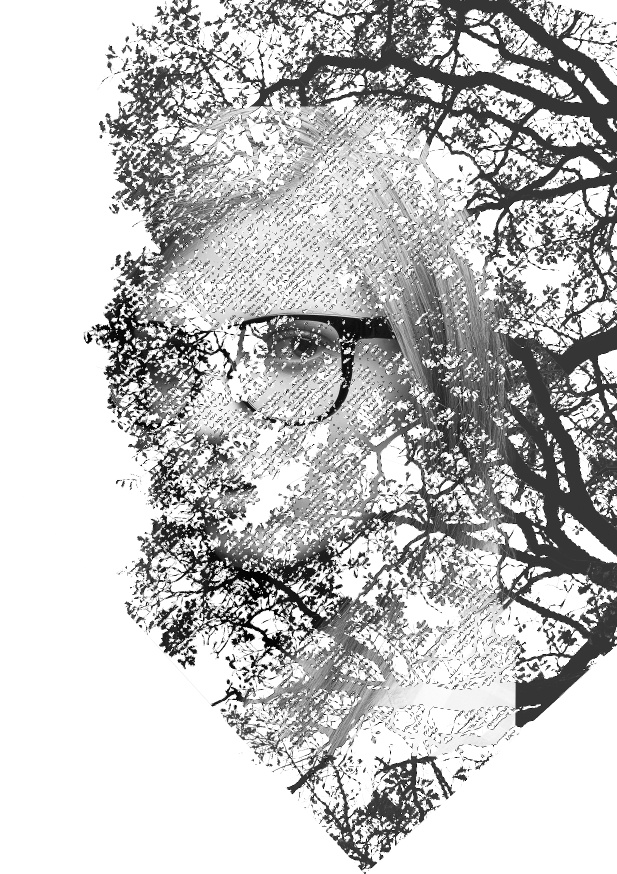
Duplicate all layers and merge them into one. Then change the Blend Mode to Screen.

Double Exposure Style in Photoshop

Conclusion

Resize the layers to place the girl in the center of the document. You can also add a photo filter, Layer>New Adjustment Layer>Photo Filter. You can use deep blue or orange to add a really nice style to the final design.

Double Exposure Style in Photoshop

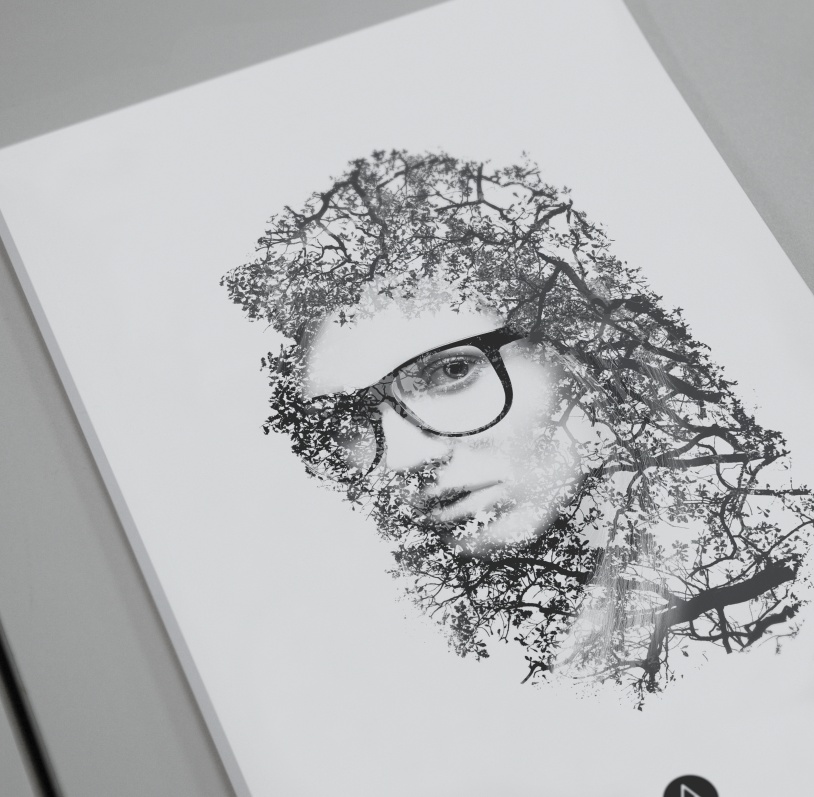
Applications

Double Exposure Style in Photoshop

Download Photoshop file

Click here to download the Photoshop file used for this tutorial

Posted in Blog | Comments Off on Double Exposure Style in Photoshop