Beautiful Water Effect in Photoshop CC

Beautiful Water Effect in Photoshop CC

It’s been quite a long time since I played with water textures. I was checking some amazing artworks on Behance and Pinterest when I saw some examples that really inspired me to try something and learn a little bit more about Photoshop and the Displace filter.

So for this tutorial I will show you how to create a really cool effect with water texture and the displace filter.

Step 1

Open Photoshop and create a new document. I am using 2880×1800 pixels. After that fill the background layer with black.

Beautiful Water Effect in Photoshop

Step 2

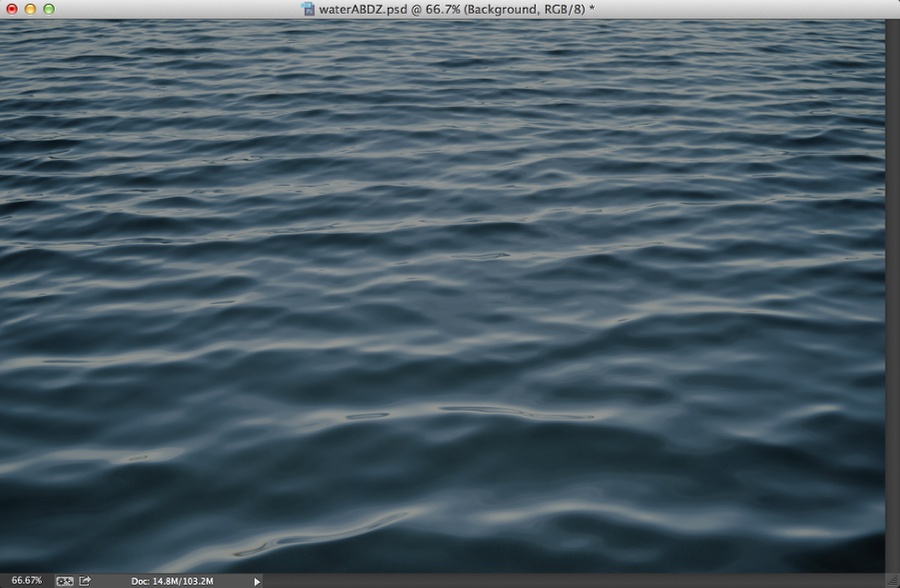
We will need a nice photo of water and some ripples or waves. The one I am using is courtesy of Shutterstock, titled An image of a beautiful water background by Markus Gann. After that change the opacity of this layer to 60%.
Beautiful Water Effect in Photoshop

Step 3

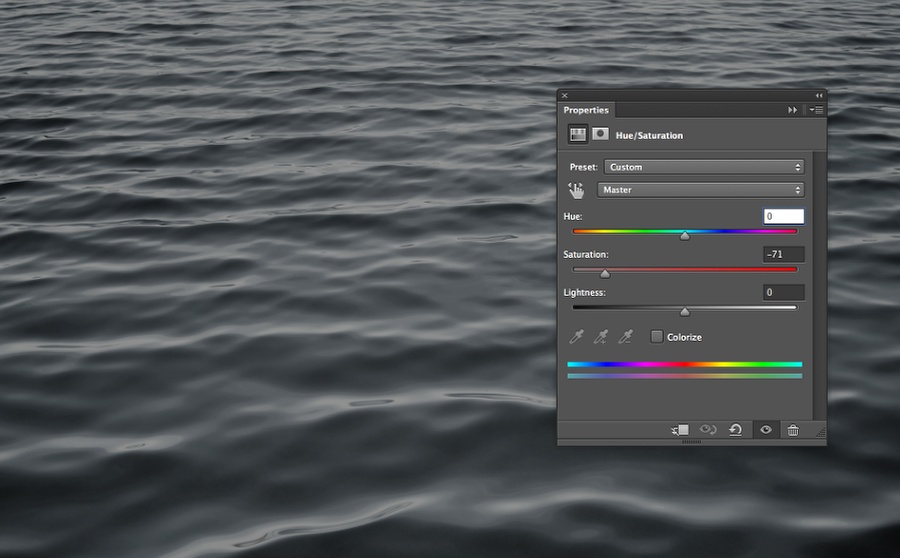
Go to Layer>New Adjustment Layer>Hue and Saturation. Change the Hue to 0, the Saturation to -71 and the Lightness to 0.
Beautiful Water Effect in Photoshop

Step 4

Go to Layer>New Adjustment Layer>Levels. Use 0, 0.5 and 255 for the inputs.
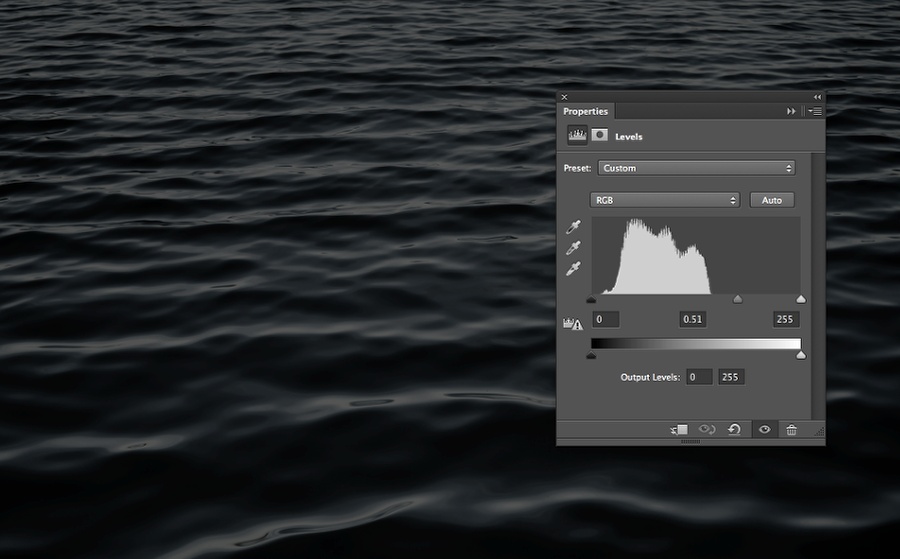
Beautiful Water Effect in Photoshop

Step 5

Go to Layer>New Adjustment Layer>Brightness and Contrast. Use 0 for Brightness and -35 for Contrast.
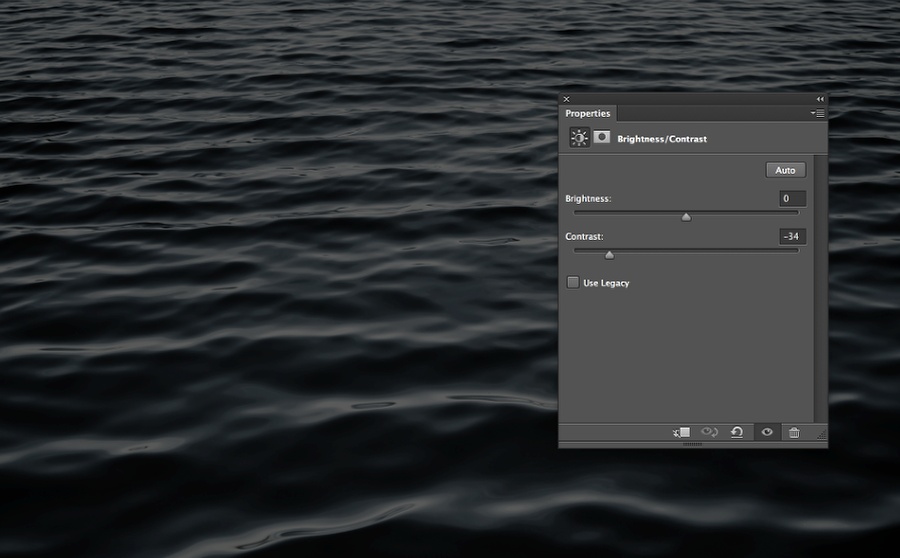
Beautiful Water Effect in Photoshop

Step 6

Add a new layer on top of all other layers, including the adjustment ones. Fill this layer with black and change the Blend Mode to Multiply. With the Brush Tool (B) use a very soft brush and white for the color to paint in the center of the canvas The idea is to create a nice vignette effect. After that, save this document with the name Displace.psd.
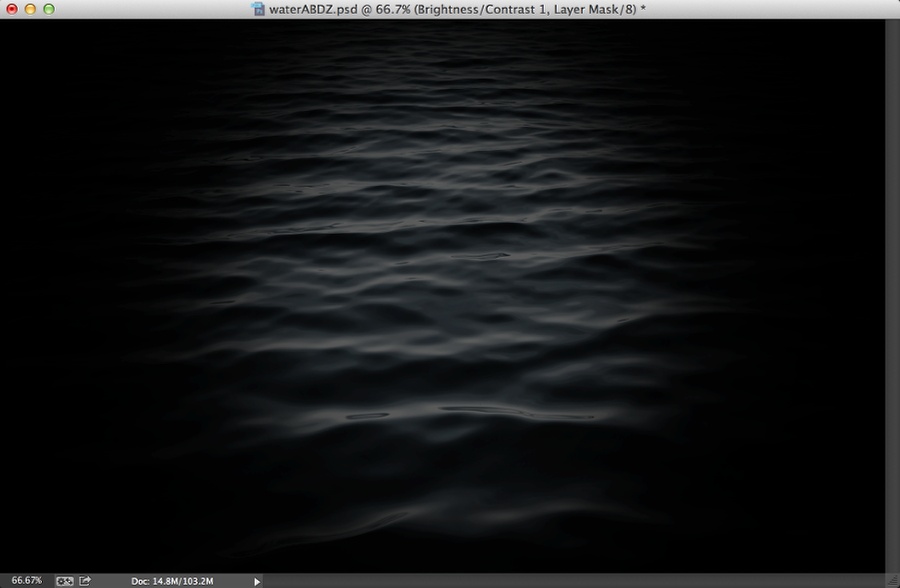
Beautiful Water Effect in Photoshop

Step 7

Add your logo to the design.

Beautiful Water Effect in Photoshop

Step 8

With the layer of the logo selected go to FIlter>Distort>Displace. Use the values below. After that use the Displace.psd file you saved in step 6.
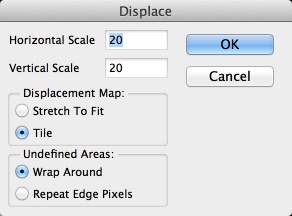
Beautiful Water Effect in Photoshop

Step 9

This is the result you will have so far. The values might vary depending on the image you are using for the Displace filter. So try some variations until you get a result that you are happy about.

Beautiful Water Effect in Photoshop

Step 10

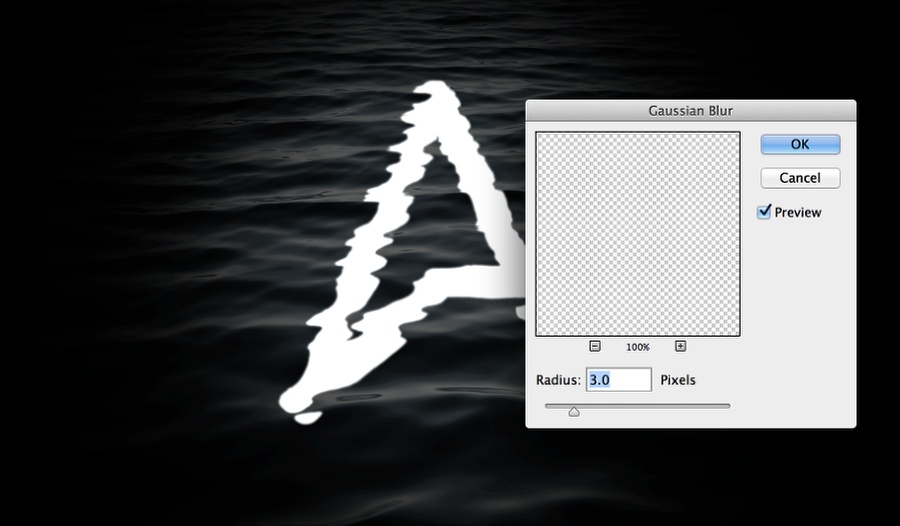
Go to Filter>Blur>Gaussian Blur. Use 3 pixels for the Radius. You can also apply a Tilt-Shift blur after this to make the edges blurred.
Beautiful Water Effect in Photoshop

Step 11

Add a mask to the symbol and then with the Brush Tool (B) and a very soft brush with black, start painting over the edges of the symbol, top and down. The idea is make those parts darker as they are underwater.

Beautiful Water Effect in Photoshop

Conclusion

The last thing to do is just duplicate the original water image and move the order so it will be on top of all other layers, then change the Blend Mode to Overlay and you will be good to go. The whole process is quite simple but the end result is simply beautiful. Now you can try yourself.

Beautiful Water Effect in Photoshop

Download Photoshop file

Download the Photoshop file used for this tutorial

Posted in Blog | Comments Off on Beautiful Water Effect in Photoshop CC

Daily Inspiration #1511

Daily Inspiration #1511

This post is part of our daily series of posts showing the most inspiring images selected by some of the Abduzeedo’s writers and users. If you want to participate and share your graphic design inspiration, You can submit your images and inspiration to RAWZ via http://raw.abduzeedo.com and don’t forget to send your Abduzeedo username; or via Twitter sending to http://twitter.com/abduzeedo

Do you want to see all images from all Daily Inspirations? Check out http://daily.abduzeedo.com

AoiroStudio

Digital art selected for the Daily Inspiration #1511

Digital art selected for the Daily Inspiration #1511

Digital art selected for the Daily Inspiration #1511

DesignYouTrust

Digital art selected for the Daily Inspiration #1511

Digital art selected for the Daily Inspiration #1511

Digital art selected for the Daily Inspiration #1511

Digital art selected for the Daily Inspiration #1511

Fabio

Digital art selected for the Daily Inspiration #1511

Digital art selected for the Daily Inspiration #1511

Digital art selected for the Daily Inspiration #1511

Digital art selected for the Daily Inspiration #1511

Fabiano

Digital art selected for the Daily Inspiration #1511

Digital art selected for the Daily Inspiration #1511

Digital art selected for the Daily Inspiration #1511

Digital art selected for the Daily Inspiration #1511

Send your suggestions via Twitter to http://twitter.com/abduzeedo using #abdz in the end of the tweet.

@Daniel_Nelson

Digital art selected for the Daily Inspiration #1511

Digital art selected for the Daily Inspiration #1511

Digital art selected for the Daily Inspiration #1511

Digital art selected for the Daily Inspiration #1511

Send your RAWZ suggestions via Raw.Abduzeedo.com

abbasdezine

Digital art selected for the Daily Inspiration #1511

Digital art selected for the Daily Inspiration #1511

batprince

Digital art selected for the Daily Inspiration #1511

Christopher Ryan

Digital art selected for the Daily Inspiration #1511

cjwho

Digital art selected for the Daily Inspiration #1511

Digital art selected for the Daily Inspiration #1511

Digital art selected for the Daily Inspiration #1511

Dang Nguyen

Digital art selected for the Daily Inspiration #1511

endoxo

Digital art selected for the Daily Inspiration #1511

Erick Chévez

Digital art selected for the Daily Inspiration #1511

good neighbour

Digital art selected for the Daily Inspiration #1511

Greg Gayle

Digital art selected for the Daily Inspiration #1511

helenemfr

Digital art selected for the Daily Inspiration #1511

leibal

Digital art selected for the Daily Inspiration #1511

Digital art selected for the Daily Inspiration #1511

Luca Viola

Digital art selected for the Daily Inspiration #1511

Marie Guillaumet

Digital art selected for the Daily Inspiration #1511

Mark Watson

Digital art selected for the Daily Inspiration #1511

Digital art selected for the Daily Inspiration #1511

Digital art selected for the Daily Inspiration #1511

Digital art selected for the Daily Inspiration #1511

Digital art selected for the Daily Inspiration #1511

Musketon

Digital art selected for the Daily Inspiration #1511

Nablo

Digital art selected for the Daily Inspiration #1511

Nicolo Gomez

Digital art selected for the Daily Inspiration #1511

nosmallvictories

Digital art selected for the Daily Inspiration #1511

rbrink31

Digital art selected for the Daily Inspiration #1511

Digital art selected for the Daily Inspiration #1511

reekloose

Digital art selected for the Daily Inspiration #1511

Rubenalgo

Digital art selected for the Daily Inspiration #1511

SỸ TRẦN

Digital art selected for the Daily Inspiration #1511

sedkialimam

Digital art selected for the Daily Inspiration #1511

smashingshare

Digital art selected for the Daily Inspiration #1511

sssz-photo

Digital art selected for the Daily Inspiration #1511

tague8811

Digital art selected for the Daily Inspiration #1511

Toni Meisel

Digital art selected for the Daily Inspiration #1511

viobear

Digital art selected for the Daily Inspiration #1511

Wave Avenue

Digital art selected for the Daily Inspiration #1511

zakthefish

Digital art selected for the Daily Inspiration #1511

Posted in Blog | Comments Off on Daily Inspiration #1511